Sharing and Publishing
FormVox offers flexible options for sharing your forms with others.
Sharing Methods
Share with Nextcloud Users
FormVox is file-based: every form is a .fvform file in your Files. You therefore
share a form the same way you share any other file — through the Files app, not
through the Share dialog inside FormVox.
- Open the Files app
- Locate the
.fvformfile (or the folder containing your forms) - Open the sharing sidebar and share it with a user or group as usual
- The recipient opens the file and FormVox launches with it
What the recipient may do follows directly from the Nextcloud file permissions you grant:
| File permission | Role in FormVox | What they can do |
|---|---|---|
| Owner | Owner | Everything, including deleting the form |
| Read + Edit | Editor | Edit questions, settings, branding and view responses |
| Read only | Viewer | Open and view the form, submit a response |
| Share permission | — | May create and manage the public response link |
Sharing the containing folder is usually the most practical approach: every form you place in it is shared automatically.
Note: the Share button inside FormVox does not share the form with other Nextcloud users. It manages the public response link and its settings. The user and group pickers you find there serve two different purposes: choosing who gets notified of new responses, and restricting who may submit through the public link (see User/Group Restrictions below).
Public Links
Create a link that anyone can access:
- Open your form
- Click Share in the toolbar
- Under Response link, click Create response link if none exists yet
- Configure options under Link settings (see below)
- Copy the link, or download the QR code
Public Link Options
Password Protection
Require a password to access the form:
- Open Link settings and enable Password protect
- Enter a password and click Save
- Share the password separately with intended respondents
Expiration Date
Set a deadline for form access:
- Open Link settings and enable Set expiration
- Choose a date and time
- After expiration, the link returns an error
User/Group Restrictions
Limit who can access a public form:
- Open Link settings and enable Restrict to specific users/groups
- Select Nextcloud users or groups
- Only these users can open and submit the form (they must log in)
This restricts access through the public link. It does not give those users the form in their own FormVox — for that, share the file (see above).
This is useful for: - Internal surveys that need a public-style interface - Collecting responses from specific departments
Embedding Forms
One of FormVox's most flexible features is the ability to embed forms directly into any website or platform that supports HTML. This means your forms can live exactly where your users already are — no need to redirect them to a separate page.
FormVox forms can be embedded in: - Microsoft SharePoint sites and pages - Company intranets and portals - WordPress, Drupal, or any CMS - Static websites and landing pages - Learning management systems (LMS) - Any platform that supports iframe embedding
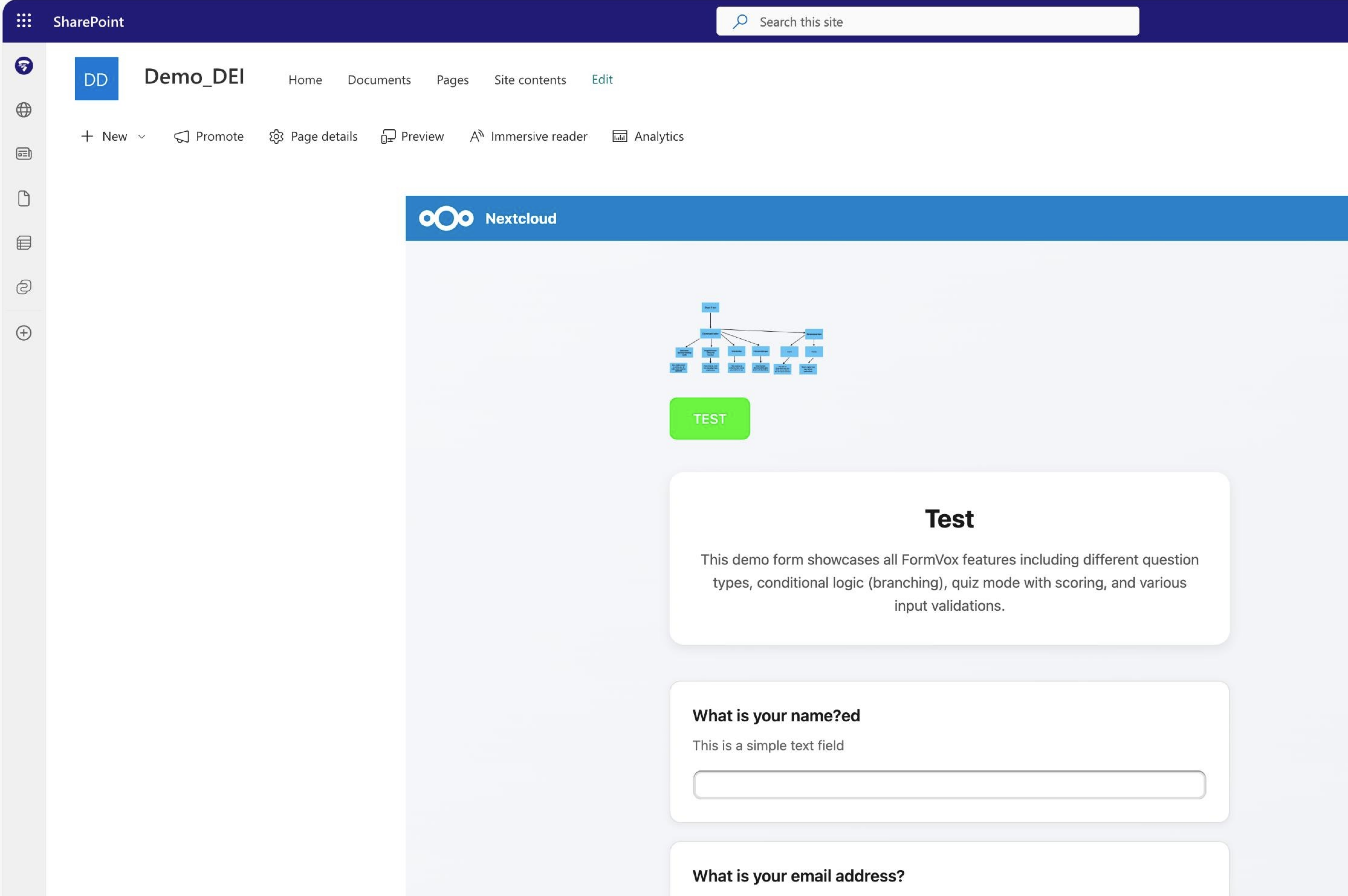 A FormVox form running seamlessly inside a SharePoint site — fully interactive, including all question types, conditional logic, and file uploads.
Because FormVox uses standard iframe embedding, it works anywhere HTML is supported. The embedded form is fully functional: respondents can fill in all question types, navigate conditional logic, upload files, and submit — all without leaving the host page.
Using the Embed Code Generator
The easiest way to embed a form:
- Open your form
- Click Share in the toolbar
- Open the Advanced section and find Embed code
- Configure options:
- Width - Fixed pixels or responsive (100%)
- Height - Frame height in pixels
- Copy the generated embed code
- Paste into your website's HTML
The generator produces ready-to-use code — no manual editing needed.
Manual iframe Embed
If you prefer to write the embed code yourself:
<iframe
  src="https://your-nextcloud.com/apps/formvox/public/FORM_HASH"
  width="100%"
  height="600"
  frameborder="0">
</iframe>
Responsive Embed
For mobile-friendly embedding that adapts to any screen size:
<div style="position: relative; padding-bottom: 75%; height: 0; overflow: hidden;">
  <iframe
    src="https://your-nextcloud.com/apps/formvox/public/FORM_HASH"
    style="position: absolute; top: 0; left: 0; width: 100%; height: 100%;"
    frameborder="0">
  </iframe>
</div>
SharePoint Embedding
To embed a FormVox form in SharePoint:
- Generate the embed code using Advanced → Embed code in the Share dialog
- In SharePoint, edit your page
- Add an Embed web part (or Script Editor)
- Paste the iframe code
- Save and publish the page
The form will appear inline on your SharePoint page, fully styled and interactive.
Domain Restrictions
Administrators can restrict which domains are allowed to embed forms. If embedding doesn't work, contact your Nextcloud administrator to allow your domain.
See Admin Configuration for details.
QR Code
FormVox can generate a QR code for any public form link, making it easy to share forms in print materials, presentations, or on screens.
Generating a QR Code
- Open your form
- Click Share in the toolbar
- Enable a public link (if not already enabled)
- The QR code is automatically generated and displayed in the Share dialog
Downloading the QR Code
- Click Download QR code below the QR code image
- The QR code is saved as a PNG file
- The filename includes the form title for easy identification
Use Cases
- Print on posters or flyers for event registration
- Display on slides during presentations
- Include in email signatures or newsletters
- Place at physical locations (reception desks, classrooms)
File-Based Sharing
Since FormVox stores forms as files, you can also share via:
Nextcloud File Sharing
- Go to the Files app
- Find your
.fvformfile - Share it like any other file
Copy/Move Forms
Copy a form to share a duplicate:
- In Files app, right-click the
.fvformfile - Select Copy or Move
- Choose the destination folder
This creates an independent copy with its own responses.
Collaboration
Multiple Editors
When sharing with edit permissions: - Multiple users can edit the form - Changes are saved automatically - Conflicts are handled by Nextcloud's file locking
View-Only Sharing
For forms with sensitive questions: 1. Share with View permission only 2. Users can see the form structure but not edit 3. They can still submit responses
Best Practices
For Internal Surveys
- Share with Nextcloud groups
- Use user restrictions on public links
- Enable "one submission per user"
For External Surveys
- Use public links
- Add password protection
- Set expiration dates
- Enable rate limiting
For Sensitive Data
- Share only with specific users
- Use password protection
- Review Security settings
Next Steps
- View and analyze Results
- Export your data
- Configure Security settings