Approval Workflow
Each room in RoomVox has an auto-accept setting. When auto-accept is off, bookings arrive as Tentative and require manager approval before they become confirmed.
When to Use Auto-Accept vs. Approval
| Mode | Best for |
|---|---|
| Auto-accept on | High-trust environments, ample room capacity, fast iteration matters |
| Auto-accept off (approval required) | High-demand rooms, formal venues (boardroom, lecture hall), need human judgment on each booking |
You can set the default app-wide in Settings → Default auto-accept, and override per room in the room editor.
The Approval Flow
User adds room to event
    │
    ├─ RoomVox checks: permission? available? within rules?
    │
    │  If any check fails → DECLINED (auto, with email explanation)
    │
    │  Otherwise:
    │
    ├─ autoAccept = true  →  ACCEPTED
    │                         └─ Confirmation email to organizer
    │
    └─ autoAccept = false →  TENTATIVE
                              ├─ Approval-request email to all managers
                              ├─ Booking shown in admin Bookings tab (status Pending)
                              └─ Shown in Personal Settings → Approvals tab (for managers)
                                  │
                                  ├─ Manager clicks Approve → ACCEPTED
                                  │   └─ Confirmation email to organizer
                                  │
                                  └─ Manager clicks Decline → DECLINED
                                      └─ Decline email to organizer
What Managers See
Managers can act on pending bookings in two places:
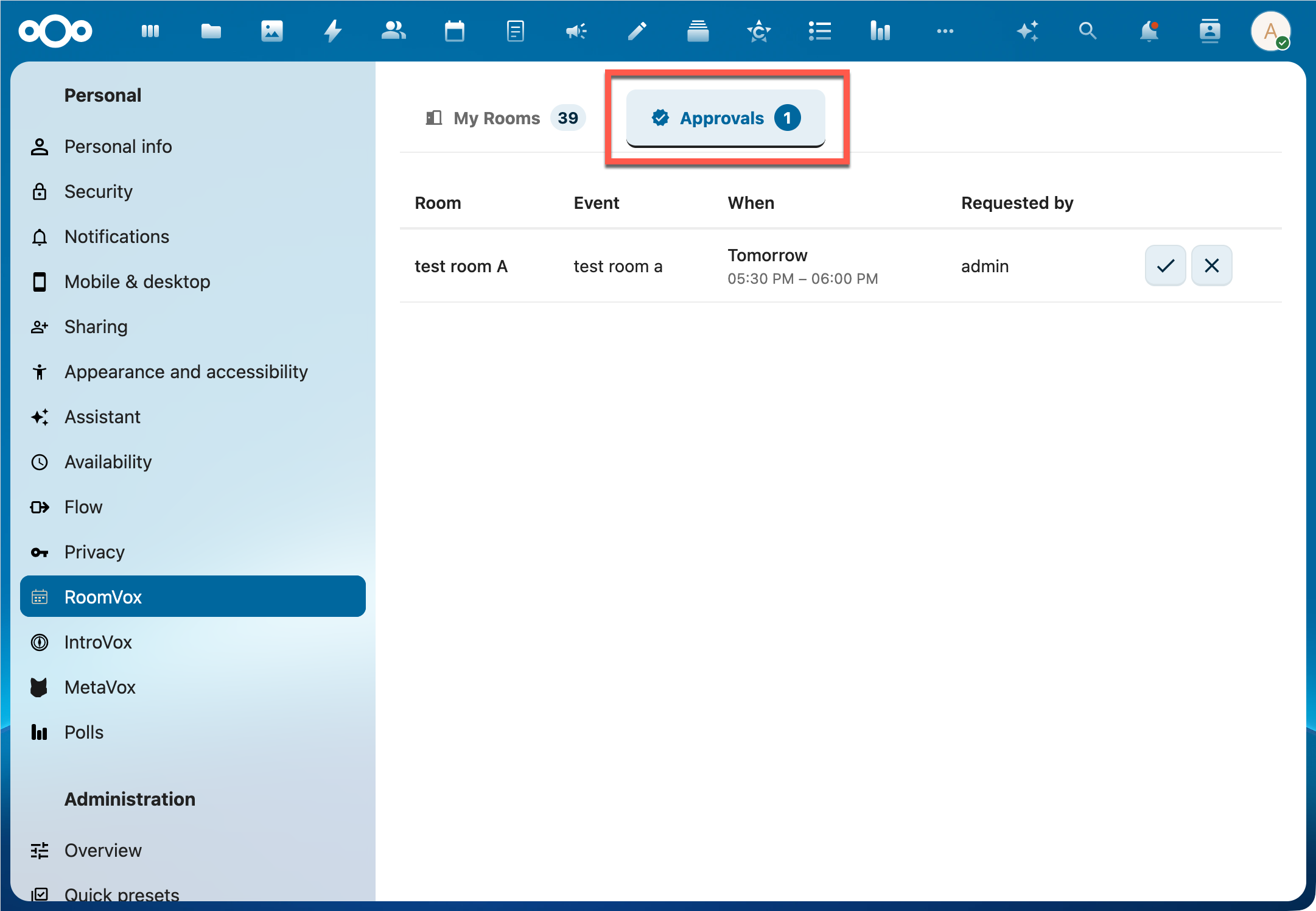
Settings → Personal → RoomVox → Approvals
Shows pending bookings for rooms the user manages — with event title, room, organizer, requested time, and Approve/Decline buttons. This tab only appears for users with Manager role on at least one room.
Settings → Administration → RoomVox → Bookings (admins)
The full Bookings tab. Filter by Status: Pending to see only bookings awaiting approval.
Managers receive an email when a new pending booking arrives, so they don't need to keep these tabs open.
What Organizers Get
When a booking is set to Tentative, the calendar app shows the room as Tentative (typically as a striped/dimmed entry). The organizer:
- Sees the room as Tentative in their calendar app
- Does not receive an immediate confirmation email (no "Confirmed" until the manager approves)
- Receives a confirmation email when the manager approves
- Receives a decline email if the manager declines, with the reason (if the manager provided one)
Manager-Cancelled Bookings
A new manager can also cancel an already-accepted booking via the Cancel booking button in the Bookings tab. Since v1.1.0, this flow:
- Removes the booking from the room calendar
- Removes the room attendee from the booker's own event
- Clears the
LOCATIONfield on the booker's event - Sends a "Booking cancelled by manager" email to the booker explaining the booking was pulled
This is distinct from the user cancelling their own booking — see Managing Bookings.
Edge Cases
Recurring Events
The approval is per-series, not per-occurrence. Approving a recurring booking confirms the entire series. To handle individual occurrences differently, the manager would need to cancel a single instance afterwards — see FAQ.
API-Created Bookings (v1.1.1+)
Bookings created via REST API endpoints (both internal and Public API v1) on rooms with autoAccept=false now correctly trigger manager-approval emails. Earlier versions wrote directly to the room calendar without traversing the Sabre scheduling plugin, skipping the notification hook. This was fixed in v1.1.1 (#14).
Booking Created by a Manager
When a manager creates a booking directly from the admin panel ("Create booking" button), the booking is auto-confirmed if the manager has booking permission — no separate approval step. The created booking goes through the same conflict check.
Room Sync in Progress
When a room is linked to Exchange for the first time, RoomVox runs an initial full sync (-30d to +365d). During this sync, all new bookings are temporarily declined with schedule status 5.3 and the organizer gets a "Room sync in progress" email asking to retry. This prevents double-bookings while RoomVox hasn't yet seen all Exchange events. See Exchange Integration.
Required Permissions to Approve
| Action | Required Role |
|---|---|
| Approve / decline pending bookings | Manager (on the specific room) or Nextcloud Admin |
| Cancel an accepted booking | Manager, Organizer, or Nextcloud Admin |
| Edit a booking | Manager, Organizer, or Nextcloud Admin |
See Also
- Email Notifications — all email types and triggers
- Permissions — three-role system
- Managing Bookings — user-facing approval and cancellation
- Personal Settings — Approvals and Bookings tabs