IntraVox Administrator Guide
This guide covers installation, configuration, and maintenance of IntraVox for Nextcloud administrators.
Related documentation: - Admin Settings Guide - Demo data and video services configuration - Engagement Admin Guide - Reactions and comments configuration - Authorization Guide - Permissions and access control - Scalability & Enterprise Readiness - Performance, caching, rate limiting, GDPR - Scenarios - Practical recipes (approval workflows, department intranets) - Architecture - Technical architecture - Engagement Architecture - Engagement system technical details
System Requirements
| Component | Minimum | Recommended |
|---|---|---|
| Nextcloud | 32+ | 32+ |
| PHP | 8.1+ | 8.2+ |
| PHP memory_limit | 256MB | 512MB |
| GroupFolders app | Required | Required |
Note: The default PHP memory_limit of 128MB is insufficient for IntraVox. Demo data installation and large pages require at least 256MB. Increase this in your
php.ini:
Installation
Option 1: Nextcloud App Store (Recommended)
- Go to Nextcloud Admin → Apps
- Search for "IntraVox"
- Click "Download and enable"
Option 2: Manual Installation
- Download the latest release from GitHub
- Extract to
custom_apps/intravox/ - Enable via Admin → Apps or
occ app:enable intravox
cd /var/www/nextcloud/custom_apps
wget https://github.com/your-repo/intravox/releases/latest/download/intravox.tar.gz
tar -xzf intravox.tar.gz
sudo -u www-data php /var/www/nextcloud/occ app:enable intravox
Permission Groups
IntraVox automatically creates three permission groups during installation:
| Group | Purpose | Permissions |
|---|---|---|
| IntraVox Admins | Full administrative access | Read, Write, Create, Delete, Share |
| IntraVox Editors | Content editing access | Read, Write, Create |
| IntraVox Users | Standard read access | Read, Share |
Automatic Admin Synchronization
When IntraVox is installed or re-enabled, all Nextcloud administrators (members of the admin group) are automatically added to the IntraVox Admins group. This ensures:
- All NC admins have full IntraVox permissions
- CLI installations (
occ app:enable intravox) work correctly - Consistent behavior regardless of who installs the app
Adding Users
To give users access to IntraVox:
- For read access: Add users to the
IntraVox Usersgroup - For editing access: Add users to the
IntraVox Editorsgroup (can create and edit pages, but not delete) - For admin access: Add users to the
IntraVox Adminsgroup (or make them a Nextcloud admin)
You can manage group membership via:
- Nextcloud Admin → Users → Edit user → Groups
- Command line: occ group:adduser "IntraVox Editors" username
Initial Setup
Automatic Setup
When IntraVox is first accessed, it automatically:
1. Creates the permission groups (IntraVox Admins, IntraVox Editors, and IntraVox Users)
2. Syncs Nextcloud admins to IntraVox Admins
3. Creates a GroupFolder named "IntraVox"
4. Sets up the basic folder structure
5. Initializes navigation files
Manual Setup
If automatic setup fails, create the GroupFolder manually:
- Go to Admin → GroupFolders
- Create a new folder named exactly "IntraVox"
- Add at least one group with permissions
GroupFolder Configuration
Adding Groups
- Go to Admin → GroupFolders
- Find the "IntraVox" folder
- Click "Add group"
- Select the group and set permissions
Recommended Group Setup
| Group | Purpose | Permissions |
|---|---|---|
| everyone / all-users | All employees | Read, Share |
| intranet-editors | Content creators | Read, Write, Create, Share |
| intranet-admins | Full administrators | All |
Important: User groups need both Read and Share permission. The Share permission is required for the RSS feed to work — without it, GroupFolders hides folders from public feed requests. This also applies to ACL rules on subfolders.
Enabling ACL (Advanced Permissions)
For department-based access control:
- In GroupFolders, click the settings icon for IntraVox
- Enable "Advanced Permissions"
- Navigate to subfolders in Nextcloud Files
- Use the sharing panel to set ACL rules
See AUTHORIZATION.md for detailed permission setup.
Language Configuration
IntraVox supports multiple languages. Each language has its own content folder. Important: Each user sees the content folder that matches their Nextcloud language setting (Settings → Personal → Language). If a user's language doesn't match any available content folder, they will see an empty intranet instead of the expected content.
IntraVox/
├── nl/           # Dutch content
├── en/           # English content
├── de/           # German content
└── fr/           # French content
Adding a New Language
- Create the language folder in IntraVox GroupFolder
- Create
navigation.jsonwith navigation structure - Create
footer.jsonwith footer content - Create
home.jsonfor the homepage
Example minimal structure:
Demo Data
IntraVox includes demo content to help you get started quickly. Demo data can be installed and managed via Nextcloud Admin Settings → IntraVox.
Quick Start
- Go to Nextcloud Admin Settings → IntraVox
- Click Install next to your preferred language
- The GroupFolder and permission groups are created automatically
Important: Your Nextcloud language setting must match the demo data language. For example, if you install the Dutch demo data, set your language to Nederlands (Settings → Personal → Language). Otherwise you will see an empty Welcome page instead of the demo content.
Available Languages
| Language | Content |
|---|---|
| Nederlands 🇳🇱 | Full intranet |
| English 🇬🇧 | Full intranet |
| Deutsch 🇩🇪 | Homepage only |
| Français 🇫🇷 | Homepage only |
Command Line Installation
See ADMIN_SETTINGS.md for detailed demo data management.
Maintenance
Clearing Cache
IntraVox uses Nextcloud's caching. To clear:
Repairing entity-encoded titles
IntraVox 1.8.4 and earlier stored page titles HTML-encoded, so a title such as
Collega's was written to disk as Collega's (and R&D as R&D).
From 1.9.0 titles are stored as plain text, but pages created on the older
versions may still carry the encoded form. Decode them in one step:
# Preview what would change, without writing anything
sudo -u www-data php occ intravox:repair-entities --dry-run

# Apply the repair
sudo -u www-data php occ intravox:repair-entities
The command walks every page in every language and decodes the entity-encoded
plain-text fields — page title, widget titles, alt text and link labels. It is
idempotent (running it again changes nothing) and reports how many pages it
touched. By default it runs as admin; use --user <username> to run as a
different user that can access the IntraVox Team folder.
Backup
The IntraVox GroupFolder contains all content. Backup strategies:
- File backup: Include the GroupFolder in your file backups
- Nextcloud backup: Standard Nextcloud backup includes GroupFolders
- Export: Copy the IntraVox folder structure for migration
Health Check
A public endpoint is available for monitoring and orchestration (e.g., Kubernetes liveness probes, uptime monitoring):
Audit Logs
Administrative operations are logged with the IntraVox Audit: prefix. Filter for these in your SIEM or log aggregator:
Logged operations: bulk delete/move/update (with page IDs and acting user), license key changes, organization settings, engagement settings.
Log Files
IntraVox logs to the Nextcloud log. View with:
Or in Nextcloud Admin → Logging.
Anonymous Usage Statistics
IntraVox can periodically send anonymous usage statistics to help improve the app. This is opt-in and can be toggled from Settings → IntraVox.
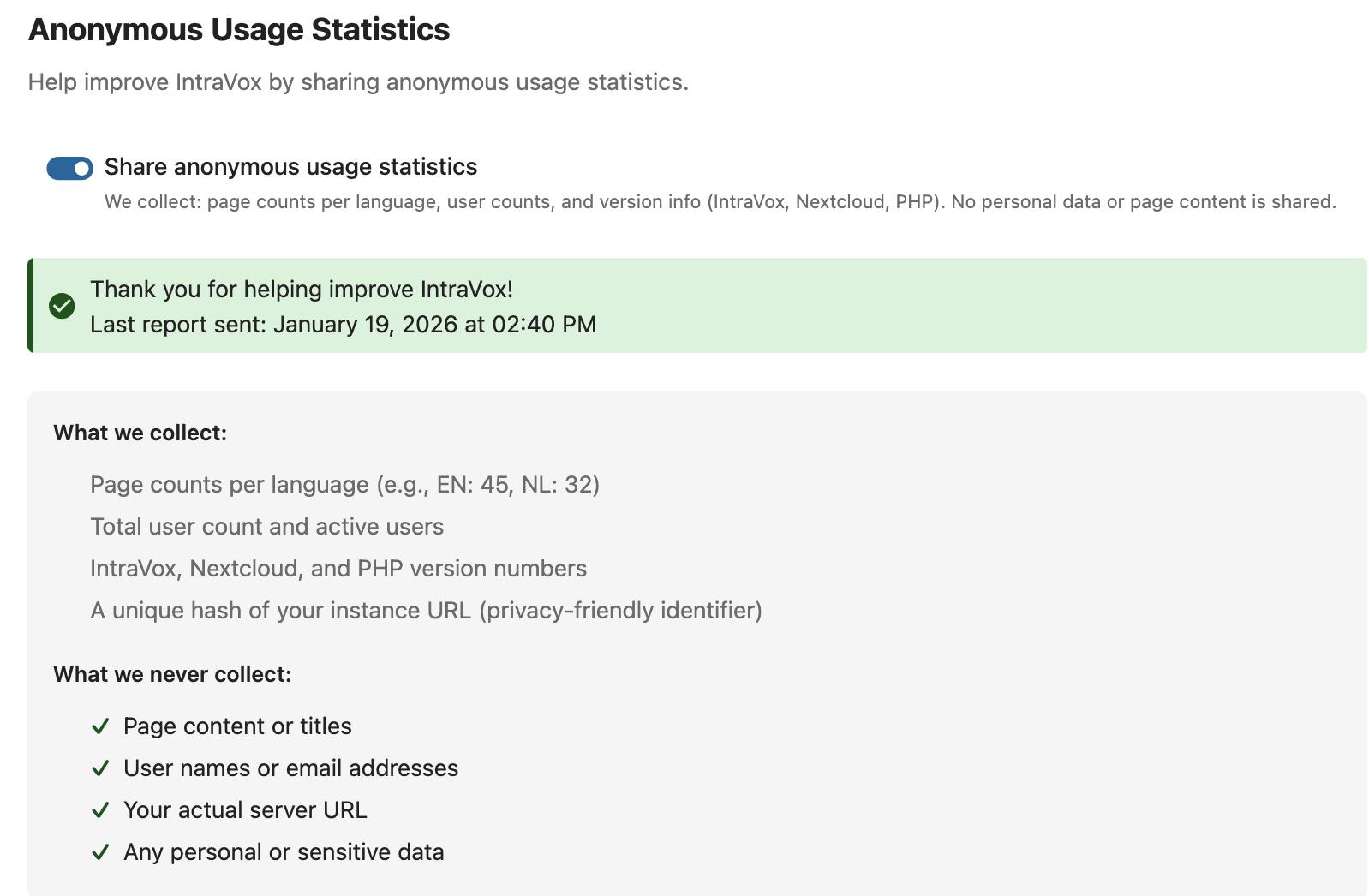
Toggle Share anonymous usage statistics to enable or disable telemetry. The panel shows when the last report was sent.
What we collect: - Page counts per language - Total user count and active users - IntraVox, Nextcloud and PHP version numbers - A unique hash of your instance URL (privacy-friendly identifier)
What we never collect: - Page content or titles - User names or email addresses - Your actual server URL - Any personal or sensitive data
No personally identifiable information leaves the server. Reports are sent at most once a day.
Troubleshooting
"GroupFolder not found" Error
- Verify GroupFolders app is enabled
- Check that a folder named exactly "IntraVox" exists
- Ensure the current user's group has access
Permissions Not Working
- Check user is member of a group with GroupFolder access
- Verify ACL rules if using Advanced Permissions
- Check Nextcloud log for permission errors
- Try:
occ groupfolders:scan
Pages Not Showing
- Verify JSON files are valid (no syntax errors)
- Check file permissions on the server
- Ensure files are in correct folder structure
- Check browser console for JavaScript errors
Navigation Not Updating
- Clear browser cache
- Verify
navigation.jsonis valid JSON - Check that page uniqueIds match between navigation and pages
Images/Videos Not Loading
- Verify files exist in the
_media/subfolder - Check file permissions
- Ensure file paths in JSON match actual filenames
- Try re-uploading the file via Nextcloud Files
- For videos: Check that the video domain is whitelisted in Admin Settings
Performance
Optimization Tips
- Image sizes: Keep images under 500KB for faster loading
- Page structure: Avoid deeply nested pages (max 3-4 levels)
- Navigation: Keep navigation items reasonable (< 100 total)
Caching
IntraVox relies on Nextcloud's caching layer. For best performance: - Enable Redis or APCu caching in Nextcloud - Use a CDN for static assets if available
Updates
Updating IntraVox
Via App Store: 1. Go to Admin → Apps → Updates 2. Update IntraVox
Via command line:
Version Compatibility
Always check the CHANGELOG.md for breaking changes before updating.
Video Widget Configuration
IntraVox includes a Video Widget for embedding videos from external platforms or uploading local video files. Administrators control which platforms are allowed via Nextcloud Admin Settings → IntraVox → Video Services.
Default Services
| Service | Privacy |
|---|---|
| YouTube (privacy mode) | Enhanced - no tracking |
| Vimeo | Standard |
Quick Configuration
- Go to Admin Settings → IntraVox → Video Services
- Toggle services on/off
- Add custom domains for corporate video servers
Security
- Only whitelisted domains can be embedded
- Videos from unknown domains are blocked
- Only HTTPS sources allowed
See ADMIN_SETTINGS.md for detailed video configuration.
RSS Feed Configuration
IntraVox provides a personal RSS feed for each user. The feed is a public endpoint secured by a personal token. As an administrator, you need to configure two things for feeds to work.
Prerequisites
- Enable link sharing: Go to Nextcloud Admin Settings → Sharing and enable "Allow users to share via link and emails"
- Grant Share permission: Ensure user groups have both Read and Share permissions on the IntraVox GroupFolder
Without link sharing enabled, feeds are completely blocked. Without Share permission, feeds return empty.
GroupFolder Permission Setup
The feed endpoint runs without an authenticated user session. In this context, GroupFolders requires both Read and Share permissions for folders to be visible. This applies to both base GroupFolder permissions and ACL rules.
Without ACL: Set the base permissions for each user group to include Read and Share.
With ACL: Ensure Read + Share is set on every folder in the hierarchy that should be visible in the feed. A subfolder is only reachable if all its parent folders are also visible.
Example: To make Marketing pages visible in the feed for IntraVox Users:
IntraVox (base: Read + Share)
└── en/                      → ACL: Read + Share
    └── departments/         → ACL: Read + Share
        ├── marketing/       → ACL: Read + Share  ✓ visible in feed
        ├── hr/              → ACL: Deny all       ✗ hidden
        └── sales/           → ACL: Deny all       ✗ hidden
Troubleshooting
| Problem | Solution |
|---|---|
| Admin sees empty Welcome page after demo import | Your Nextcloud language setting doesn't match the demo data language. Change it at Settings → Personal → Language, then clear browser cache or use an incognito window |
| Users see empty feed | Add Share permission to the user group on the language folder(s) |
| Feed returns 404 | Enable "Allow users to share via link and emails" in Sharing settings |
| Feed works for admins but not regular users | Admin group has all permissions; add Share to the user group |
| Some pages missing from feed | Check ACL rules on the specific subfolder and all parent folders |
See RSS_FEED.md for the full technical details.
Page Locking
IntraVox uses pessimistic locking to prevent concurrent edits. When a user starts editing a page, it is locked for other users.
- Locks auto-expire after 15 minutes without activity
- A heartbeat signal keeps the lock alive during active editing
- Locks are released on save, cancel, navigation, or tab close
Admin override: IntraVox Admins can force-unlock a page locked by another user. This is useful when a lock was left behind (e.g. after a browser crash). The "Unlock" button appears next to the lock indicator for admins.
Draft Pages
New pages are created as Draft by default. Draft pages are only visible to users with write permission on the page folder.
- Editors (write permission) can see and edit draft pages
- Readers (read-only permission) cannot see draft pages at all
- Draft pages are excluded from: search results, RSS feeds, public share links, and the page tree for readers
- Editors toggle the status via the Draft/Published button in the edit toolbar
No additional configuration is required. The draft system uses the existing GroupFolder ACL permissions to determine visibility.
Security Considerations
- Permissions: Use principle of least privilege
- Content: Review user-generated content for sensitive information
- Media files: Be aware that uploaded images and videos are accessible to all users with read permission
- External links: Content editors can add external links - review navigation regularly
- Video embeds: Only allow trusted video platforms via the admin settings
- Page locking: Locks prevent concurrent edits but auto-expire after 15 minutes — admins can force-unlock if needed
- Draft pages: Draft pages are hidden from readers but visible to all users with write permission on the folder
Integration
MetaVox Integration
If MetaVox is installed, IntraVox can: - Use MetaVox department colors - Respect MetaVox navigation structure - Share theming settings
Theming
IntraVox uses Nextcloud theming variables: - Primary color from Nextcloud settings - Logo from Nextcloud theming - Font settings from Nextcloud
Support
- GitHub Issues: Report bugs and feature requests
- Documentation: See other docs/ files for specific topics
- Nextcloud Forums: Community support