Permissions
RoomVox uses its own role-based permission system to control who can view, book, and manage rooms. This system is separate from Nextcloud Calendar's sharing permissions — sharing or unsharing a calendar in Nextcloud has no effect on room access in RoomVox.
Important: Without any permissions configured, all authenticated users can book all rooms. If you want to restrict access, you must configure permissions in RoomVox — Nextcloud's calendar sharing settings will not apply. See Default Permissions below.
Roles
There are three roles, each inheriting the capabilities of the previous:
| Role | Can View | Can Book | Can Manage |
|---|---|---|---|
| Viewer | Yes | No | No |
| Booker | Yes | Yes | No |
| Manager | Yes | Yes | Yes |
Viewer
- Can see the room in calendar apps (via CalDAV resource listing)
- Sees the room in Settings → Personal → RoomVox → My Rooms with its Responsible contact value, so they know who to ask when they cannot book it themselves
- Cannot create bookings
Booker
- Can see the room in calendar apps
- Can create bookings (add room to events)
- Can cancel their own bookings
- Sees the room (with Responsible contact) under Settings → Personal → RoomVox → My Rooms
Manager
- Can see the room in calendar apps
- Can create bookings
- Can approve or decline pending bookings
- Can cancel any booking for the room (the booker is notified by email and the room is removed from their calendar event)
- Can edit room settings and permissions
- Receives email notifications for new pending bookings
- Gets a Bookings tab under Settings → Personal → RoomVox showing the same overview admins see, scoped to the rooms they manage (stats, filters, list/calendar toggle, drag-and-drop move between rooms)
Permission Entries
Permissions can be assigned to individual users or Nextcloud groups.
User Permissions
Assign a role directly to a specific Nextcloud user:
Group Permissions
Assign a role to an entire Nextcloud group — all members of the group inherit the permission:
Setting Permissions
Room-Level Permissions
- In the room list, click the permissions icon for the room
- The permission editor opens with three sections: Viewers, Bookers, Managers
- Search for users or groups to add
- Click Save
Group-Level Permissions
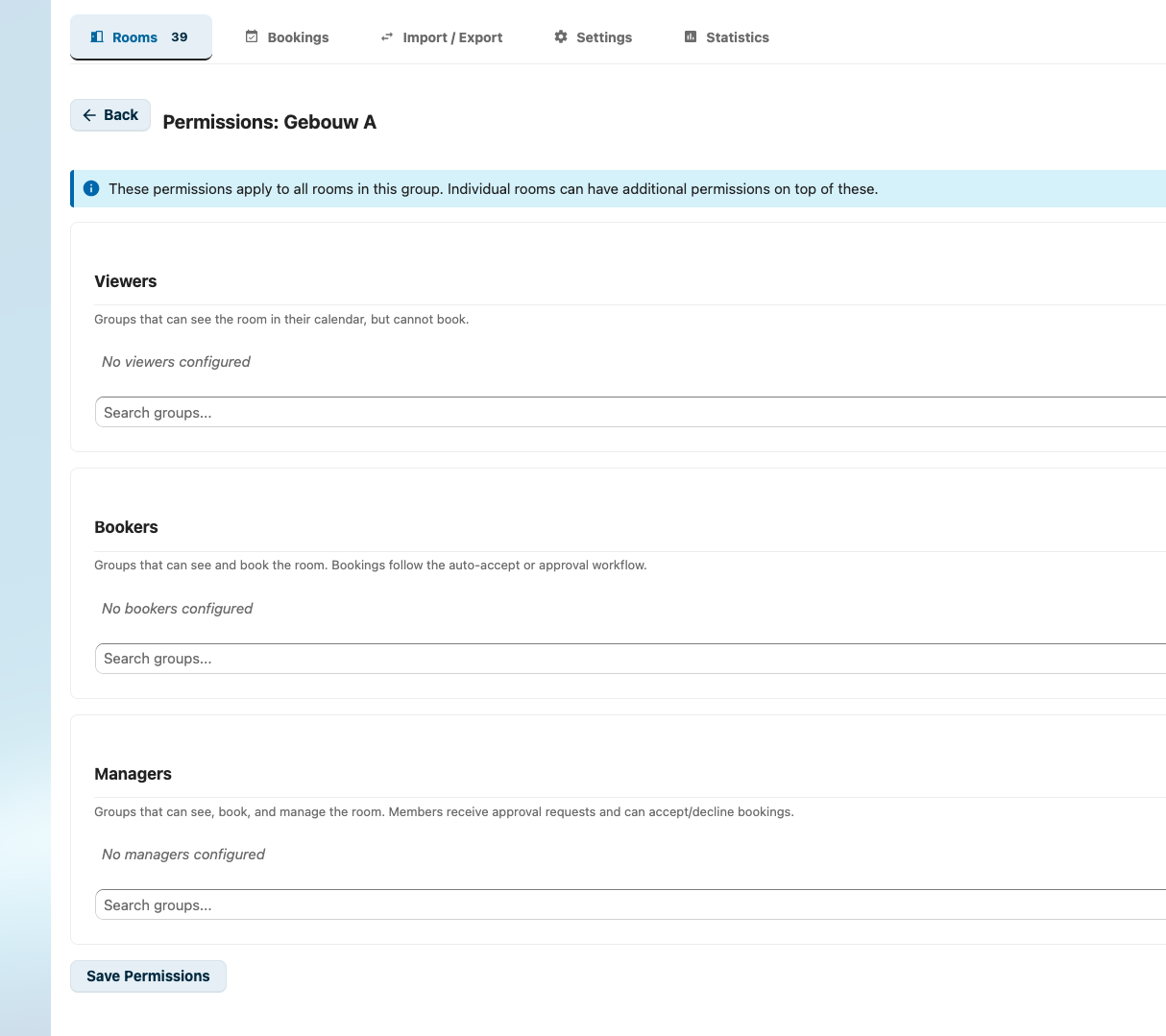
Permissions set on a room group are inherited by all rooms in that group.
- In the room groups section, click the permissions icon for the group
- Add viewers, bookers, and managers using the search fields
- Click Save Permissions
How Inheritance Works
A room's effective permissions are the union of: - Its own room-level permissions - The permissions of its assigned room group (if any)
Example:
Room Group "Building A":
  - bookers: [group: "staff"]

Room "Meeting Room 1" (in Building A):
  - managers: [user: "bob"]
  - bookers: [user: "alice"]

Effective permissions for "Meeting Room 1":
  - managers: [user: "bob"]
  - bookers: [user: "alice", group: "staff"]  ← merged
Viewing Inherited Permissions
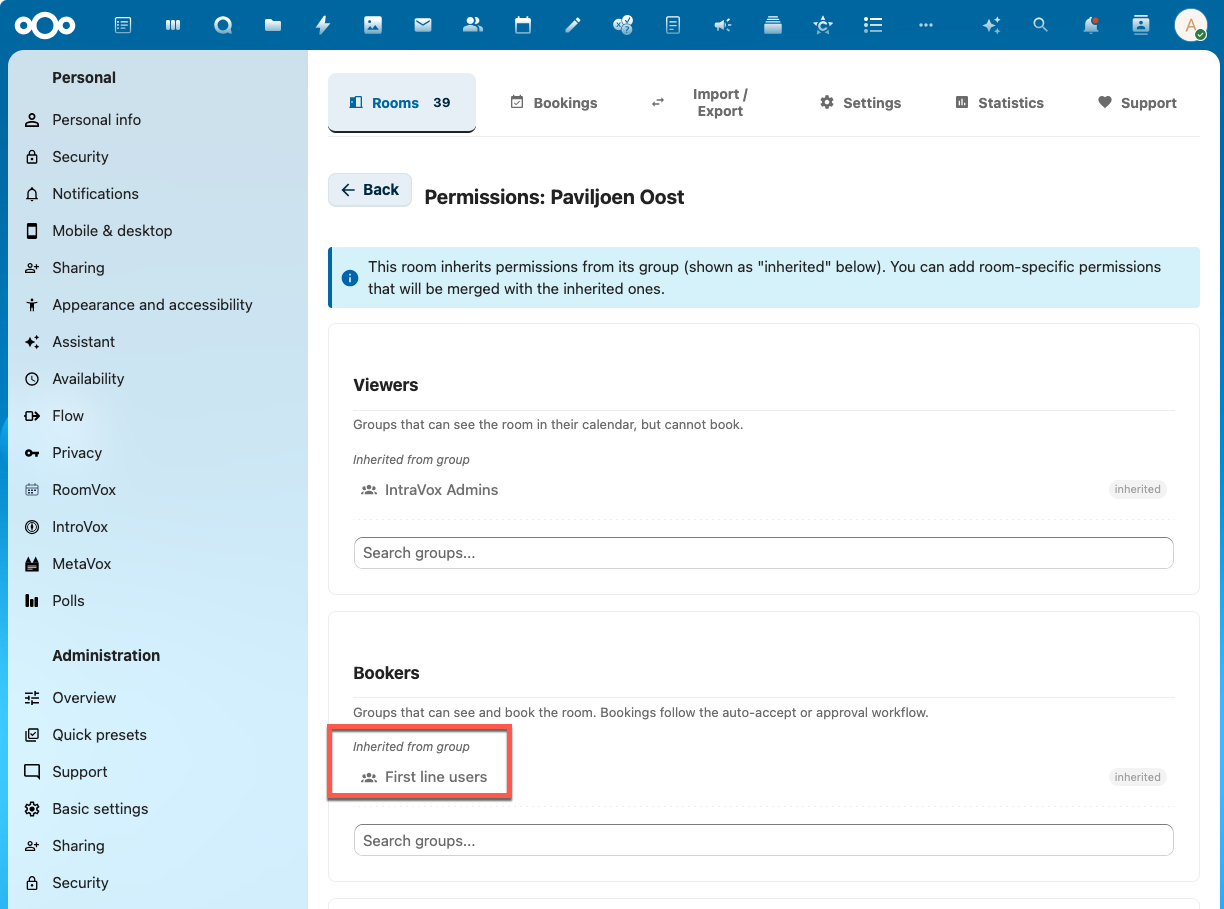
When editing permissions for a room that belongs to a group, the permission editor shows both:
- Inherited permissions — from the room group, displayed as greyed-out entries with an "inherited" badge. These cannot be removed from the room editor; edit the group permissions to change them.
- Room-specific permissions — additional entries that apply only to this room. These can be added and removed freely.
This makes it easy to see the full picture of who has access to a room without switching between the room and group editors.
Default Permissions
If no permissions are configured for a room (and no group permissions apply):
- All authenticated users can view and book the room
- Only Nextcloud administrators can manage it
Once any permission is configured, only the specified users/groups have access.
Nextcloud Admin Bypass
Users in the Nextcloud admin group always have full access to all rooms, regardless of permission settings. They can:
- View all rooms
- Book any room
- Manage any room (approve/decline, edit, delete)
CalDAV Visibility
Permissions also control which rooms are visible in calendar apps:
- Group entries in permissions are used as CalDAV
group_restrictions - Nextcloud Calendar only shows rooms to users who belong to at least one of the restricted groups
- User entries are enforced at booking time by the scheduling plugin, not at the CalDAV visibility level
This means: - A user added as an individual Booker may need to search for the room by name rather than browsing - A group added as Booker will see the room appear automatically in the resource list
Note: Permission changes are synced to Nextcloud's room cache immediately. After saving permissions, updated room visibility takes effect the next time a user opens the Room Finder or refreshes their calendar.
Permission Checks in Practice
Viewing Rooms in Admin Panel
The admin panel shows rooms filtered by the user's effective permissions. Non-admin users only see rooms where they have at least Viewer access.
Booking via CalDAV
When a user adds a room to a calendar event:
- The scheduling plugin resolves the sender's email/principal to a Nextcloud user ID
- It checks the user's
canBook()permission for the room - If the user lacks permission:
- The booking is declined with status
3.7 - The room attendee is removed from the organizer's event
- The event's LOCATION is cleared
- The organizer receives a "Booking not permitted" email explaining they do not have permission to book the room
Managing Bookings
The admin panel's booking overview shows bookings across all rooms the user has Manager access to. Approve/decline actions require Manager role.
Best Practices
- Use groups for common access patterns — easier to maintain than individual user permissions
- Use room groups for buildings or departments — set shared permissions once
- Assign at least one manager per room for approval workflows
- Keep Viewer permissions broad — let users see room availability even if they can't book
- Review permissions periodically — remove departing users and update group memberships