Engagement Administration Guide
Configuration guide for IntraVox's engagement features (reactions and comments).
Audience: Intranet administrators and content managers
Related documentation: - Engagement User Guide - End-user documentation - Engagement Architecture - Technical details - Admin Settings Guide - Other admin settings
Overview
IntraVox provides two levels of control for engagement features:
- Global Settings - Master switches for the entire intranet (admin only)
- Page Settings - Per-page overrides (editors with write access)
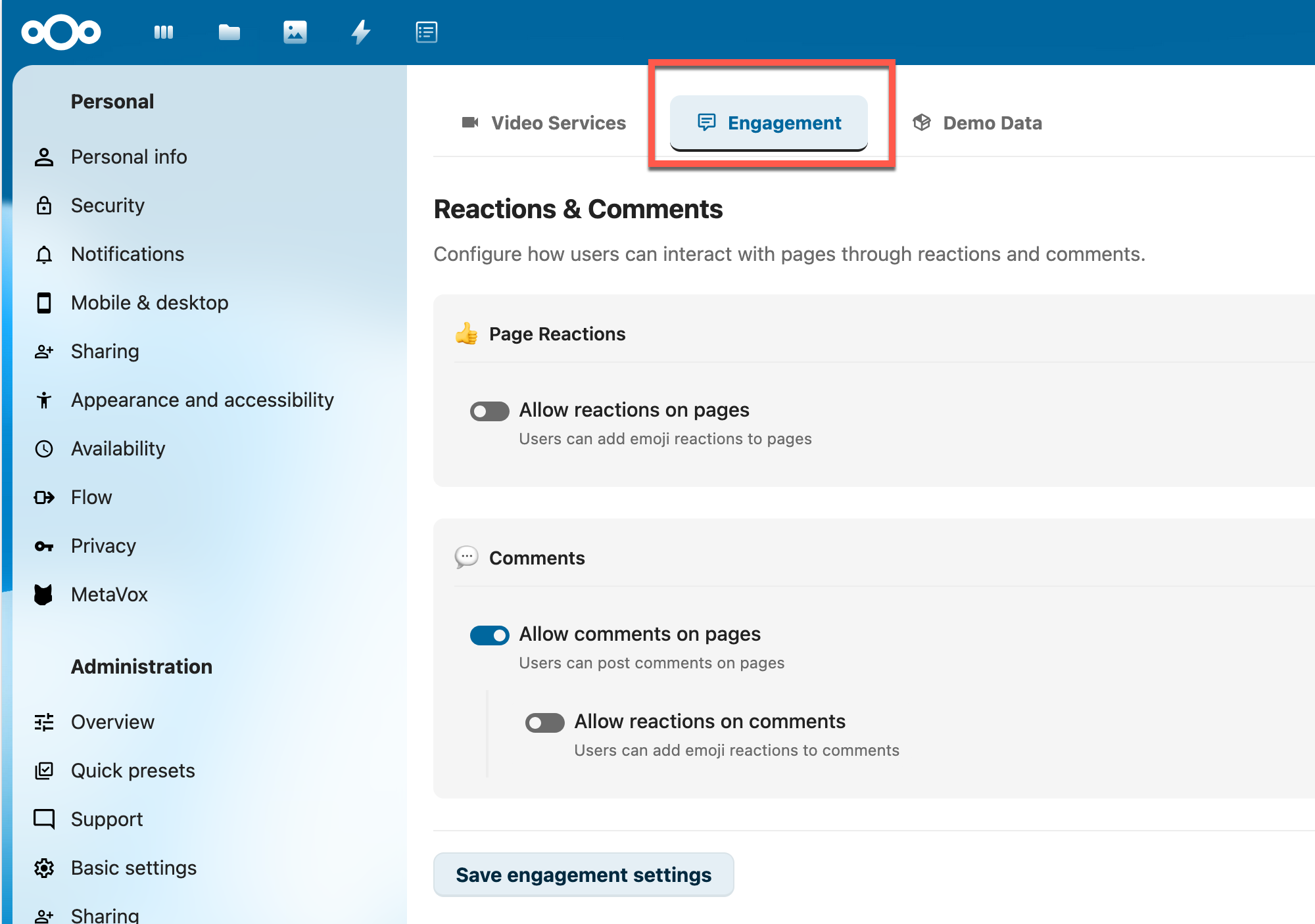
The Engagement tab in IntraVox Admin Settings
Global Settings
Accessing Global Settings
- Log in as a Nextcloud administrator
- Go to Settings (gear icon in top-right)
- Select IntraVox in the Administration section
- Click the Engagement tab
Available Options
Page Reactions
| Setting | Default | Description |
|---|---|---|
| Allow reactions on pages | On | Users can add emoji reactions to pages |
When disabled, no reaction buttons appear on any page.
Comments
| Setting | Default | Description |
|---|---|---|
| Allow comments | On | Users can post comments on pages |
| Allow reactions on comments | On | Users can react to individual comments |
Note: "Allow reactions on comments" only appears when "Allow comments" is enabled.
How Global Settings Work
Global settings act as master switches:
- When enabled globally: Feature is available by default, but can be disabled per page
- When disabled globally: Feature is off everywhere, page settings cannot override
Global: ON  + Page: (inherit) = Feature ON
Global: ON  + Page: OFF       = Feature OFF
Global: OFF + Page: (any)     = Feature OFF (cannot be enabled)
Page Settings
Editors with write access to a page can disable engagement features for specific pages.
Accessing Page Settings
- Open the page you want to configure
- Click Edit to enter edit mode
- Click the Settings button (gear icon) in the toolbar
- Find the Engagement section
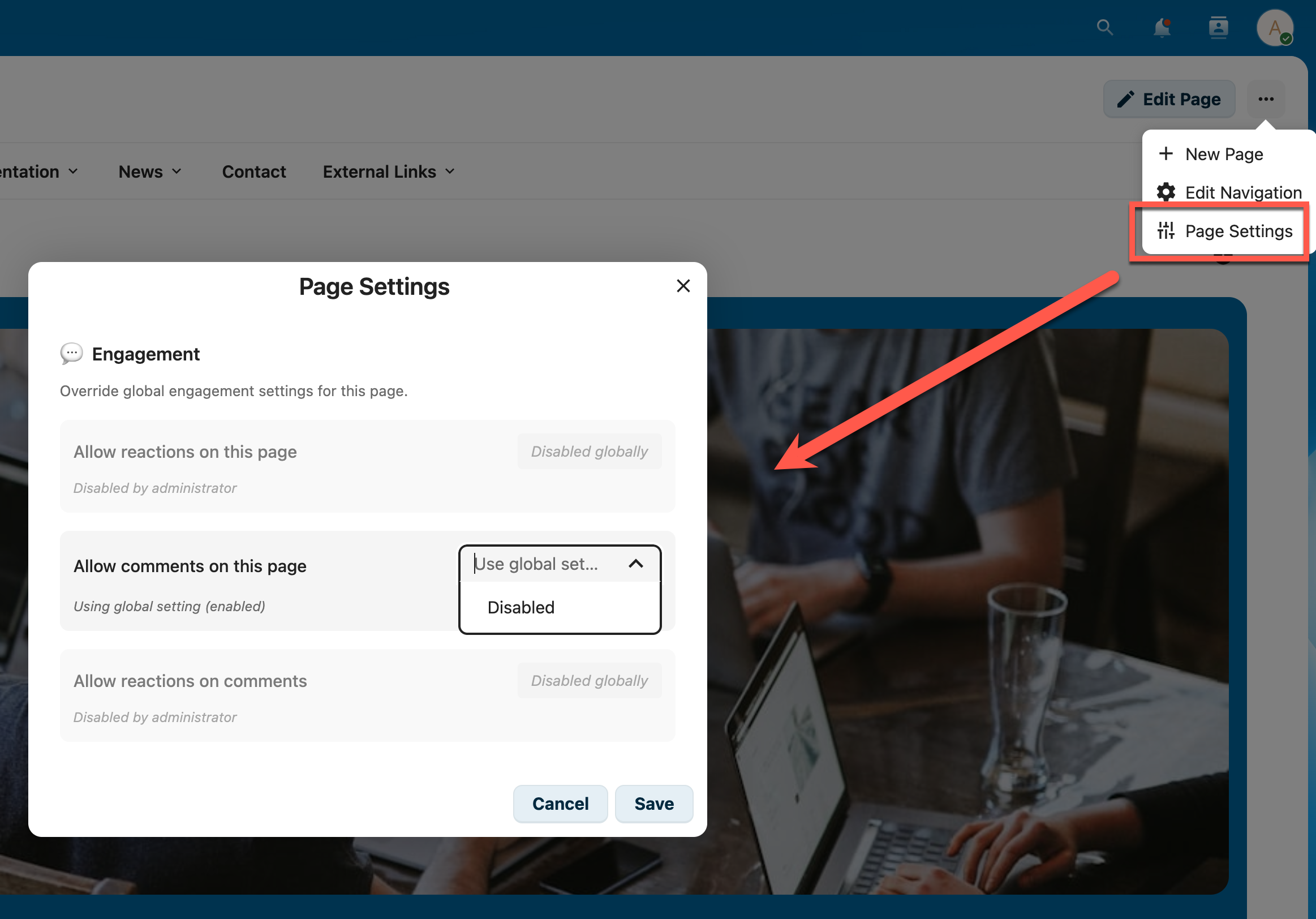
Page-specific engagement settings in the Page Settings modal
Available Options
Each setting has two states:
| State | Description |
|---|---|
| Use global setting | Follow the administrator's global setting |
| Disabled | Turn off this feature for this page only |
Note: Page settings can only disable features. If a feature is globally disabled, the page setting shows "Disabled globally" and cannot be changed.
Settings Logic
| Global Setting | Page Setting | Result |
|---|---|---|
| Enabled | Use global setting | Enabled |
| Enabled | Disabled | Disabled |
| Disabled | (locked) | Disabled |
Common Scenarios
Scenario 1: Standard Intranet
Goal: Enable engagement everywhere by default
Configuration: - Global: All features ON - Pages: Leave as "Use global setting"
Scenario 2: Disable Comments on Policy Pages
Goal: Allow reactions but no comments on official documents
Configuration: - Global: All features ON - Policy pages: Set "Allow comments" to Disabled
Scenario 3: Read-Only Intranet
Goal: No user interaction, content consumption only
Configuration: - Global: All features OFF - Pages: No changes needed (globally disabled)
Scenario 4: Announcement Pages
Goal: Allow reactions but no discussions
Configuration: - Global: All features ON - Announcement pages: Disable comments
Best Practices
For Administrators
- Start with defaults - Enable all features initially
- Monitor usage - Check if users engage with the features
- Communicate changes - Inform users when disabling features globally
- Use page overrides - Prefer page-level disabling over global disabling
For Content Managers
| Content Type | Reactions | Comments | Rationale |
|---|---|---|---|
| News articles | On | On | Encourage engagement |
| Policy documents | Off | Off | Official, no discussion needed |
| Announcements | On | Off | Acknowledge without debate |
| Knowledge base | On | On | Q&A and feedback valuable |
| Archive pages | On | Off | Historical, no new discussion |
Troubleshooting
Users Report Missing Features
- Check global settings are enabled
- Check page-specific settings
- Verify users have read access to the page
- Check browser console for JavaScript errors
Cannot Change Settings
Admin Settings: - Verify you have Nextcloud administrator rights
Page Settings: - Verify you have edit (write) access to the page - Check if feature is globally disabled (shows "Disabled globally")
Settings Not Taking Effect
- Ask users to refresh the page (Ctrl+F5)
- Clear Nextcloud cache:
sudo -u www-data php occ maintenance:repair - Check Nextcloud logs for errors
API Reference
For automation or integration purposes:
Get Current Settings
Response:
Update Settings (Admin only)
PUT /apps/intravox/api/settings/engagement
Content-Type: application/json
{
  "allowPageReactions": true,
  "allowComments": true,
  "allowCommentReactions": true
}
Storage Details
Global Settings
Stored in Nextcloud's oc_appconfig table:
| App | Key | Value |
|---|---|---|
| intravox | allowPageReactions | "1" or "0" |
| intravox | allowComments | "1" or "0" |
| intravox | allowCommentReactions | "1" or "0" |
Page Settings
Stored in each page's JSON file in the settings object:
Values: null (inherit), false (disabled)