Searching Metadata
MetaVox integrates with Nextcloud's Unified Search (the magnifier / Ctrl/Cmd + K),
so you can find files by their metadata from anywhere in Nextcloud — not just inside a
Team folder.
There are two ways to search:
- Free text — type one or more words and MetaVox returns files with a field that holds them.
- Filter by field — pick a specific field and value through the MetaVox · Filter by field… action.
Free-text search
Open search (Ctrl/Cmd + K), type a term, and look under the MetaVox section in the
results. Each result shows the file, with the matching field first in its subline
(e.g. searching Mercedes-Benz shows Make: Mercedes-Benz). The subline shows up to three fields.
- Type at least 3 characters. MetaVox uses the first 5 words of your search and ignores the rest.
- Words match from their start, regardless of case:
mercfindsMercedes-Benz,cedesdoes not. - All words must be in the same field:
klant 042findsKlant 042, not a file withKlant 7in one field and042in another. - You only find files in your own Team folders that you can open.
- Date, number, checkbox and file-link fields are not searched as text; use Filter by field for those.
- The newest files come first, a page at a time: Load more results shows the next ones. For a word that is in very many files, you see recent matches; add a word to narrow down.
- Free-text search uses a word index that MetaVox keeps up to date as values change. After an update of MetaVox or a restore of a backup, the index is rebuilt in the background; until that is done, some files may be missing from the results.
Unless your administrator turned the metadata filter off, you can also type a precise field:value query directly in the search box, for example:
Filter by field
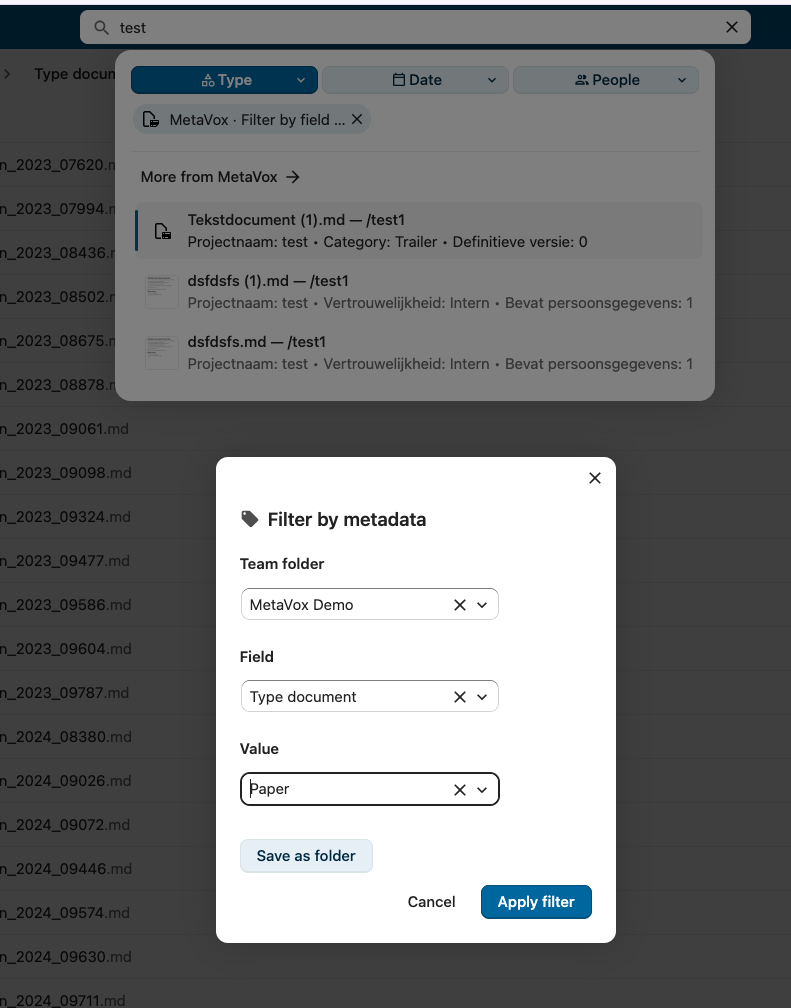
For a guided, exact filter, use the MetaVox · Filter by field… action in the search bar (unless your administrator turned it off). It opens the Filter by metadata picker:
- Team folder — choose one of the team folders you are a member of, or All my team folders to search them all at once.
- Field — choose one of that folder's metadata fields (with all team folders: the fields of all of them).
- Value — pick from the values that actually occur in the folder (so a filter never lands on an empty result), or type one for free-text fields. With all team folders, a choice field offers its options and you type the other values. For a multi-select field you can pick several options: files with any of them are found.
Confirm with Apply filter. A filter chip appears in the search bar and the matching files are listed under MetaVox, the newest files first, a page at a time: Load more results shows the next ones. Nextcloud only searches when the search box holds a word, so MetaVox puts the chosen value there; if your Nextcloud version does not let it, a message asks you to type a word yourself.
File Link fields are not offered in the picker: their stored value is an internal file reference, not a value you would filter on.
Save a filter as a folder
On Nextcloud 33 and newer, when your administrator has turned it on, the picker also has Save as folder. It saves the team folder, field and value as a search of your own and opens it in Files, under Metadata searches in the navigation. The search runs again each time you open the folder, so new files with that value show up by themselves.
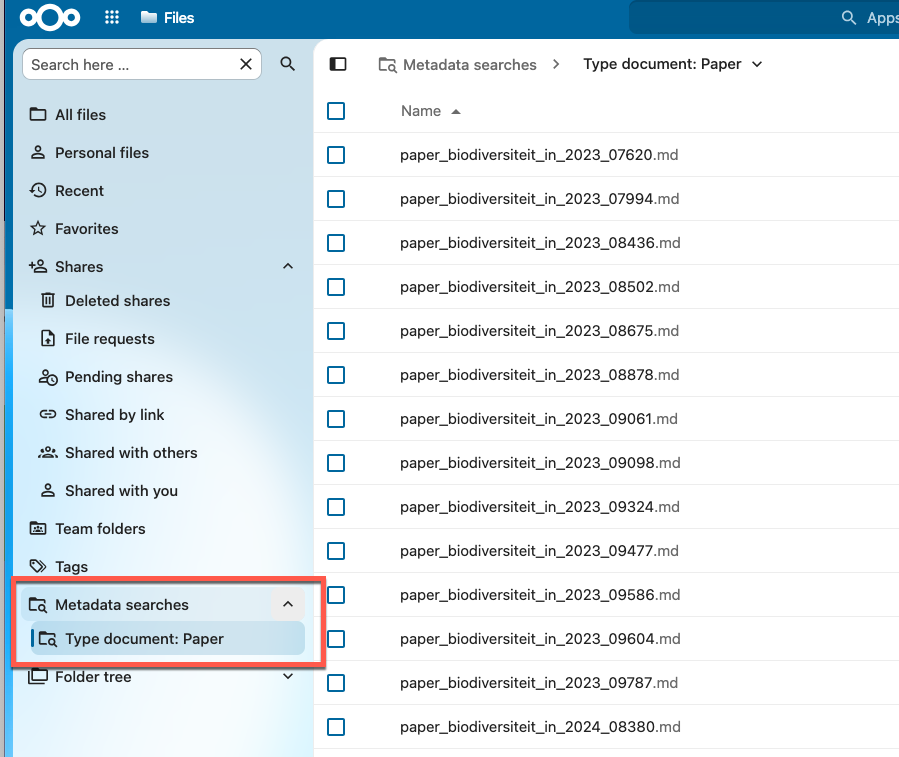
- The folder shows the newest 500 files that match; when there are more, a message says so. Make the search narrower to see the rest.
- The Location column says where each file is. A folder among the results opens where it is.
- Remove a saved search with Delete saved search in its menu. The files stay where they are.
- Your saved searches are yours alone: nobody else sees them. A folder shows the files the filter would find for you, by the rules below.
- Shares, comments, tags, reminders and locks don't show in this view, so that it stays quick; the file's own folder and the sidebar show them.
- Reloading the page while a file's details or preview are open takes you to that file's own folder.
What you see and what stays private
- Results are limited to the Team folders you are a member of, and to the files you can open there: what a team folder's advanced permissions hide from you is never found. This holds for admins too.
- The subline shows the file's own values in the Team folder where you see it.
- Files with the same name are disambiguated by showing their folder in the result title.
See Also
- Field Types - The fields you can search and filter on
- Views - Preset filters and columns inside a Team folder
- Overview - Getting started with metadata