Managing Tour Steps
This guide covers working with the steps of a tour: add, edit, pick an element, preview, delete, reorder, enable/disable and reset.
Every change is saved as soon as you make it: saving a step in the editor, deleting, reordering and switching a step on or off all go straight to the server.
Overview of the Step List
Steps belong to a tour. Open Tours and click Edit steps on the tour: the Welcome tour for the tour new users get, or a tour for an app (see Tours). After selecting a language in the Language dropdown, you see the list of steps for that language. Each row shows:
| Part | Description |
|---|---|
| Drag handle | Drag to reorder |
| Move step up / Move step down | Arrow buttons: reorder without a mouse |
| Step N | Sequential step number |
| Title | The step heading users see |
| ID | Unique identifier (not editable after creation) |
| Switch | Enable or disable the step |
| Edit | Open the step editor |
| Delete | Remove the step |
Below each row: the element the step points at, its position, the menu it opens first (if any) and who can see it.
Add New Step
- Click Add step above the list. A dialog opens with the pages Content, Element, Behavior and Visible to on the left (Behavior only once the step has an element).
- Fill in each page and go on with Next
- Click Save on the last page. The step is saved; closing the dialog without saving removes the new step again.
Test this step, bottom left in the dialog, shows the step as it is now, unsaved changes included.
Form Fields
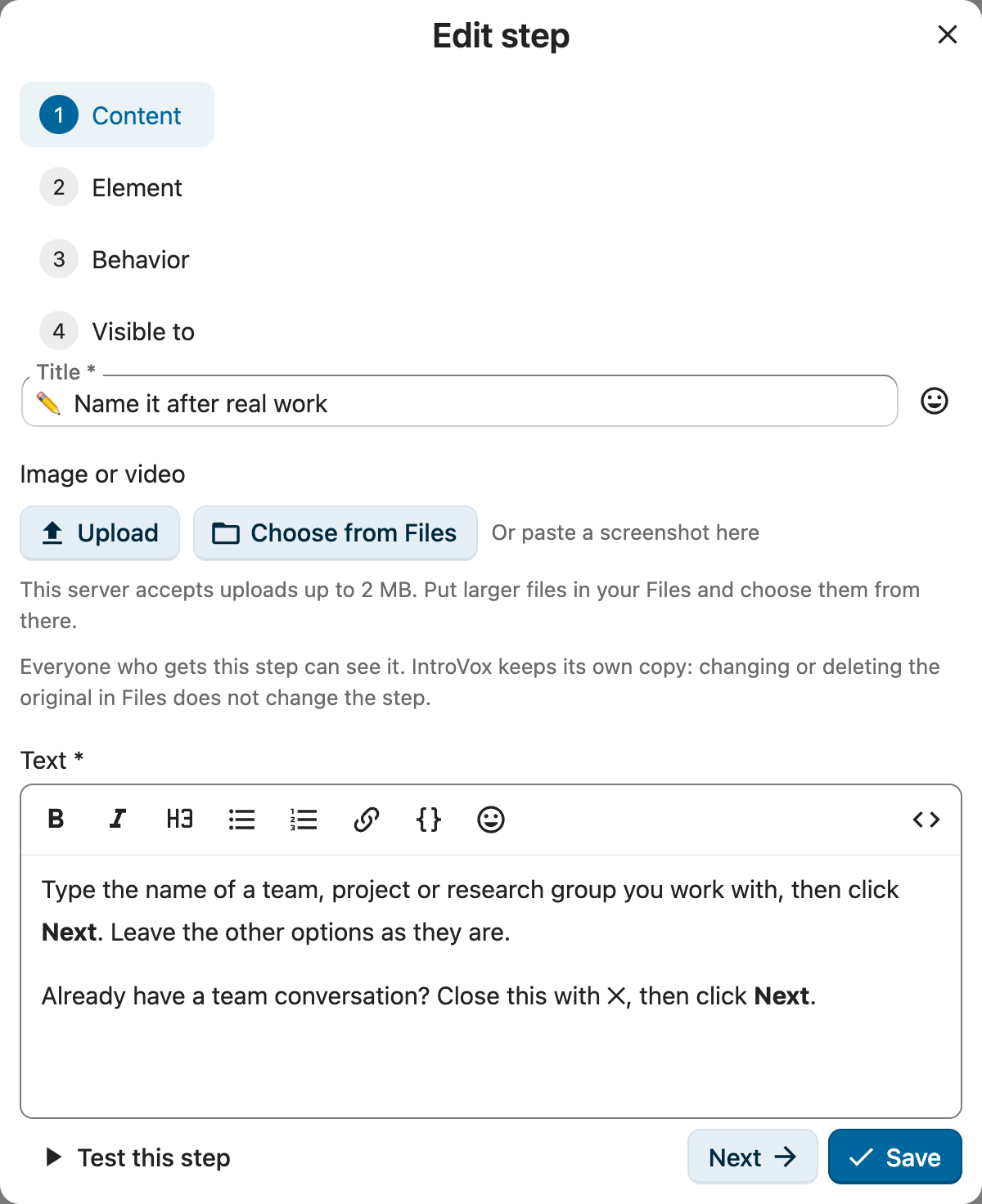
| Field | Required | Description | Example |
|---|---|---|---|
| Title | Yes | Step heading, plain text; the smiley button next to it inserts an emoji | 👋 Welcome to Nextcloud |
| Image or video | No | One image, GIF or video above the text; see Image or video below | A screenshot of the apps menu |
| Text | Yes | Step body, written with formatting; see Text below | Nice to have you here! |
| Page | No | The app the step belongs to; the tour opens it first. Empty = any page. Pick element fills it in. See Tours across apps. | /apps/spreed/ |
| Attach to element (CSS selector) | No | Element to highlight; empty = centered step. Fill it with Pick element. | a[href*="/apps/files/"] |
| Open first (CSS selector) | No | For an element inside a menu: the button the tour clicks to open that menu first. Pick element fills it in. | .app-menu__waffle |
| Position | If an element is set | Side of the element the tooltip appears on | Right, Left, Top, Bottom |
| Continue with | If an element is set | Next button (default); Click on the element: users click the highlighted element to go on; or Filling in the field: Next works once the field has text. See Click to continue | Click on the element |
| Visible to groups | No | Groups that can see this step; empty = all users | Administrators |
Each step gets a unique ID when it is created (shown in the list, not editable). On the Element page, element, page and menu are summarised next to Pick element and Remove element (back to a centered step); open Edit by hand to change them yourself.
Text
The Text field is a formatting editor, and shows the text the way the tour will: bold, italic, a heading, bulleted and numbered lists, links and code, from the toolbar or with the usual shortcuts (Ctrl+B, Ctrl+I). The smiley button inserts an emoji, as it does next to the title. For a link, select the words and click the link button; links open in a new tab, so the tour stays where it is. An address such as nextcloud.com becomes https://nextcloud.com, and a path on this Nextcloud such as /apps/files/ stays a path.
The <> button at the right, Edit as HTML, shows the HTML itself. HTML that users never see, because the tour removes it (a class, a style, an image), is left out of the editor, and a line below the field names it. Opening a step does not change it; that HTML only goes once you change the text. The text is stored as HTML either way, so exports, imports and the translated default steps work as before; see Customization for the tags the tour keeps.
Image or Video
A step can show one image (PNG or JPEG), animated GIF or video (MP4 or WebM) above its text. Upload a file, Choose from Files to take one from your own Files, or paste a screenshot onto the block.
- Description (alt text) is required: it is what people who cannot see the image hear. Switch on Decorative, no description needed only when the image adds nothing to the text.
- Size: Small, Full width, or Wide step, which also makes the step wider.
- Video: With a play button never starts by itself; Plays like a GIF plays silently on repeat. Add captions as a WebVTT (
.vtt) file when the video has speech. - Anything that moves gets a pause button in the tour, and stays still for people who have reduced motion switched on.
IntroVox keeps its own copy of the file: changing or deleting the original in Files does not change the step. Before keeping it, IntroVox checks the real file type, refuses anything else (such as SVG), and removes metadata such as location and camera details. Everyone who gets the step can see the file, and nobody else: users who do not get the step, or only get it in a disabled step, cannot load it.
Limits: images 5 MB and 16 megapixels, GIFs 10 MB, videos 20 MB, captions 512 KB; 250 MB and 500 files in total. An admin can change them with occ config:app:set introvox and the keys media_limit_image, media_limit_gif, media_limit_video, media_limit_captions, media_max_pixels, media_quota_bytes and media_max_files (bytes or counts).
Tips: make screenshots in a test account (yours would show your own files, names and avatar to everyone), about 900 pixels wide, and prefer a short MP4 over a large GIF.
Click to Continue
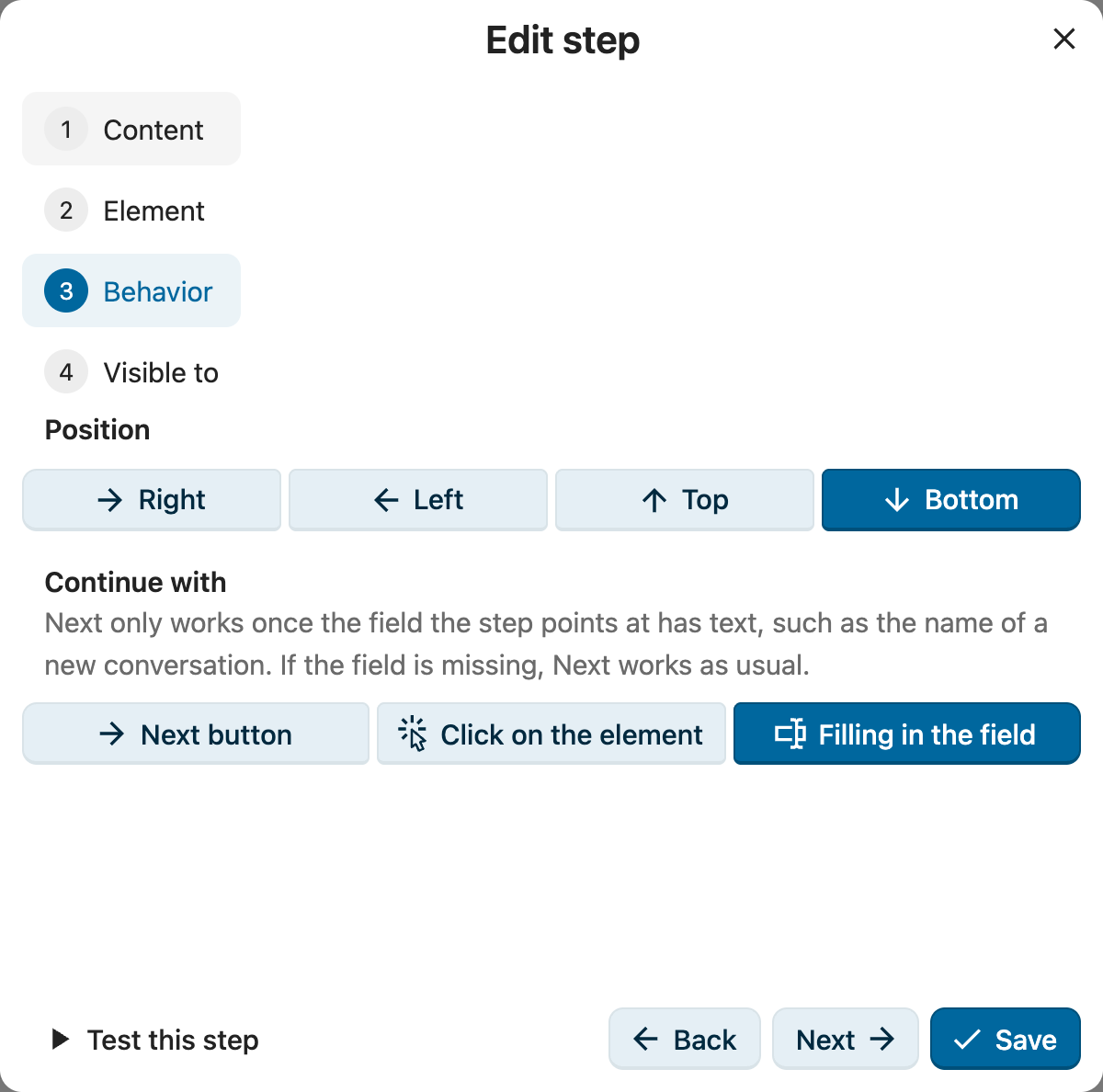
With Continue with: Click on the element, users do what the step asks instead of reading about it: "Click New conversation" goes on once they click it. The step shows no Next button and says "Click the highlighted element to continue." If the click opens something on the page (a menu, a dialog), the next step follows right away; if it opens another app, the tour continues there. On the last step, the click finishes the tour. When the element can't be found, a Next button appears instead, so nobody gets stuck.
With Continue with: Filling in the field, Next only works once the field the step points at has text, such as the name of a new conversation; the step says "Fill in the highlighted field to continue." A step on a block around a field looks at the field inside it. If the field is not there, or goes away (its dialog closed), Next works as usual.
The element a step points at gets an outline in the theme's colour and a blinking arrow from the step towards it, also inside dialogs; both keep still for people who prefer reduced motion.
Steps That Wait for the User
Some elements only exist once the user has done something: the participants of a conversation they create, the sharing of a file whose details they open, a card in a board. A tour can't do that for them, but it can lead the way: one step per click, each with Continue with: Click on the element, and then the step about the element. Talk, for example: "Click New conversation" → "Give it a name" → "Click Create conversation" → "Add people here".
A step whose element is not there yet waits for it: it stands aside in the bottom right corner with its text (bottom left while a dialog is open, such as one to pick a folder, clear of the dialog's buttons), leaves the page usable, and moves to the element as soon as it appears, however long the user takes. Next still goes on without it. Build such a tour with Pick element in Browse mode: do the clicks on the page, then hold Shift and click the element. The picker then says the step will wait for it.
CSS Selector Examples
/* Link to Files app — multiple fallbacks for better detection */
[data-id="files"], #appmenu li[data-id="files"], a[href*="/apps/files"]

/* Search bar — language-independent selectors (recommended) */
.unified-search__trigger, .header-menu__trigger

/* Calendar app */
[data-id="calendar"], a[href*="/apps/calendar"]

/* User menu */
#user-menu

/* Centered step (leave empty) */
Tips for reliable selectors:
- Avoid language-specific attributes like
aria-label="Unified search"— these break in other languages. Use CSS classes like.unified-search__trigger. - Use multiple fallbacks separated by commas. Default steps use this pattern (e.g.,
[data-id="files"], a[href*="/apps/files"]) to survive Nextcloud UI changes. The tour tries them in the order you wrote them: the step points at the first one that finds a visible element, wherever the others are on the page, so put the one you want most first. - Pick instead of typing: see Pick an element below.
- By hand: open DevTools (F12), click "Inspect element", then click the target to see its classes and attributes. Test each selector on its own with
document.querySelector('your-selector')in the console; it should return the element. Don't test a whole comma-separated list this way: the browser then returns whichever match comes first in the page, which need not be the one the tour picks.
Pick an Element
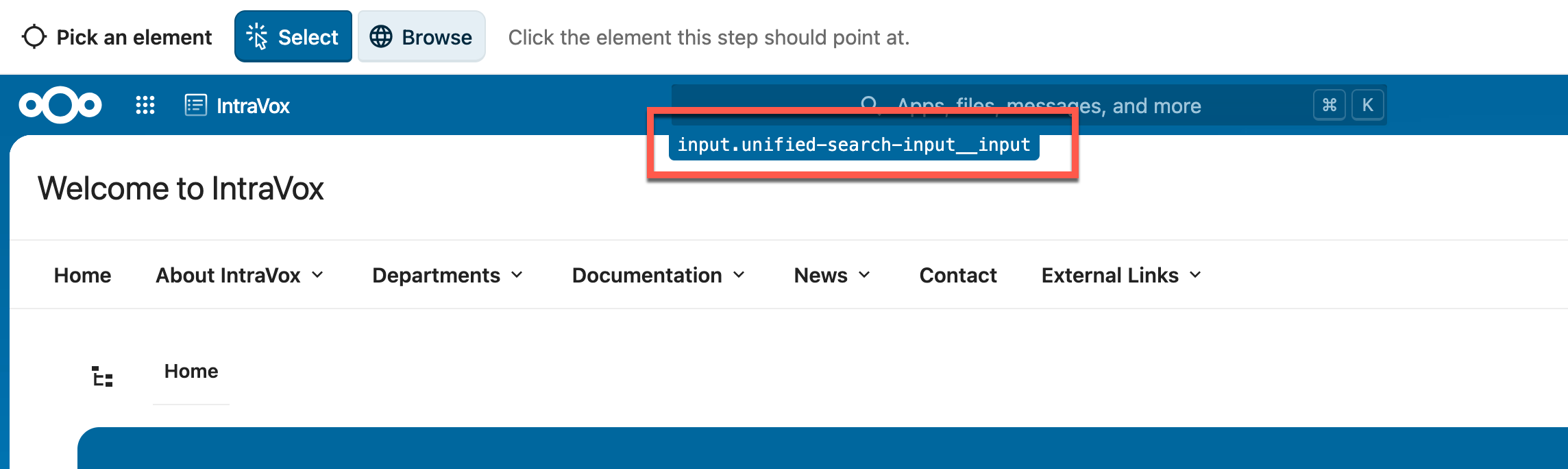
Instead of looking up a selector in DevTools, click Pick element next to the element field. Nextcloud opens full-screen inside the settings page:
- In Select mode, hover over the page; the element under the pointer is outlined. Click to select it. Clicks don't reach the page, so links and buttons don't fire.
- Need something that only appears after a click, such as an item in a menu? Switch to Browse and use the page as usual: open the menu, or go to another app. To pick something inside an open menu, hold Shift and click it. The menu stays open, and the picker remembers which button opened it.
- The panel shows one or more selectors that match exactly this element. Pick one, or use Parent element if you clicked an icon but meant its surrounding area.
- Click Use this element. The selector is filled in. For a step that had no element yet, Position is set to match where the element sits (for example Bottom for the header). For an element inside a menu, Open first is filled in with the button that opens the menu. For an element inside an app, such as Talk, Page is set to that app, so the tour opens it before the step; elements in the Nextcloud header work on every page and get no page.
The picker only uses what stays the same across page loads and languages: stable ids, data-* attributes, link targets and component classes. It skips generated ids, state classes such as --active, and translated attributes such as aria-label. The panel can show these notes:
- "This element is inside a menu. During the tour, the menu is opened first with: …": the tour clicks the listed button before the step, so the element exists when the step shows.
- "This element is inside a menu or pop-up that only exists while it is open." (warning): the picker could not tell which button opens the menu, so during the tour the step waits aside until the user opens it. Open the menu in Browse mode and Shift-click the element, or pick the button that opens the menu instead.
- "You got here by using the page.": the step will wait for its element; see Steps that wait for the user.
- "This selector depends on where the element sits in the page…" (warning): nothing stable identifies the element, so the selector describes where it sits in the page (
nth-of-type). It may stop working after a Nextcloud update.
If the picker shows that Nextcloud could not be shown, check your connection and open it again. If it keeps happening, your server probably forbids embedding Nextcloud in a frame (X-Frame-Options: DENY); enter the selector by hand instead.
Position Guide
| Position | Best for |
|---|---|
| Right | Left sidebar elements (Files, Calendar) |
| Left | Right sidebar elements (user menu) |
| Top | Bottom navigation |
| Bottom | Top navigation (header, search) |
Preview
You don't need to log in as a test user to see what you configured.
- Preview tour (above the list) opens Nextcloud full-screen and runs the tour for the selected language, the way users get it: disabled steps are left out. Use Preview as to see what members of one group get, following Visible to groups. Restart runs it again, also after you moved to another app inside the preview.
- Test this step (in the step editor) shows only that step, including changes you haven't saved yet. Use it to check that the highlight lands on the right element and the position fits.
Both follow steps into other apps, like the real tour does.
A preview leaves no trace: it isn't counted in the statistics, and it doesn't mark the tour as seen or disabled for your own account.
Edit Step
- Click Edit next to the step; the same dialog opens
- Change what you need on any page; click a page on the left to go there directly
- Click Save, available on every page when editing, or close the dialog to discard your changes
Leaving the page while the dialog has unsaved changes asks for confirmation first.
If you change the element of one of the default steps (Files & apps, Search, Your account & settings), the tour uses your element from then on instead of its built-in one.
Delete Step
- Click Delete
- Confirm in the dialog
The step is deleted straight away.
Note: Consider disabling instead of deleting if you might want the step back later.
Reorder Steps
Either way, the new order is saved straight away.
With the mouse
- Click and hold the drag handle on the left of a step
- Drag to the new position
- Release to drop
With the keyboard
- Tab to the Move step up or Move step down button (the arrows beside the drag handle)
- Press Enter or Space
The button is disabled at the ends of the list, so the first step has no Move step up and the last has no Move step down. Dragging is a pointer-only interaction, which is why these buttons exist: they are the only way to reorder from the keyboard or with a screen reader.
Step order is tracked by step ID (not by position), so enabling/disabling steps after reordering works correctly.
Enable/Disable Step
Each step has a switch:
- On — shown to users
- Off — hidden (grayed out, with strikethrough)
Disabled steps remain in your configuration. Use this for:
- Temporarily hiding steps without deleting them
- Seasonal or conditional content
- Testing different tour configurations
Reset to Default
The Reset button restores factory defaults for the selected language only.
- Select the language to reset
- Click Reset
- Confirm in the dialog
Warnings:
- Cannot be undone — export first if you want a backup
- Only the selected language is reset; other languages remain unchanged
- All custom steps for that language are deleted
The welcome tour's default steps are: Welcome to Nextcloud → Files & apps → Search → Your account & settings → Getting started → Important features → Useful tips → Done!
Saving
Changes are saved as you make them, with a short "Steps saved" confirmation for edits and deletions. If saving fails (for example because the connection dropped), you get an error message and a Save changes button appears above the list to try again. Your change stays in the list until it is saved.
Group-Based Visibility
The Visible to groups field in the step editor restricts a step to specific Nextcloud groups. Empty = visible to all users. See Group-Based Visibility for the full guide.
See Also
- Group-Based Visibility — restrict steps to user groups
- Import/Export — share configurations
- Customization — HTML in step content, CSS selectors
- Best Practices — content guidelines