Import / Export
RoomVox supports bulk room management via CSV files. You can export all rooms for backup or migration, and import rooms from CSV files — including files exported from Microsoft 365 / Exchange.
Export
Export All Rooms
- Go to Settings > Administration > RoomVox
- Click the Import / Export tab
- Click Export CSV
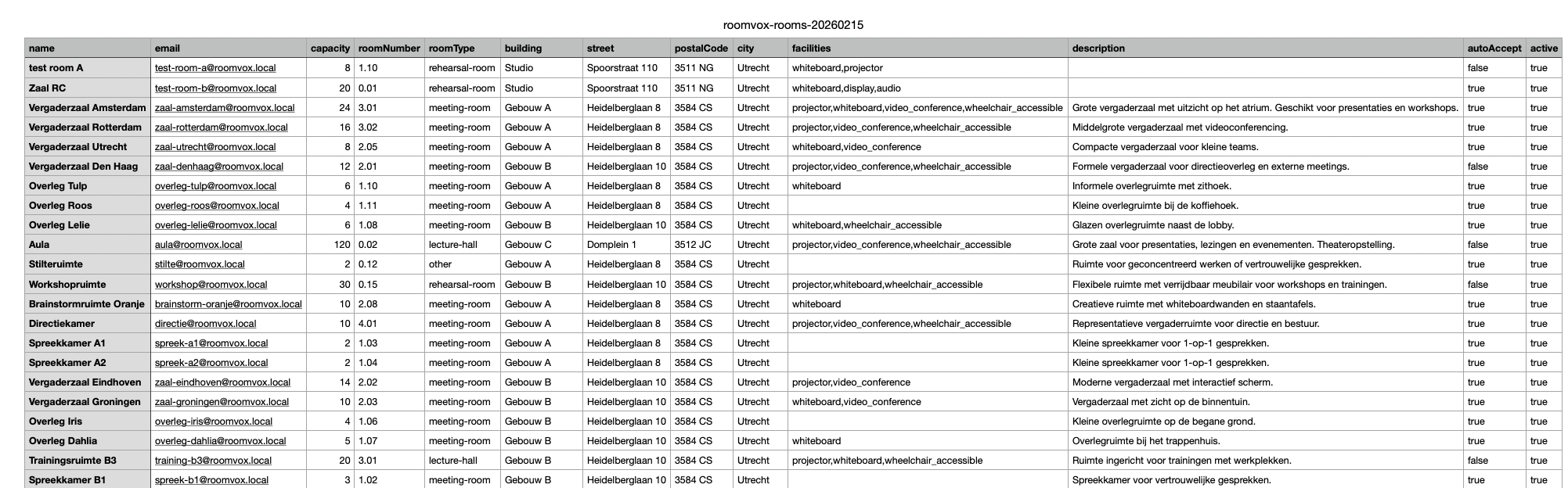
A CSV file is downloaded with all rooms and 13 columns:
| Column | Example |
|---|---|
name |
Meeting Room 1 |
email |
room1@company.com |
capacity |
12 |
roomNumber |
2.17 |
roomType |
meeting-room |
building |
Building A |
street |
Heidelberglaan 8 |
postalCode |
3584 CS |
city |
Utrecht |
facilities |
projector,whiteboard,video-conference |
description |
Large meeting room on 2nd floor |
autoAccept |
true |
active |
true |
This file can be: - Imported into another RoomVox instance - Edited in Excel or LibreOffice Calc - Used as a backup
Download Sample CSV
Click Download sample CSV to get a template file with headers and one example row. Use this as a starting point when creating rooms from scratch.
Import
Supported Formats
RoomVox automatically detects the CSV format:
RoomVox format — Files exported from RoomVox or created manually with the column names listed above.
MS365/Exchange format — Files exported via PowerShell. Use one of the two options below.
Option 1 — Place data only (no email addresses):
This exports room metadata (building, floor, city, capacity, etc.) but not the email address. Rooms are matched by name during import.
Option 2 — Full export with email addresses (recommended):
$rooms = Get-EXOMailbox -RecipientTypeDetails RoomMailbox -ResultSize Unlimited
$rooms | ForEach-Object {
    $mailbox = $_
    $place = Get-Place -Identity $mailbox.PrimarySmtpAddress -ErrorAction SilentlyContinue
    [PSCustomObject]@{
        DisplayName            = $mailbox.DisplayName
        PrimarySmtpAddress     = $mailbox.PrimarySmtpAddress
        ResourceCapacity       = $mailbox.ResourceCapacity
        Building               = $place.Building
        Floor                  = $place.Floor
        FloorLabel             = $place.FloorLabel
        Street                 = $place.Street
        PostalCode             = $place.PostalCode
        City                   = $place.City
        Capacity               = $place.Capacity
        Tags                   = ($place.Tags -join ',')
        IsWheelChairAccessible = $place.IsWheelChairAccessible
        AudioDeviceName        = $place.AudioDeviceName
        VideoDeviceName        = $place.VideoDeviceName
        DisplayDeviceName      = $place.DisplayDeviceName
        Nickname               = $place.Nickname
        BookingType            = $place.BookingType
    }
} | Export-Csv -Path rooms.csv -NoTypeInformation
This script joins Get-EXOMailbox (which has the email address) with Get-Place (which has location and equipment data) into a single CSV. The email address enables reliable duplicate detection during import.
Note: The simple
Get-EXOMailbox | Get-Place | Export-Csvpipeline does not preserve email addresses —Get-Placereturns a different object type that lacks thePrimarySmtpAddressfield.
MS365 columns are automatically mapped to RoomVox fields:
| MS365 Column | RoomVox Field | Notes |
|---|---|---|
DisplayName |
name | |
PrimarySmtpAddress / EmailAddress |
Requires Option 2 | |
Capacity / ResourceCapacity |
capacity | |
Floor / FloorLabel |
roomNumber | |
Building |
building (address) | |
Street |
street (address) | |
PostalCode |
postalCode (address) | |
City |
city (address) | |
Tags |
facilities | Comma-separated |
IsWheelChairAccessible |
wheelchair facility | true adds wheelchair |
AudioDeviceName |
audio facility | Non-empty adds audio |
VideoDeviceName |
videoconf facility | Non-empty adds videoconf |
DisplayDeviceName |
display facility | Non-empty adds display |
Nickname |
description | |
BookingType |
autoAccept | Standard = auto-accept on |
Import Steps
- Go to Import / Export tab
- Drag and drop a CSV file, or click Choose file
- RoomVox shows a preview with:
- Detected format (RoomVox or MS365)
- Number of rooms found
- Per-row action: New (will create) or Update (matches existing room)
- Any validation errors
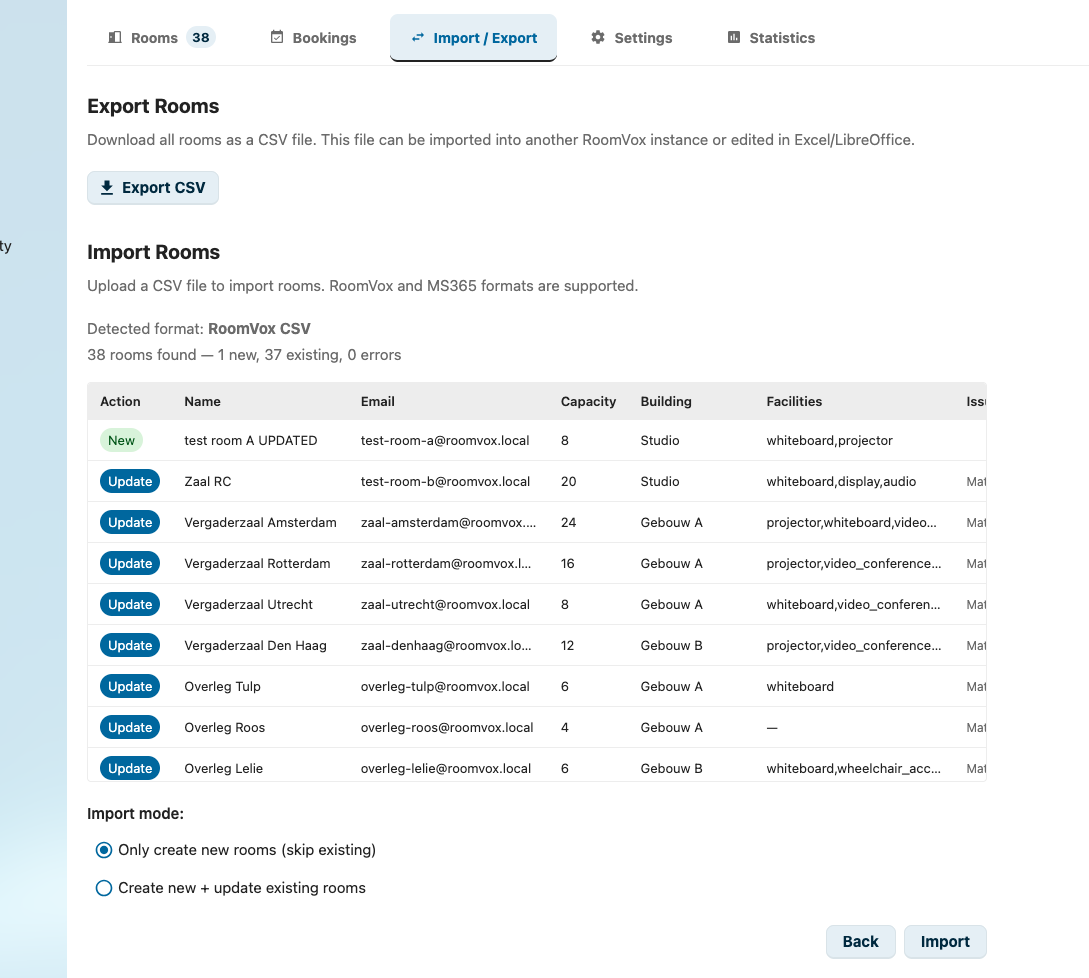
- Choose an import mode:
- Only create new rooms — Skip rows that match existing rooms
- Create new + update existing — Create new rooms and update existing ones
- For MS365 imports with email addresses: optionally enable Exchange calendar sync to automatically link each room to its MS365 mailbox for bidirectional calendar synchronization. This requires Exchange sync to be configured in the global settings.
- Click Import
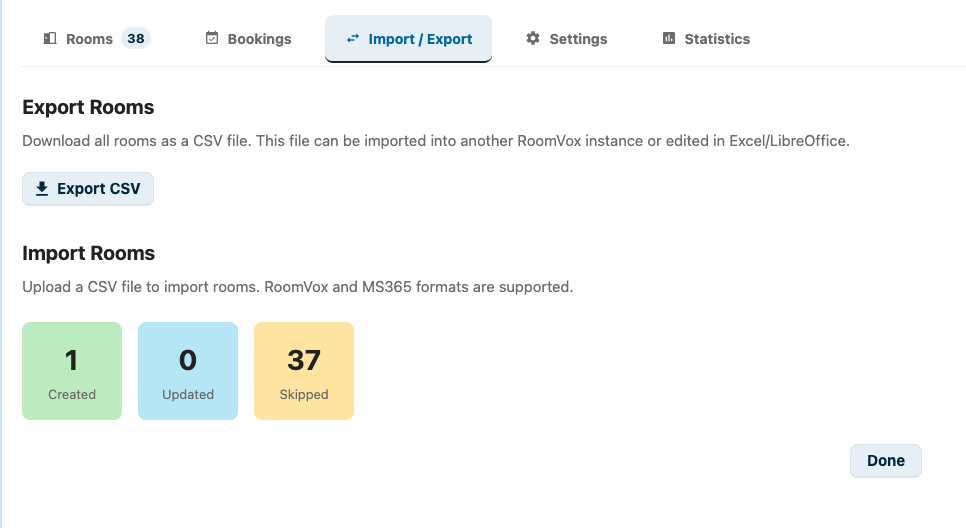
- Review the results: created, updated, skipped, and errors
Duplicate Detection
RoomVox detects duplicates by comparing:
- Email address (primary match) — If the CSV email matches an existing room's email
- Room name (secondary match) — If the CSV name matches an existing room's name
Matched rooms are shown as "Update" in the preview. In create-only mode, these rows are skipped.
Validation
The import validates each row before processing:
- Name is required — rows without a name are rejected
- Capacity must be a number if provided
- Email must be a valid email address if provided
- Duplicate names within the CSV itself are flagged
Facilities
The facilities column accepts comma-separated values. Known facilities are normalized automatically:
| Input | Normalized |
|---|---|
projector, beamer |
projector |
whiteboard |
whiteboard |
video-conference, videoconf |
video-conference |
audio-system |
audio-system |
display-screen, screen |
display-screen |
wheelchair-accessible, wheelchair |
wheelchair-accessible |
Delimiter Detection
RoomVox automatically detects the CSV delimiter. Comma (,), semicolon (;), and tab-separated files are all supported. This means files saved by Dutch or German versions of Excel (which use ;) work without manual conversion.
File Size Limit
Uploaded CSV files are limited to 5 MB. For larger imports, split the file into multiple parts.
Tips
- Export your current rooms first to see the exact format
- Edit the exported CSV in Excel/LibreOffice, then re-import with "create + update" mode
- For MS365 migrations, use the full export script (Option 2) to preserve email addresses and get the most complete data
- The import handles UTF-8 BOM (byte order mark) automatically
Exported CSV in Excel
The exported CSV can be opened directly in Excel or LibreOffice Calc for editing.