Views
Views let you quickly switch between predefined combinations of columns, filters, and sort order within a team folder.
What is a view?
A view defines: - Which metadata columns are visible in the file list - The order of those columns - Which filters are preset - How files are sorted - Which cells are highlighted
Views apply per team folder and are shared by everyone in it. Each team folder can have multiple views for different workflows or audiences.
Views are created and changed by people who may manage views: members with write permission on the team folder itself, and Nextcloud administrators. See Managing Views.
Switching views
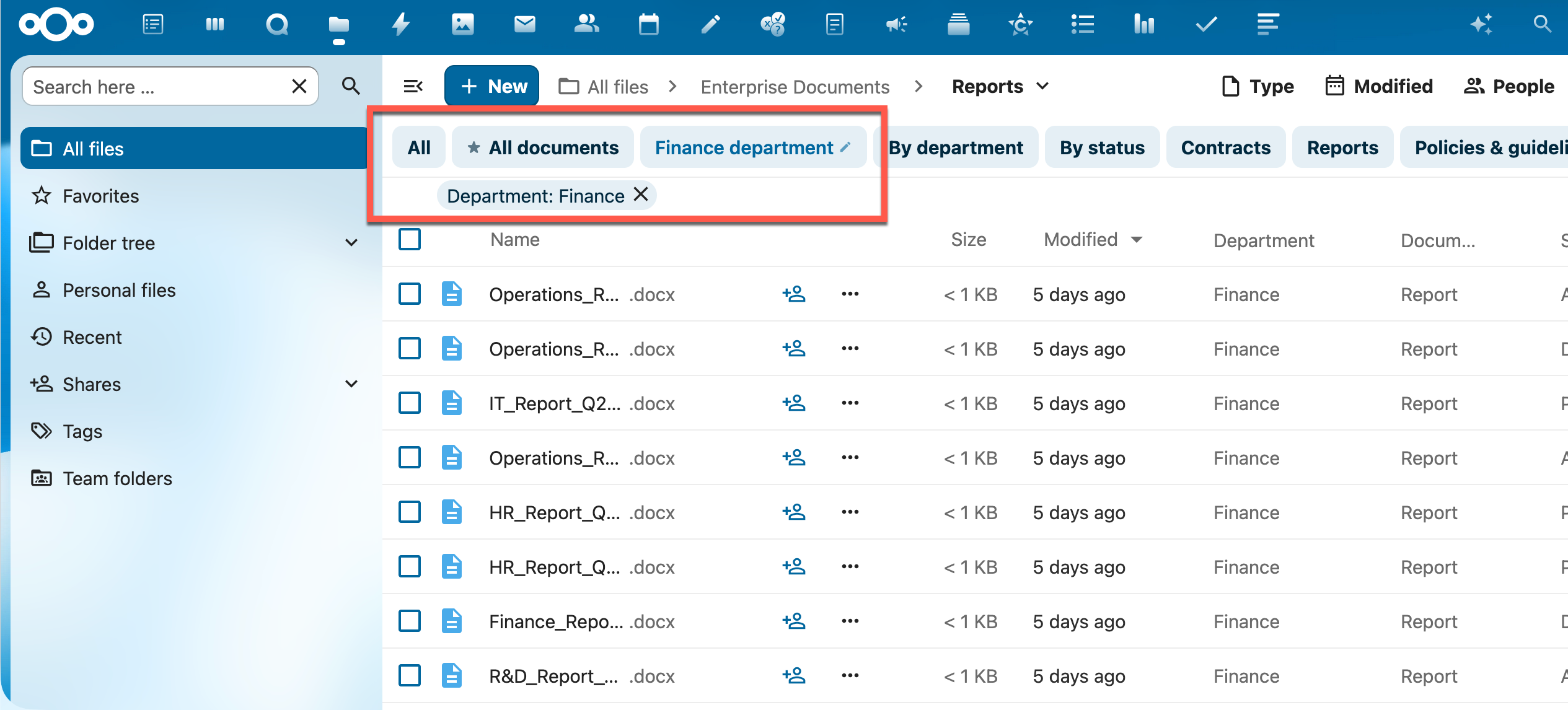
Above the file list, the view picker shows the name of the view you are in. Click it to open the menu:
| Menu item | What it does |
|---|---|
| Default | Leaves all views: the plain file list without MetaVox columns |
| A view name | Switches to that view; a check mark shows the current one |
| ★ next to a view | This is the standard view, which opens automatically |
| Save filters as view … | Keeps the filters you set as a view (see below) |
| Edit … | Opens the current view in the editor (people who may manage views) |
| View details | Shows the settings of the current view, read-only (everyone else) |
| New view | Creates a new view (people who may manage views) |
Edit … and View details appear only while you are in a view, not in Default.
Which view opens
When you open a team folder: 1. A link that names a view opens that view. 2. Opening a subfolder keeps the view you were in, and keeps Default if you chose it. 3. Otherwise the standard view (★) opens. If the team folder has no standard view, you see Default.
In Default the file list shows no MetaVox columns, but the MetaVox filter offers every field of the team folder.
Adjusting filters (temporarily)
The MetaVox button in the Nextcloud filter bar lets you filter on top of the active view.
- Click the MetaVox button in the filter bar
- Click a field name to expand the filter options for that field
- Check one or more values
- The file list updates immediately
Each field is a collapsible section. A dot next to the field name shows that the field has active filter values.
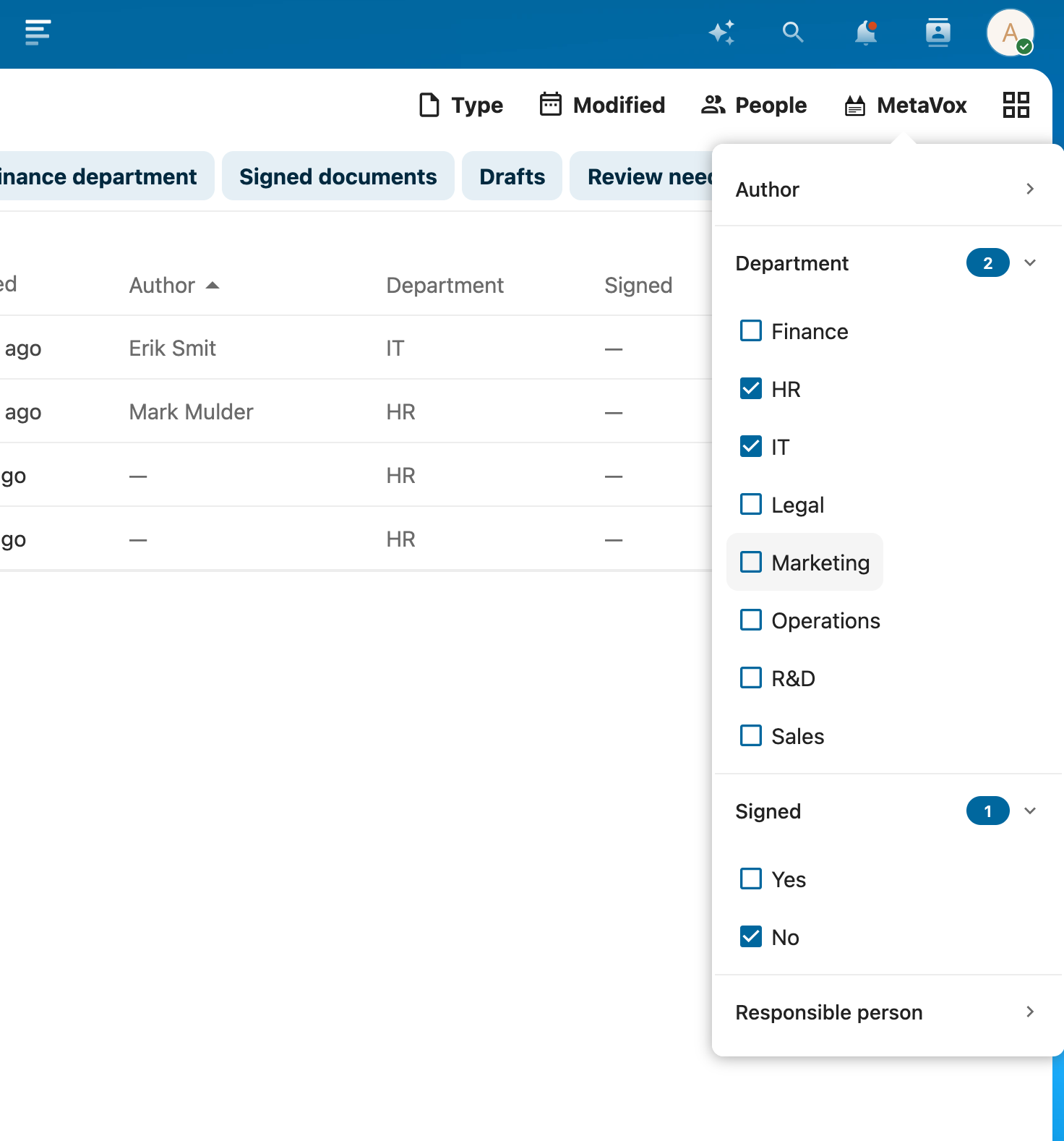
Filters set this way are temporary. They are not saved to the view, and they disappear when you switch views or open another folder. To keep them, save them as a view.
In a view, the panel lists the fields the view marks as filterable. If there are none, it shows "No filters in this view".
Filtering on multiple values
Within a single field, selecting multiple values works as OR — files matching any of the checked values are shown.
Across different fields, filters work as AND — files must match the active filter for every field.
Yes / No filtering
For checkbox fields (Yes/No), you can filter on: - Yes — files where the field is checked - No — files where the field is unchecked or has no value
Both options are always available regardless of what values exist in the folder.
Clearing filters
Every active filter appears as a chip above the file list, for example "Department: Finance".
- Click the ✕ on a chip to remove the filter for that field
- ✕ Clear all (shown when filters on more than one field are active) removes all filters at once
Clearing filters does not change the sort order.
Saving filters as a view
If you may manage views, you can keep the filters you set. Save filters as view … appears in the view menu as soon as your filters differ from those of the current view.
The Save as view dialog shows which filters will be saved. In a view, you choose:
- Update “{name}” — the filters replace those of the current view. Its columns and sort stay. Everyone with access sees the change.
- Create a new view — enter a name. The current view stays as it is.
In Default the filters are always saved as a new view. A new view gets the columns you see now, no sort, and is not the standard view. After saving, you are in the saved view.
Sorting
Click the header of a MetaVox column to sort by it; click again to reverse the order. Clicking a Files column such as Name or Modified ends the MetaVox sort. A view can also bring its own sort, which applies when you switch to it.
Standard view
A team folder can have one standard view, marked with a star (★) in the view menu and on the picker. It opens automatically when you open the team folder. If there is no standard view, the folder opens in Default.
Highlighted cells
A view can color cells by their value, for example a deadline that has passed in red. Each color has its own icon, and a cell gets at most one highlight: the top rule that matches counts. See Highlight Rules.
Tips
- Switching to a different view replaces your temporary filters with the view's own filters
- The view and the filters you set are kept in the URL, so you can bookmark or share them. The sort by column header is not part of the URL
- Views only affect the file list display; they do not change or restrict the actual files or metadata
- Column order in the file list follows the order set for each view
See Also
- Bulk Editing - Edit metadata for multiple files
- Field Types - Understanding metadata field types
- Managing Views - Creating and configuring views
- Highlight Rules - Color cells by their value