People Widget
The People Widget displays user profiles from your Nextcloud instance. It's perfect for team pages, organization directories, department overviews, or any page where you want to showcase people.
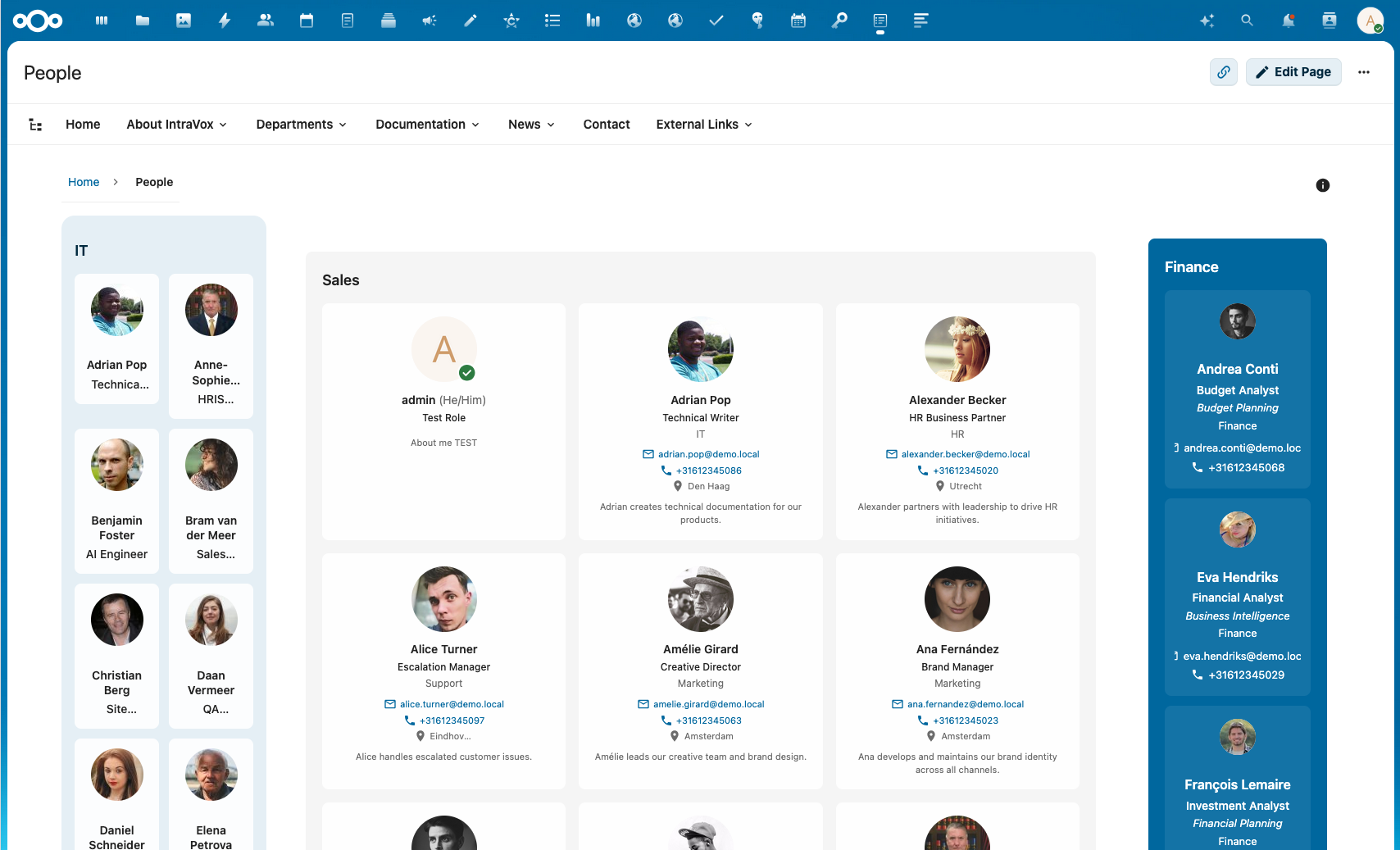
Features
- Multiple layouts: Card, List, or Grid view
- Unified display options: All display options work consistently across all layouts
- Selection modes: Manual selection or filter-based
- Group filtering: Show users from specific groups
- Field filtering: Filter by any user profile field, including date-based filters
- Customizable display: Choose which profile fields to show
- Birthdate support: Display birthdates with a cake icon
- Social links: Twitter/X, Fediverse, and Bluesky profiles
- Sorting options: Sort by name or email
- Pagination: "Show more" button when there are more people than the configured limit
- Nextcloud integration: Click avatars to see profiles, email, and availability
- Visitor filters: Let readers narrow the list themselves with faceted filters and live counts
- Privacy-aware: Honours each user's field visibility settings; hidden from public share links by default
- LDAP/OIDC support: Directory data shows up in the standard Nextcloud profile fields it is mapped to
Layouts
Card Layout
Displays users in detailed cards with avatar, name, title, contact info, and optional biography. Best for showcasing individual team members with rich information.
List Layout
Compact horizontal layout showing avatar, name, and key details in a row. Ideal for longer lists where space efficiency matters.
Grid Layout
Grid layout with avatars and key details. All display options (contact info, social links, custom fields, etc.) are supported in every layout, including Grid. Perfect for quick visual overviews of teams or departments.
Configuration
To add a People Widget to your page:
- Click + Add Widget in edit mode
- Select People from the widget picker
- Configure the widget settings
Settings
| Setting | Description |
|---|---|
| Widget title | Optional title displayed above the widget |
| Background color | None, Light, or Primary color background |
| Selection mode | Manual selection or Filter by attributes |
| Layout | Card, List, or Grid |
| Columns | For Card/Grid layouts: 2, 3, or 4 columns |
| Maximum people | Limit the number of displayed users (1-50) |
| Sort by | Name or Email |
| Sort order | Ascending or Descending |
Selection Modes
Manual Selection
Select specific users to display:
- Choose "Manual selection" mode
- Search for users by name or email
- Click to add users to the selection
- Drag to reorder (order is preserved when sorting is disabled)
Filter by Attributes
Automatically show users matching certain criteria:
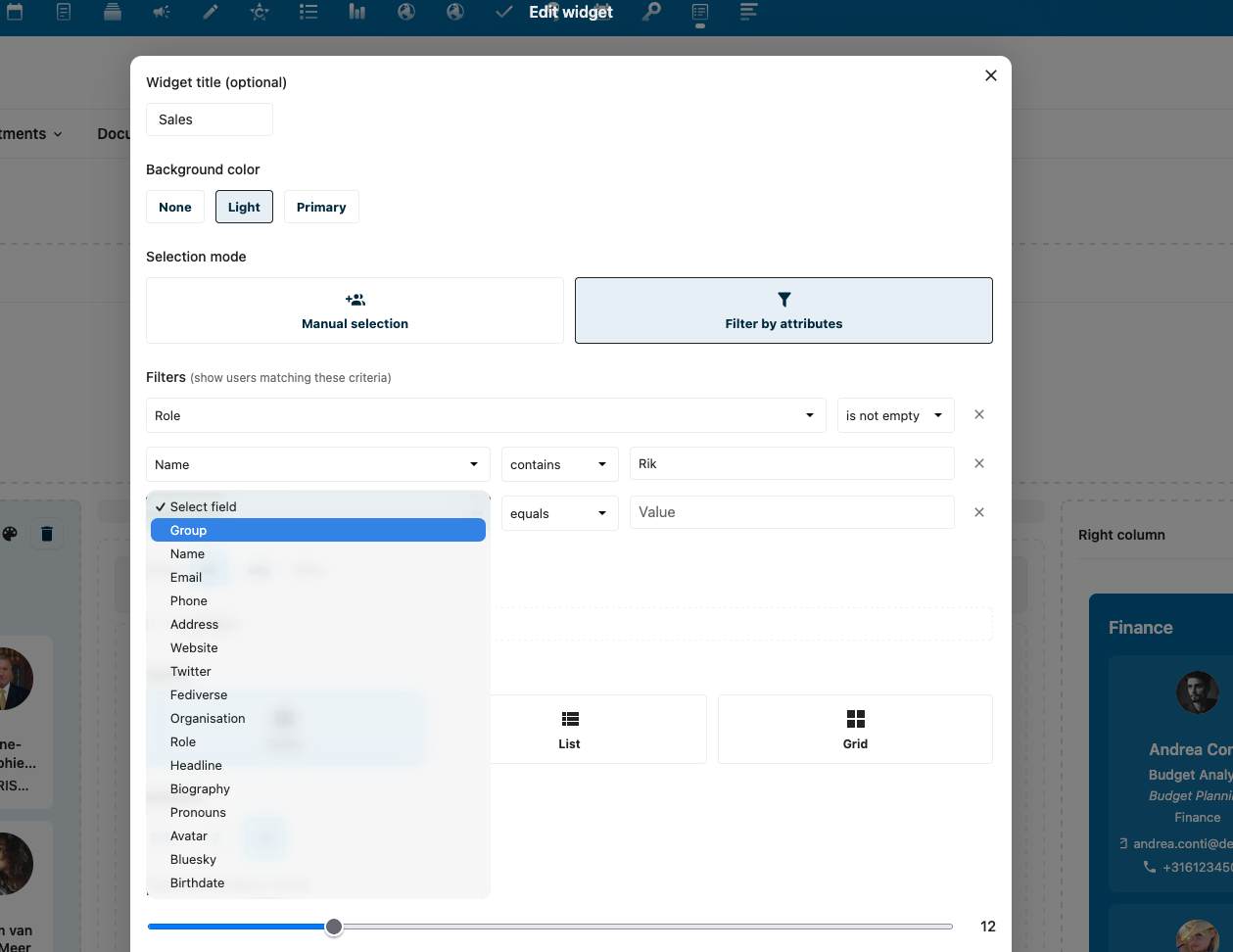
- Choose "Filter by attributes" mode
- Click + Add filter
- Select a field (Group, Name, Email, Organisation, Role, etc.)
- Choose an operator and value
- Add more filters as needed
Available Filter Fields
Fields are organized in logical order matching the Display Options:
| Category | Fields |
|---|---|
| Group | Nextcloud group membership |
| Basic Information | Name, Pronouns, Role, Headline, Organisation |
| Contact | Email, Phone, Address, Website |
| Extended | Biography, Birthdate, Twitter/X, Fediverse, Bluesky |
| Custom | Extra fields synced into user preferences (see Custom fields) |
Filter Operators
| Operator | Description | Available for |
|---|---|---|
| equals | Exact match | All fields |
| contains | Partial match | Text fields |
| does not contain | Excludes partial match | Text fields |
| is one of | Match any of multiple values | Group field |
| is not empty | Field has any value | All fields |
| is empty | Field has no value | All fields |
| is today | Date matches today's date (month + day) | Date fields (e.g., Birthdate) |
| within next days | Date falls within the next N days | Date fields (e.g., Birthdate) |
Multiple Filters
When using multiple filters, choose how they combine:
- Match all: All filters must match (AND logic)
- Match any: At least one filter must match (OR logic)
Example: Show Marketing Team
- Add filter: Group → is one of → select "Marketing"
- Result: Shows all users in the Marketing group
Example: Show Managers
- Add filter: Role → contains → "Manager"
- Result: Shows users with "Manager" in their role field
Example: Exclude Interns
- Add filter: Role → does not contain → "Intern"
- Result: Shows users without "Intern" in their role
Example: Show Today's Birthdays
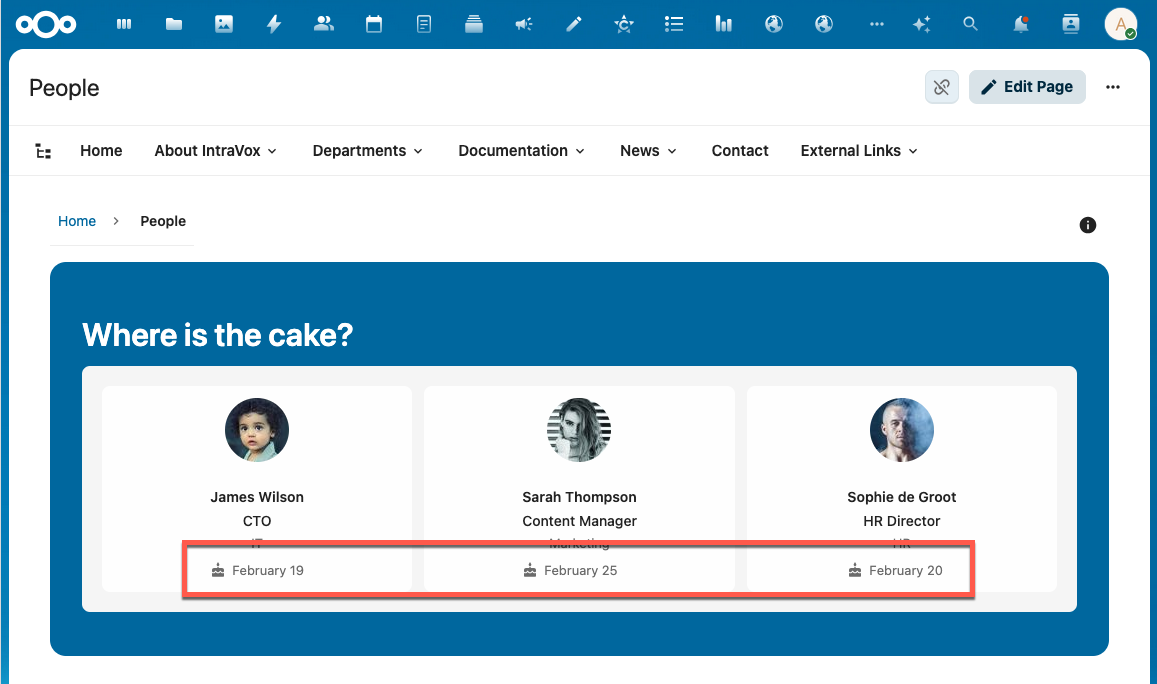
- Add filter: Birthdate → is today
- Result: Shows users whose birthday is today
Example: Show Upcoming Birthdays
- Add filter: Birthdate → within next days → "7"
- Result: Shows users with birthdays in the next 7 days
Note: The "is today" and "within next days" operators compare month and day only (ignoring year), which is ideal for recurring events like birthdays. Year-end wrapping is handled automatically (e.g., a filter set on December 30 with "within next 7 days" will correctly include January birthdays).
Display Options
Control which information is shown for each user. All display options are available in every layout (Card, List, and Grid).
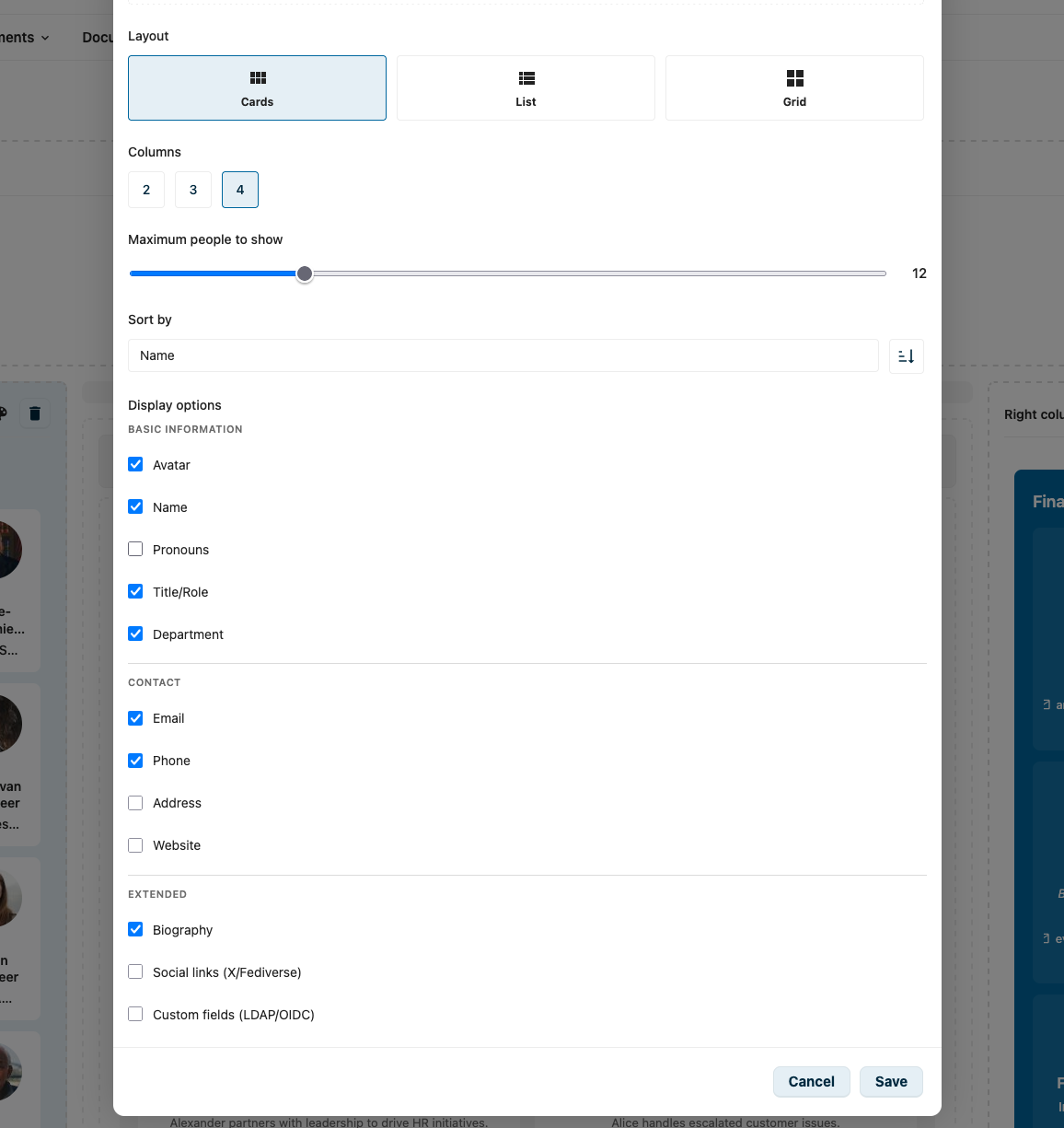
Basic Information
| Field | Description | Default |
|---|---|---|
| Avatar | User profile picture | On |
| Name | Display name | On |
| Pronouns | User's pronouns (if set) | Off |
| Role | Official job title | On |
| Headline | Personal tagline | Off |
| Department | Department or team | On |
Contact
| Field | Description | Default |
|---|---|---|
| Email address (clickable) | On | |
| Phone | Phone number (clickable) | Off |
| Address | Physical address | Off |
| Website | Personal website | Off |
Extended
| Field | Description | Default |
|---|---|---|
| Biography | User bio | Off |
| Birthdate | Birthday with cake icon | Off |
| Social links | Twitter/X, Fediverse, and Bluesky links | Off |
| Custom fields | Extra fields synced into user preferences | Off |
Birthdate Display
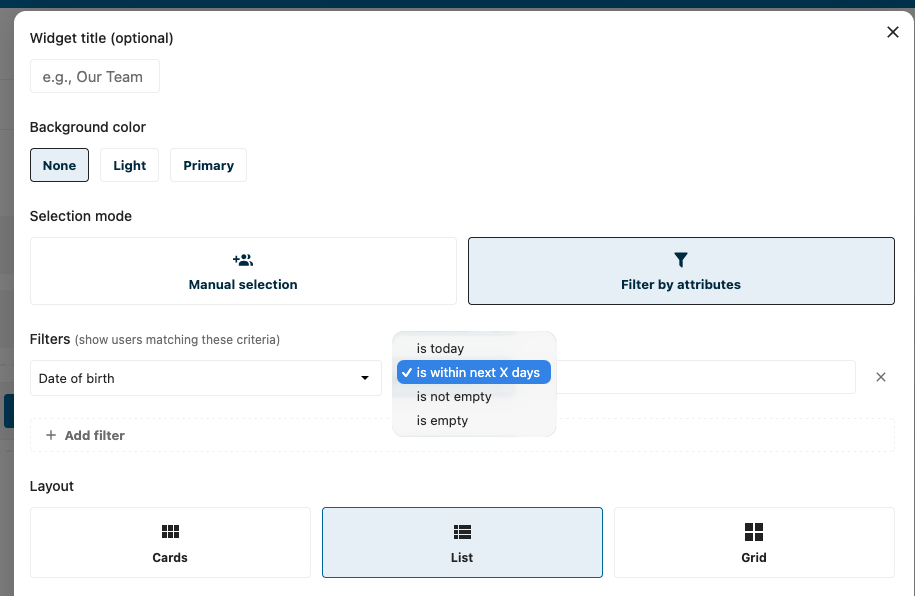
When the Birthdate field is enabled, each user's birthday is displayed with a cake icon. The date is formatted according to the user's locale. This pairs well with the date filter operators to create birthday widgets (see Show Today's Birthdays).
Custom Fields (LDAP/OIDC)
Important: Nextcloud cannot store arbitrary directory attributes.
IAccountManager::ALLOWED_PROPERTIESis a fixed allowlist of 16 properties, and anything outside it is discarded on write. An LDAP attribute such asemployeeNumbertherefore has nowhere to land, and no app — IntraVox included — can read it back. To show directory data, map it onto one of the existing profile fields.
Mapping directory attributes onto profile fields
Under Settings → Administration → LDAP/AD integration → Advanced → Special Attributes, Nextcloud lets you point a profile field at any LDAP attribute. Everything you map there appears in the People Widget automatically, with its own display option and filter — no custom fields toggle needed.
| You want to show | Map your LDAP attribute onto |
|---|---|
| Department, business unit | Organisation |
| Job title, employee type | Role |
| Office location, desk | Address |
| Short tagline, team | Headline |
| Phone / extension | Phone |
| Longer free text (e.g. manager, cost centre) | Biography |
The fields available for mapping are: phone, website, address, twitter, fediverse, organisation, role, headline, biography, birthdate and pronouns.
The custom fields toggle
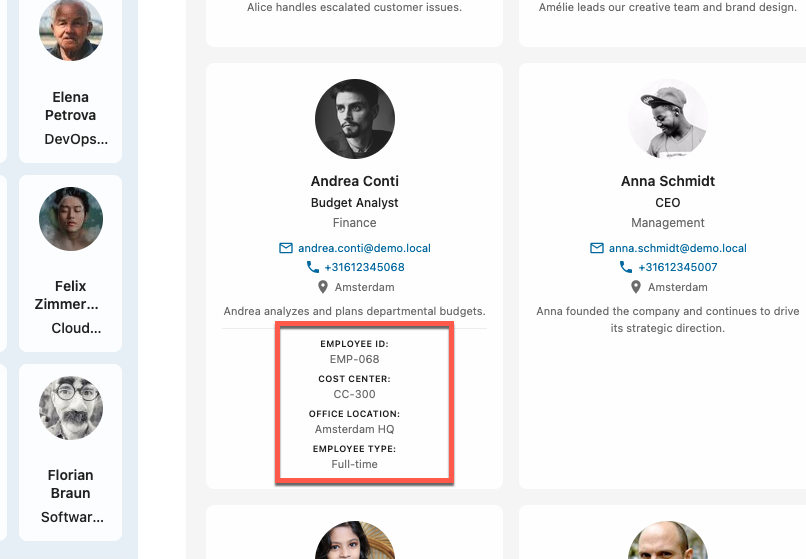
The Custom fields (LDAP/OIDC) display option renders extra key/value pairs stored in the intravox/custom_fields user preference. The widget formats field names for readability (e.g. employee_id becomes "Employee Id").
IntraVox reads this preference but does not currently write it — there is no built-in LDAP or OIDC sync that fills it. It is populated by the occ intravox:add-demo-fields command for demo data, or by your own provisioning script. If you enable the toggle without such a source, no extra fields appear. See issue #106.
Note: Birthdate and Bluesky are now first-class fields with dedicated display options and don't require the custom fields toggle.
Pagination
When there are more users matching your filters than the configured "Maximum people to show" limit, the widget displays a pagination footer:
- Shows the count: "Showing 12 of 47 people"
- Show more button to load additional users
- Continues until all matching users are displayed
This allows you to set a reasonable initial limit while still providing access to the full list.
Avatar Popup Menu
Clicking on a user's avatar opens Nextcloud's standard contact menu, providing:
- View profile: Opens the user's Nextcloud profile page
- Email: Send an email to the user
- Show availability: View the user's calendar availability (requires Calendar app)
- User status: See current status and custom message
This is standard Nextcloud functionality and works the same as avatar clicks elsewhere in Nextcloud.
User Profile Fields
The People Widget displays data from Nextcloud user profiles. The available fields depend on your Nextcloud configuration:
Standard Fields
These fields are available in all Nextcloud installations:
- Display name
- Phone
- Address
- Website
- Twitter/X handle
- Fediverse handle
- Bluesky handle
- Organisation
- Role (job title)
- Headline (personal tagline)
- Biography
- Pronouns
- Birthdate
LDAP/Active Directory Fields
LDAP and Active Directory do not add new fields. They fill the standard fields above, according to the attribute mapping configured under Special Attributes in the LDAP settings. So directory data like department or job title becomes filterable once mapped onto Organisation, Role, Address, Headline or Biography.
OIDC Fields
The same applies to OpenID Connect: profile claims are filterable once mapped onto one of the standard fields listed above.
Group-Based Filtering
The most common use case is filtering by group membership:
Single Group
Show all users from one group:
- Add filter: Group → equals → select group
Multiple Groups
Show users from any of several groups:
- Add filter: Group → is one of → select multiple groups
Combined with Other Filters
Show users from a group with additional criteria:
- Add filter: Group → equals → "Engineering"
- Add filter: Role → contains → "Lead"
- Set to Match all
- Result: Shows Engineering Leads only
Visitor Filters
Everything above decides what the widget shows. Visitor filters let the people reading the page narrow that list themselves — without an editor having to build a page per department.
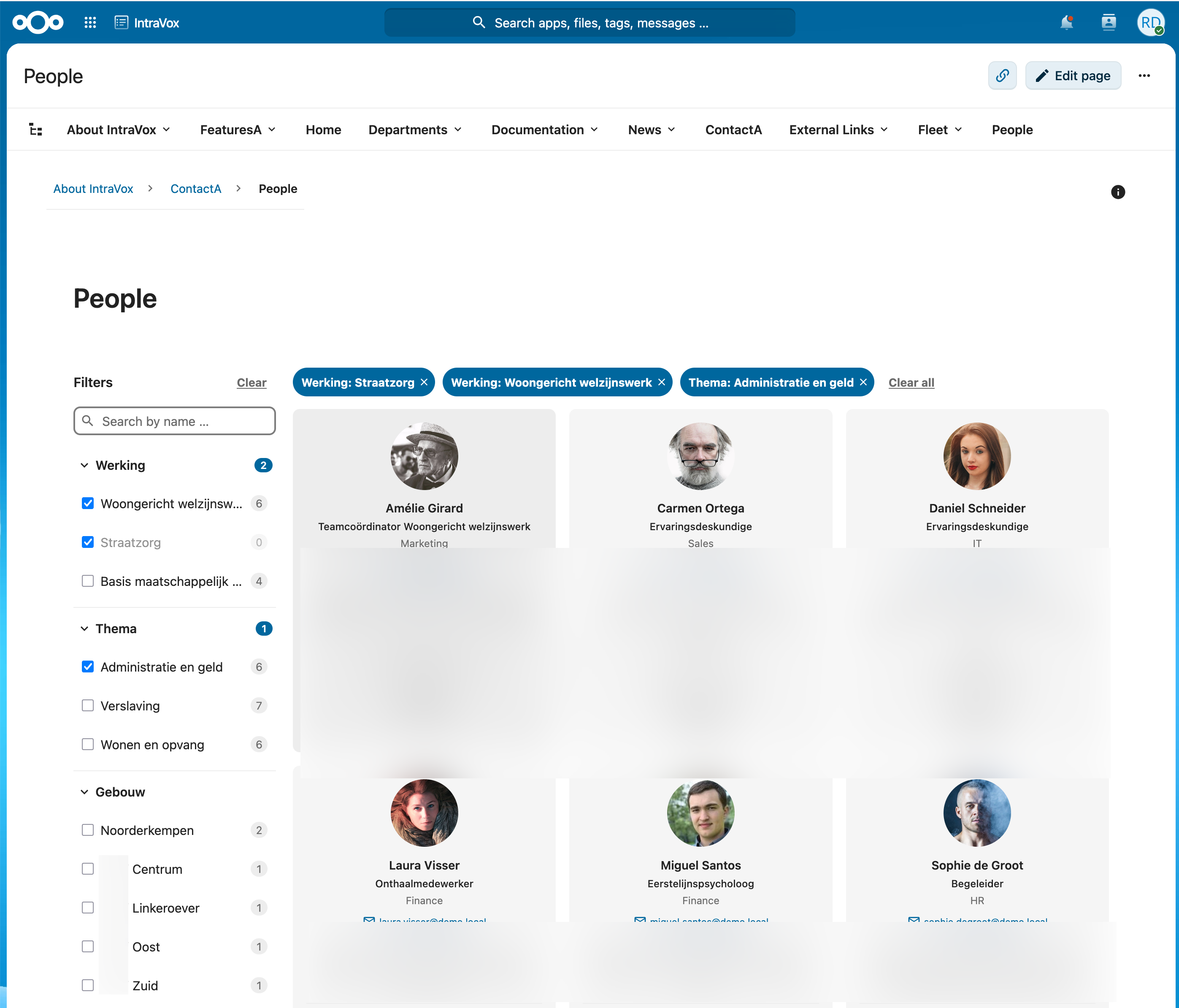
A filter panel appears beside the results with one group per field you choose. Each value carries a live count, and the counts narrow as choices are made: pick a department and the building list immediately shows only buildings where that department sits, with real numbers. Whatever a count promises, clicking it delivers exactly that many people.
Active choices appear as removable chips above the results, and the selection is stored in the page URL — so a filtered view can be bookmarked or shared, and opens filtered.
Turning it on
- Edit the page and open the People widget's settings
- Scroll to Visitor filters and switch on Let visitors filter these results
- Pick the fields visitors may filter on — the first three are chosen for you
- Optionally rename a filter (the label is what visitors see) and drag to reorder
Any profile field can be a facet. The screenshot above uses three fields carrying directory data: Werking, Thema and Gebouw — each mapped onto a standard profile field in the LDAP settings.
Settings
| Setting | Description |
|---|---|
| Filterable fields | Which fields become filter groups, in the order shown. Drag to reorder; rename per field. |
| Show a search box | Adds a free-text search over names (and any extra fields you configure). |
| Panel position | Beside the results suits a full-width page; Above the results fits a narrow column better. |
Two behaviours worth knowing
Choosing a value never empties its own group. In the screenshot, Woongericht welzijnswerk and Straatzorg are both ticked under Werking. Had selecting the first one dropped every other value to zero, "this or that" could never be expressed. Other groups do narrow — that is the point — but a group never narrows itself.
A selected value stays visible even at zero. Straatzorg shows 0 because nobody matches it in combination with the other active filters. It stays listed and stays ticked, so it can be unticked again. A value that vanished would leave a filter you could not remove.
What a visitor cannot do
A visitor can only narrow what the widget already shows. If you scoped a widget to one department, no combination of filters reaches outside it — the restriction is built into how results are assembled, not applied afterwards. A field the widget already filters on is therefore not offered as a facet: it could only ever show options that yield nothing, and the editor explains why rather than silently ignoring the choice.
Large instances
Filter counts are exact as long as the widget's scope stays under the scan limit (5,000 accounts by default). Above that, the editor shows a warning and counts render as ~12 rather than 12 — a partial number is always marked as partial. Adding a Group filter scopes the widget and makes counts exact again, and loads faster besides.
Privacy
Field visibility
The widget honours the visibility each user set for their own profile fields under Settings → Personal → Personal info:
| Visibility | Logged-in visitors | Public share links |
|---|---|---|
| Private | hidden | hidden |
| Local | visible | hidden |
| Federated / Published | visible | visible |
Fields your users marked private are never shown, regardless of what the widget is configured to display. IntraVox custom fields (from the custom_fields user preference) carry no visibility setting of their own and are treated as Local: available to logged-in users, never on a public share.
Upgrading from before IntraVox 1.9.4? Earlier versions did not check these settings, so fields marked private were shown anyway. After upgrading they disappear — which is the fix, but it is a visible change. Run
occ intravox:people:scope-reportto see exactly which fields are affected on your instance and for how many accounts.
Public share links
People widgets are hidden on public share links by default.
A public share is usually created to hand someone a set of documents. If the page also carries a People widget, sharing those documents would publish a staff directory — names and photos — to anyone holding the URL, without the people on that list having agreed to it, and often without the person sharing noticing the widget was there.
The rest of the page is shared normally; only the People widget is withheld. Visitor filters never appear on a share link either, because the filter values would themselves list your organisation's structure.
An administrator can allow it instance-wide under Settings → Administration → IntraVox → Publication:
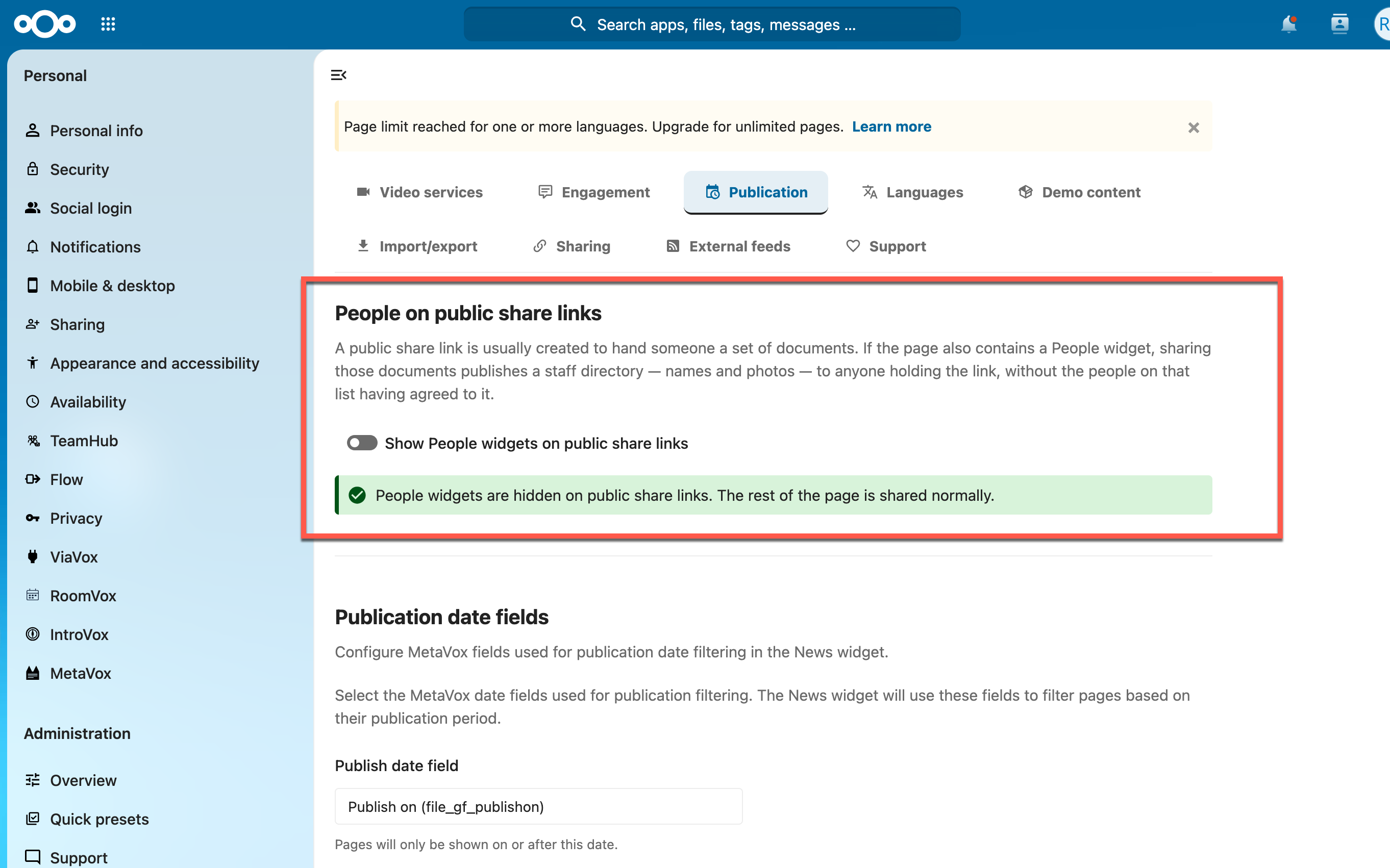
Turn this on only where there is a genuine reason — an external project page with a named contact, for instance. Field visibility still applies, so private and local-scope fields stay hidden, but names and photos become visible to anyone with the link.
Background Colors
The People Widget supports three background color options:
| Option | Description |
|---|---|
| None | Transparent background, blends with page |
| Light | Light gray background for subtle separation |
| Primary | Dark blue background (uses Nextcloud's primary color) |
When using a dark background (Primary), text colors automatically adjust for proper contrast.
Tips
- Performance: Limit the number of users for better page load times, especially with many profile fields enabled
- Privacy: Consider which fields to display publicly. Phone numbers and addresses are disabled by default, and fields users marked private are never shown
- Visitor filters: Best on a dedicated directory page. Three to five facets is usually enough — more becomes a form rather than a filter
- Group filter first: On a large instance, scoping the widget to a group makes filter counts exact and the page faster
- Groups: Create Nextcloud groups specifically for widget display (e.g., "Leadership Team", "Support Staff")
- Profile completeness: Encourage users to complete their Nextcloud profiles for richer People Widgets
- Layouts: Use Grid for large teams, Cards for small featured teams, List for directories
- Pagination: Set a reasonable limit (12-20) and let users load more if needed
Requirements
- IntraVox 0.9.14 or higher (visitor filters and the privacy behaviour described above require 1.9.4)
- Users must have Nextcloud accounts
- Group filtering requires users to be members of Nextcloud groups
- Calendar app required for "Show availability" in avatar popup