Managing Views
As an administrator, you can create, edit, and delete views per team folder. Views let users quickly switch between predefined combinations of columns, filters, and sort order.
Accessing the settings
- Go to Administration → MetaVox
- Select the team folder
- Open the Views tab
Creating a view
- Click + New view
- Enter a name
- Configure the options (see below)
- Click Save
The view immediately appears in the tab bar for users in that team folder.
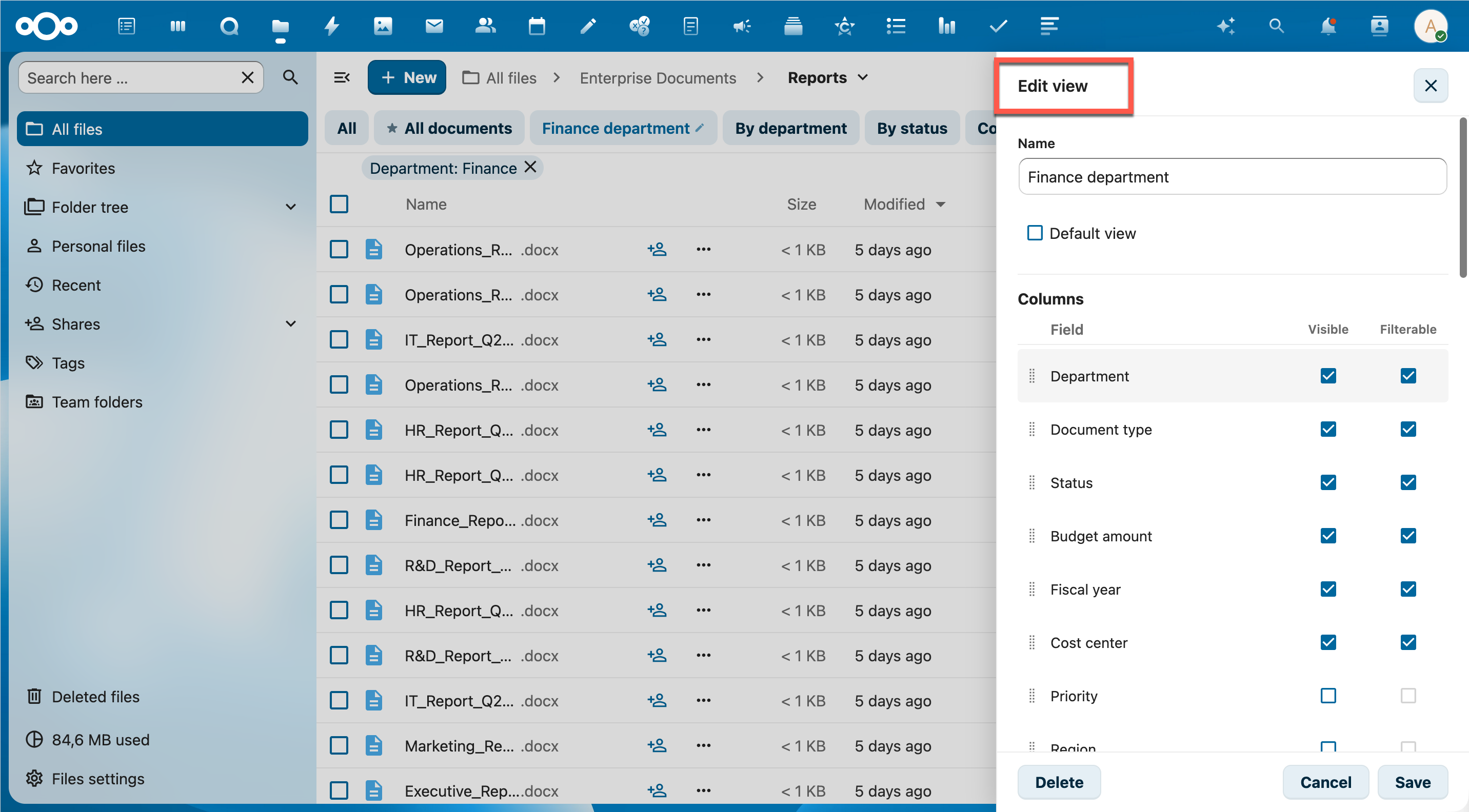
Settings
Name
The name shown in the view tab bar. Keep it short and descriptive (e.g. "WOO requests", "Pending review", "Public documents").
Default
Enable Default to automatically activate this view when users open the team folder. Only one view can be the default per team folder — setting a new default removes it from the previous one.
Columns
Control which fields appear in the file list and in which order:
| Setting | Meaning |
|---|---|
| Visible | The field appears as a column in the file list |
| Filterable | The field is available as a preset filter in this view's editor |
Drag the ⠿ handle to reorder rows. The order here determines the left-to-right column order in the file list.
Note: Filterable can only be enabled when the field is Visible. Unchecking Visible automatically disables Filterable.
Changes to the Visible checkbox immediately update which fields are available in the Filters and Sort sections of the view editor.
Filters (preset values)
Set default filter values that activate as soon as the view is selected. Only fields that are both Visible and Filterable appear here.
- Select / multiselect fields: check the desired options
- Yes/No fields: check "Yes" and/or "No"
- Text / number / user fields: type a value and press Enter to add it as a tag; multiple tags work as OR
Preset filters combine with any temporary filters a user applies on top.
Sort
Choose the field to sort by and the direction (Ascending / Descending). Only fields marked as Visible appear in the sort dropdown. If a field is later hidden by unchecking Visible, the sort resets automatically to "no sort".
Editing a view
Click the pencil icon (✎) next to a view in the tab bar (visible to admins), or open the view from the admin panel. Changes take effect immediately after saving.
Deleting a view
Open the view editor and click Delete (red button, bottom left). This cannot be undone.
Tips
- Create a "Default" view that shows only the most relevant columns to reduce visual clutter for users
- Use preset filters in combination with visible columns — e.g. a "WOO open" view that shows only the WOO-related fields and filters on status "Open"
- Column order is saved per view — different views can have different column orders
- Views are shared across all users of a team folder; there are no per-user views
- The Filters section only shows fields that are Visible in the current view — hiding a field also removes it from the filter options
- Checkbox fields (Yes/No) always offer both "Yes" and "No" as filter options, even if no documents have been checked yet
See Also
- Using Views - How users interact with views
- Permissions - Roles and access control
- Field Types - Available metadata field types