Email Notifications
RoomVox sends email notifications to keep organizers and managers informed about booking status changes.
Prerequisites
- Email notifications enabled in RoomVox settings (Settings > Administration > RoomVox > Settings)
- Nextcloud SMTP configured (Settings > Administration > Basic settings > Email server)
- Users have email addresses set in their Nextcloud profile
Notification Types
Booking Confirmed
Sent to: Organizer
Triggered when a booking is accepted (either auto-accepted or approved by a manager).
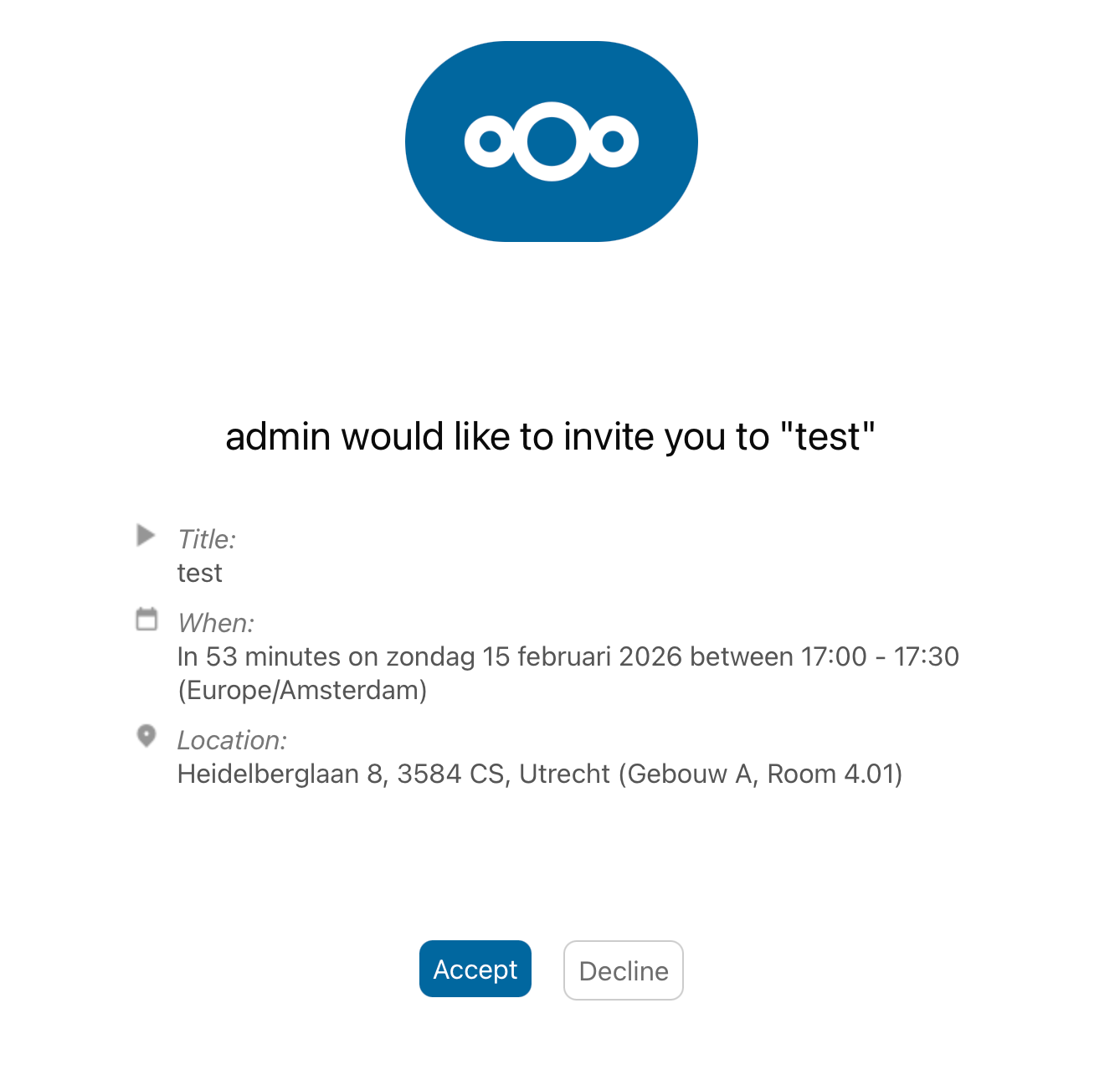
Contains: - Room name - Event summary - Event date and time - Organizer name and email
Booking Declined
Sent to: Organizer
Triggered when a booking is declined by a manager.
Contains: - Room name - Event summary - Event date and time - Reason for decline (if provided)
Permission Denied
Sent to: Organizer
Triggered when a booking is automatically declined because the user does not have permission to book the room.
Contains: - Room name - Event summary - Event date and time
When a booking is denied for permission reasons, the room attendee is also removed from the organizer's event and the LOCATION field is cleared, so the calendar no longer shows the room as part of the event.
Scheduling Conflict
Sent to: Organizer
Triggered when a booking is automatically declined due to a time conflict with an existing booking. Recurring events are checked at the occurrence level — booking the second (or later) instance of a weekly series now correctly triggers a conflict mail, not just the first instance.
Contains: - Room name - Event summary - Requested date and time - Conflict information
Booking Horizon Exceeded
Sent to: Organizer
Triggered when a booking is automatically declined because it falls beyond the room's configured Maximum booking horizon. Recurring events with a far-future last occurrence (or no UNTIL/COUNT) are included in this check.
Contains:
- Room name, event summary, requested date and time
- The exact horizon in days (e.g. 60 days)
- The earliest date that is no longer bookable (today + N days), so the organizer can reschedule without guessing
Outside Availability Hours
Sent to: Organizer
Triggered when a booking falls outside the room's configured availability rules (e.g. weekday 09:00–17:00 only).
Contains:
- Room name, event summary, requested date and time
- A summary of the room's availability rules (Mon, Tue, Wed, Thu, Fri 09:00–17:00)
Room Sync In Progress
Sent to: Organizer
Temporary failure: triggered when a booking arrives while a room's initial Exchange sync is still running. The organizer is asked to retry in a few minutes.
Approval Request
Sent to: All room managers
Triggered when a new booking arrives for a room with auto-accept disabled. The booking is set to tentative (pending) status.
Contains: - Room name - Event summary - Event date and time - Organizer name and email
Booking Cancelled
Sent to: Organizer and all room managers
Triggered when a booking is cancelled by the organizer (via their calendar app sending an iTIP CANCEL).
Contains: - Room name - Event summary - Event date and time - Cancellation information
Booking Cancelled by Manager
Sent to: Organizer (booker)
Triggered when an admin or manager cancels an already-accepted booking via the Cancel booking action in RoomVox (admin Bookings tab or per-booking modal). Distinct from "Booking Cancelled" above: the booker initiated nothing — a room manager pulled the room. The room is also removed from the booker's own calendar event (LOCATION cleared, ROOM attendee removed) so the slot frees up in the Room Finder.
Contains: - Room name, event summary, date and time - Explanation that the booking was cancelled by a room manager and the room has been released
iCalendar Attachments
Notification emails include iCalendar (.ics) attachments where applicable:
- REPLY attachments for accepted/declined responses
- CANCEL attachments for cancellation notices
These attachments allow calendar apps to automatically update the event status.
Email Sender Address
The "From" address on notification emails depends on the room's email configuration:
| Configuration | From Address |
|---|---|
Room has custom email (e.g., room1@company.com) |
Room email address |
| Room has per-room SMTP configured | SMTP username as envelope sender, room email as Reply-To |
Room uses auto-generated email (@roomvox.local) |
Nextcloud system sender address |
| No room email configured | Nextcloud system sender address |
When Notifications Are Sent
| Event | Organizer Gets | Managers Get |
|---|---|---|
| Booking auto-accepted | Confirmation email | — |
| Booking pending approval | — | Approval request |
| Manager approves booking | Confirmation email | — |
| Manager declines booking | Decline email | — |
| Permission denied (auto-decline) | Permission denied email | — |
| Scheduling conflict (auto-decline) | Conflict email | — |
| Booking horizon exceeded (auto-decline) | Horizon-exceeded email (with N days + cutoff date) | — |
| Outside availability hours (auto-decline) | Availability email (with rules summary) | — |
| Room sync in progress (temporary failure) | Sync-in-progress email | — |
| Organizer cancels their own booking | Cancellation email | Cancellation email |
| Manager cancels an accepted booking | Cancellation-by-manager email | — |
Troubleshooting Notifications
If emails are not being sent:
- Check email is enabled — RoomVox settings > "Enable email notifications"
- Check Nextcloud SMTP — Settings > Administration > Basic settings > Email server > Send test email
- Check user email addresses — Users need an email address set in their Nextcloud profile
- Check logs — Look for email errors in the Nextcloud log:
- Test per-room SMTP — Use the "Send test email" button in the room editor's SMTP section
See Email Configuration for detailed SMTP setup instructions.