Results and Analysis
After collecting responses, FormVox provides powerful tools to view and analyze your data.
Accessing Results
- Open your form in FormVox
- Click Results in the toolbar
- You'll see the results dashboard
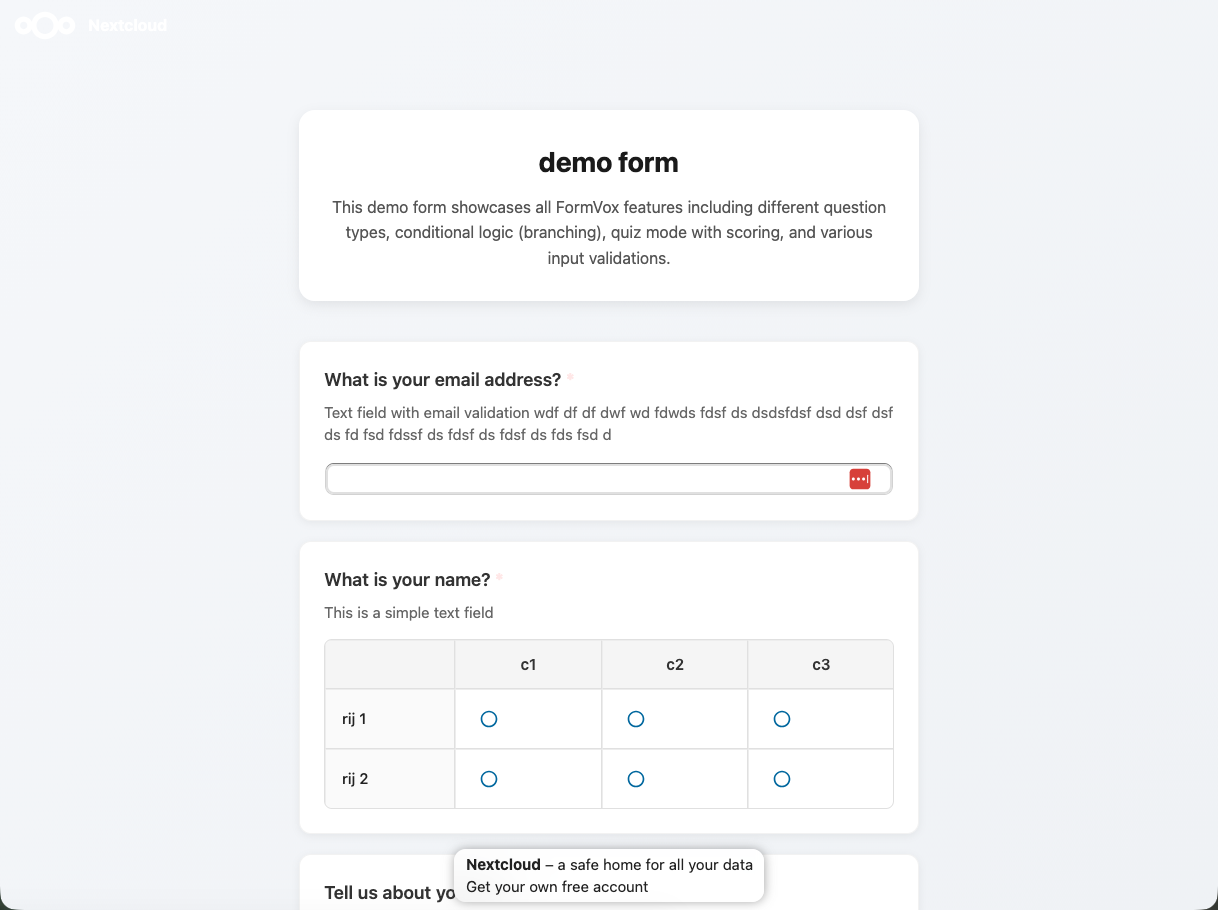
Results Dashboard
Summary View
The summary view shows: - Total responses - Number of submissions - Response rate - If applicable - Average completion time - How long respondents take
Charts and Visualizations
For each question, FormVox displays appropriate charts:
| Question Type | Visualization |
|---|---|
| Single choice | Pie chart, bar chart |
| Multiple choice | Horizontal bar chart |
| Linear scale | Distribution chart |
| Star rating | Average with stars |
| Matrix | Heatmap |
| Text | Word cloud (optional) |
Question-by-Question
Scroll through to see results for each question: - Response counts - Percentages - Visual charts
Individual Responses
View each submission separately:
- Click Individual responses tab
- Browse through submissions
- Use pagination for large datasets
Response Details
Each response shows: - Submission date/time - All answers - Respondent info (if collected)
Filtering Responses
Filter responses by: - Date range - Specific answers - Completion status
Quiz Results
For forms in quiz mode:
Score Summary
- Average score
- Score distribution
- Pass/fail rates
Per-Question Analysis
- Percentage correct
- Common wrong answers
- Difficulty analysis
Individual Scores
- View each respondent's score
- See which questions they got right/wrong
Real-Time Updates
Results update in real-time: - New submissions appear automatically - Charts update without refresh - No need to reload the page
Response Management
Delete Responses
To delete a single response: 1. Go to Individual responses 2. Find the response 3. Click the delete icon 4. Confirm deletion
Delete All Responses
To clear all data: 1. Open form settings 2. Click Delete all responses 3. Confirm (this cannot be undone)
Archive Responses
Export and clear old responses: 1. Export data (see Exporting) 2. Delete responses 3. Keep the export for records
Notifications
Get notified of new responses:
- Open form settings
- Enable Email notifications
- Choose notification frequency:
- Every submission
- Daily summary
- Weekly summary
Best Practices
For Ongoing Surveys
- Check results regularly
- Export data periodically
- Watch for trends over time
For Quizzes
- Review question performance
- Adjust questions that everyone gets wrong/right
- Use analytics to improve future quizzes
For Large Datasets
- Use filtering to focus on segments
- Export to Excel for advanced analysis
- Create multiple forms for different groups
Next Steps
- Export your data for external analysis
- Learn about Question Types to improve your forms
- Set up Conditional Logic based on common answers