Getting Started with FormVox
This guide will help you create your first form in FormVox in just a few minutes.
Prerequisites
- Nextcloud 28 or higher
- FormVox app installed (see Installation Guide)
Creating Your First Form
Step 1: Open FormVox
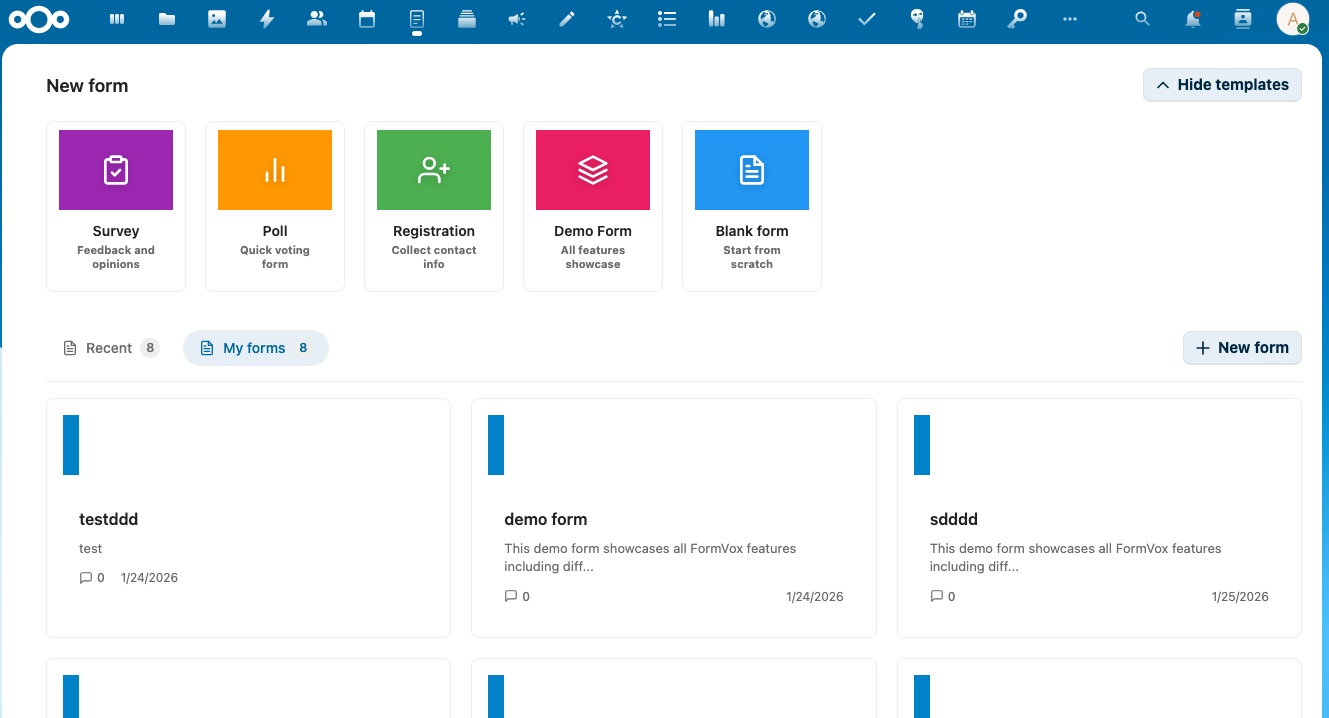
Click on the FormVox icon in your Nextcloud navigation bar to open the app.
Step 2: Choose a Template
You'll see a template gallery with several options:
- Blank - Start from scratch
- Survey - Pre-configured survey template
- Poll - Quick voting form
- Registration - Event registration form
- Demo - Example form with various question types
Click on any template card to get started.
Step 3: Configure Your Form
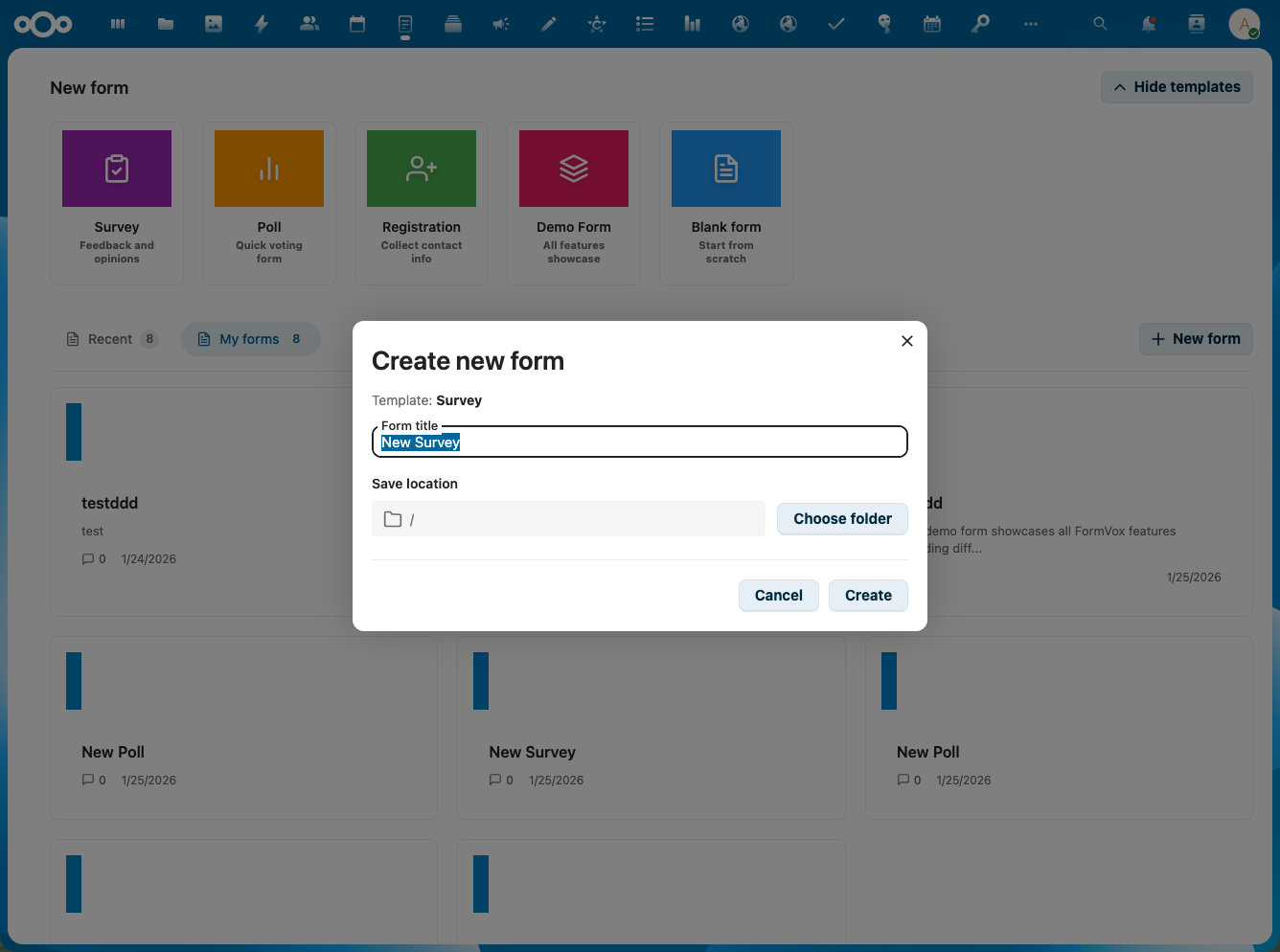
- Enter a title for your form
- Choose a location where the form file will be saved
- Click Create to open the form editor
Step 4: Add Questions
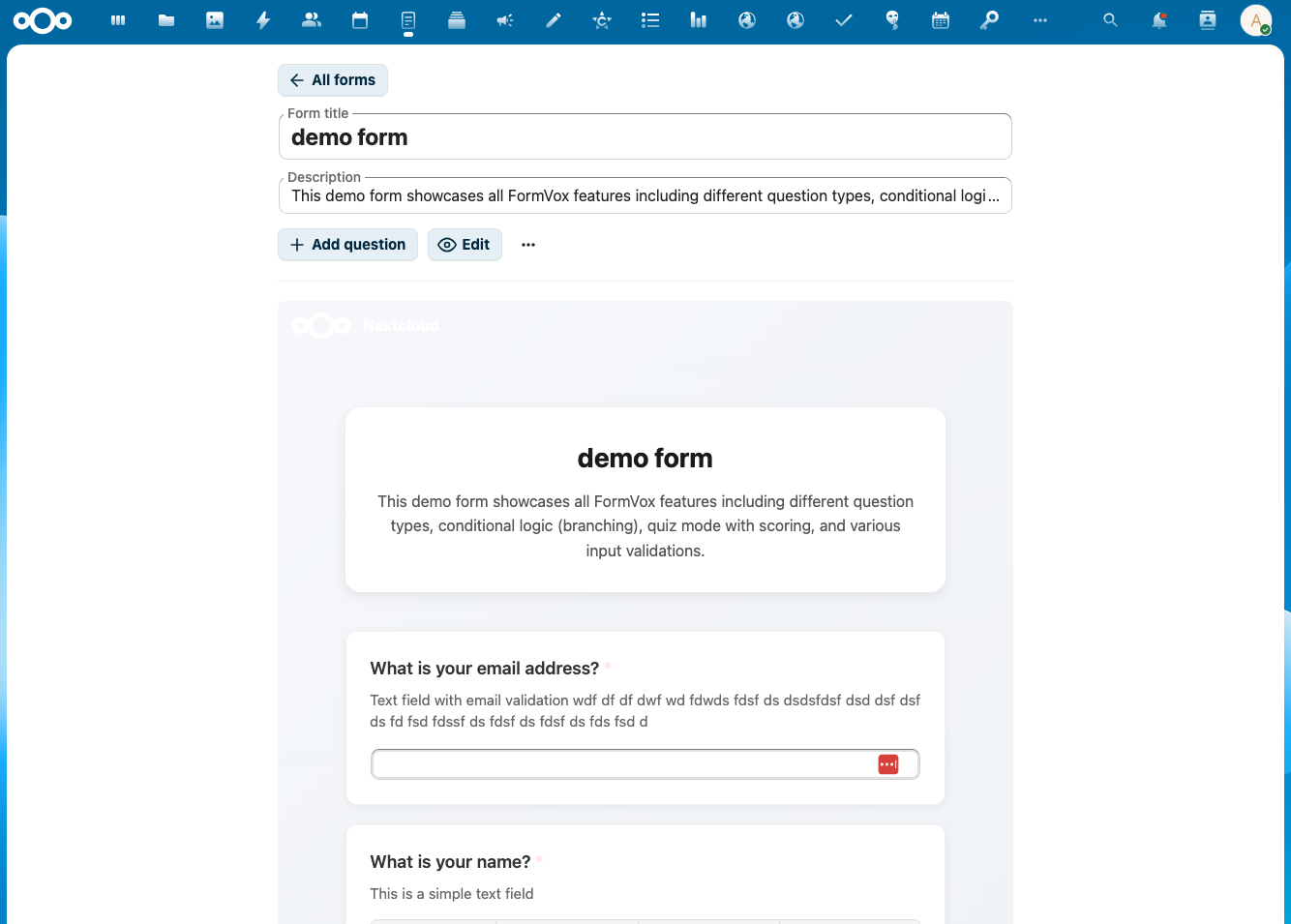
The form editor has three sections:
- Left sidebar - Add new questions by clicking the + button
- Center - Edit your questions and options
- Right sidebar - Configure question settings
Add questions by: 1. Click Add question or the + button 2. Choose a question type (text, multiple choice, rating, etc.) 3. Enter your question text 4. Configure options if needed
Step 5: Share Your Form
Once your form is ready:
There are two routes, and they do different things:
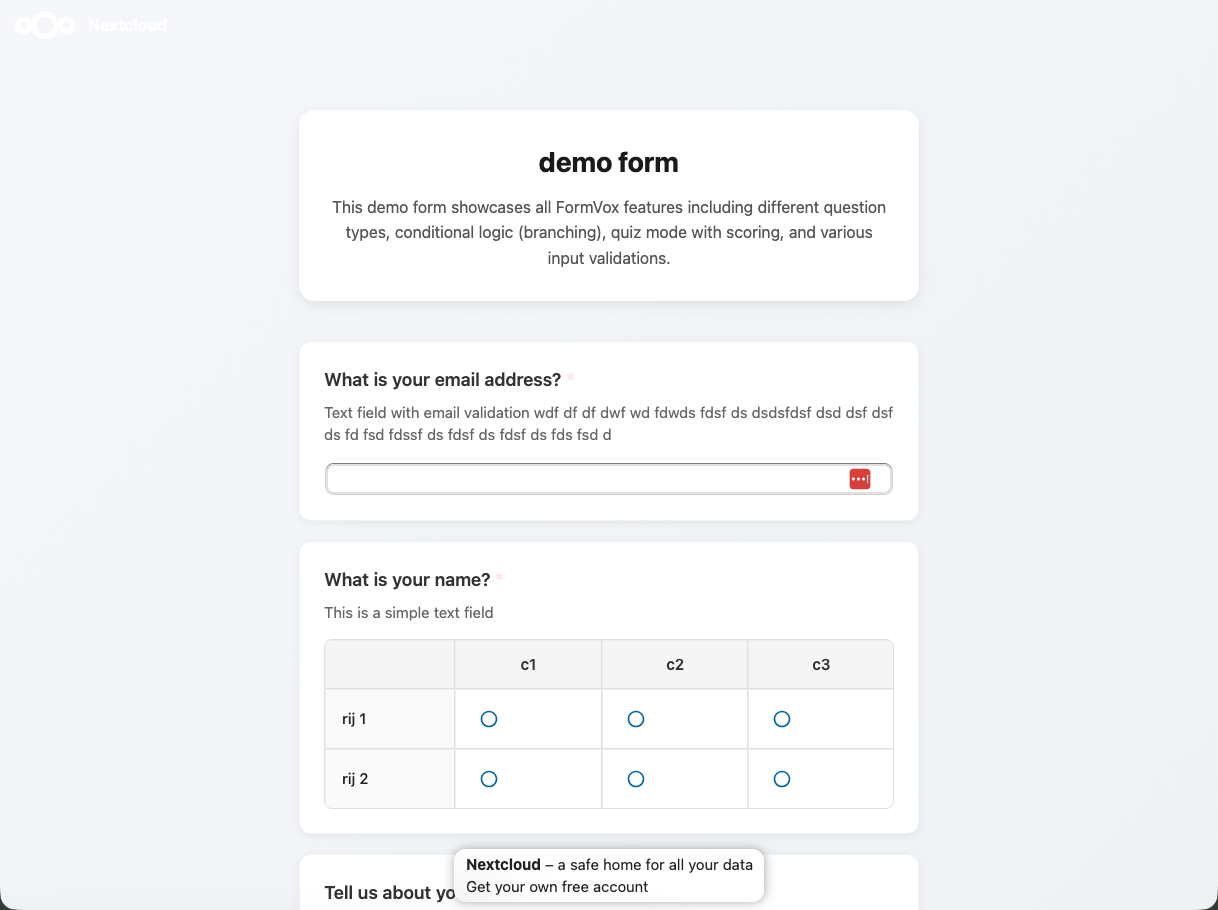
- Public link - click Share in the toolbar and create a response link. Anyone with the link can respond; you can add a password, an expiry, or restrict it to specific users and groups.
- Nextcloud users - share the form's
.fvformfile (or its folder) from the Files app. The recipient then has the form in their own FormVox, with the rights your file share grants them.
Step 6: View Responses
After people submit responses:
- Open your form
- Click Results in the toolbar
- View summary statistics, charts, and individual responses
Next Steps
- Learn about all Question Types
- Set up Conditional Logic to create dynamic forms
- Configure Quiz Mode for assessments
- Export your data to CSV, JSON, or Excel
Need Help?
- Check the User Documentation for detailed guides
- Report issues on GitHub