Advanced Features
FormVox includes powerful features for creating dynamic, intelligent forms.
Conditional Logic
Conditional logic allows you to show or hide questions based on previous answers. This creates a personalized experience for respondents.
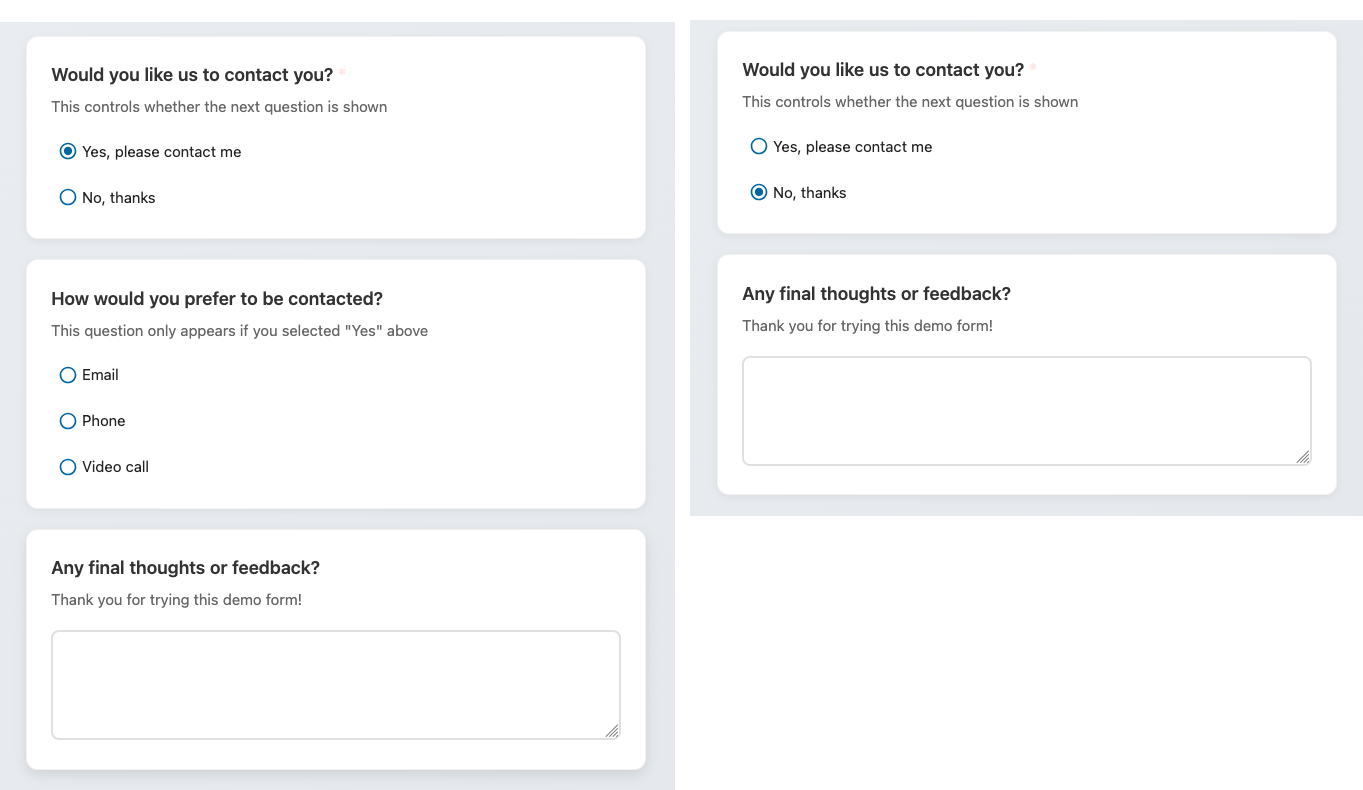
How It Works
- Select a question you want to conditionally show
- Click Add condition in the question settings
- Configure the condition:
- If - Select the question to check
- Operator - equals, not equals, contains, etc.
- Value - The answer value to match
- The question will only appear when the condition is met
Multiple Conditions
You can add multiple conditions with AND/OR logic:
- AND - All conditions must be true
- OR - Any condition can be true
Example Use Cases
Customer Feedback Form: - Q1: "How satisfied are you?" (1-5 scale) - Q2: "What could we improve?" (only shows if Q1 ≤ 3)
Event Registration: - Q1: "Will you attend the dinner?" (Yes/No) - Q2: "Dietary restrictions?" (only shows if Q1 = Yes)
Quiz Mode
Transform your form into a quiz with automatic scoring.
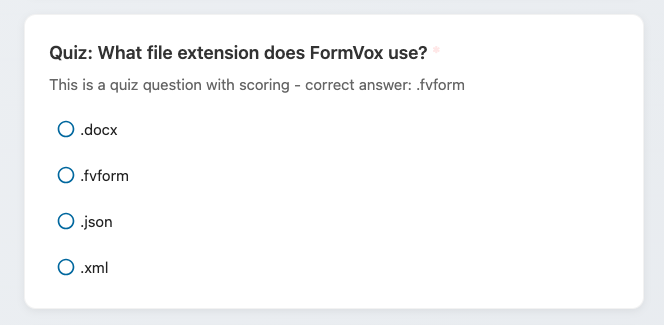
Enabling Quiz Mode
- Open form settings
- Enable Quiz mode
- For each question, mark the correct answer(s)
- Assign point values
Scoring Options
- Points per question - Assign different point values to questions
- Partial credit - For multiple choice, award partial points
- Pass/fail threshold - Set a minimum score to pass
Results Display
After submission, respondents can see: - Their total score - Correct/incorrect answers - Feedback for each question (optional)
Quiz Question Types
Best question types for quizzes: - Single choice (one correct answer) - Multiple choice (multiple correct answers) - Dropdown (one correct answer) - Short text (exact match)
Answer Piping
Use answers from previous questions in later questions or messages.
Syntax
Use double curly braces with the question ID:
Example
Q1: "What is your name?" → User answers "John"
Q2: "Hi {{q1}}, what department do you work in?"
Displays as: "Hi John, what department do you work in?"
Where to Use Piping
- Question text
- Question descriptions
- Page titles
- Confirmation messages
Multi-Page Forms
Organize long forms into multiple pages for better user experience.
Creating Pages
- Click Add page in the question list
- Give the page a title (optional)
- Drag questions into the page
Page Navigation
Respondents see: - Next button to go to the next page - Previous button to go back - Progress indicator (optional)
Page Logic
Combine pages with conditional logic: - Skip entire pages based on answers - Show different paths for different users
Conditional Page Routing
Conditional page routing lets you skip to a specific page based on a respondent's answers. This is more powerful than simple page-level conditional logic — it changes which page comes next.
Setting Up Routing Rules
- In the editor, navigate to the page you want to add routing to
- Click the Routing button in the page header
- Click Add rule to create a routing rule
- Configure the rule:
- If question — Select the question to evaluate
- Operator — Choose a comparison operator
- Value — The answer value to match (if applicable)
- Go to page — Select the target page
Available Operators
| Operator | Description |
|---|---|
| equals | Answer exactly matches the value |
| not equals | Answer does not match the value |
| contains | Answer contains the value |
| is empty | Answer is blank (no value needed) |
| is not empty | Answer has any value (no value needed) |
| greater than | Answer is numerically greater |
| less than | Answer is numerically less |
How It Works
- Rules are evaluated in order — the first matching rule wins
- If no rule matches, the form advances to the next page as normal
- The Back button navigates through the actual routed path, not just the previous page number
Example
A satisfaction survey with 4 pages: - Page 1: General questions (includes "How satisfied are you?" scale 1-5) - Page 2: Detailed feedback (for dissatisfied users) - Page 3: Testimonial request (for satisfied users) - Page 4: Thank you
Routing rules on Page 1: - If "How satisfied are you?" less than 3 → Go to Page 2 - If "How satisfied are you?" greater than 3 → Go to Page 3
Form Branding
Customize the appearance of your forms to match your organization.
Branding Options
- Header image - Logo or banner at the top
- Background color - Form background
- Accent color - Buttons and highlights
- Custom CSS - Advanced styling (admin only)
Per-Form Branding
Each form can have its own branding, or inherit from organization defaults.
Duplicate Prevention
Prevent users from submitting multiple responses.
Methods
- Browser fingerprint - Detect same browser/device
- Nextcloud user - One submission per logged-in user
- Email verification - Require email confirmation
Settings
- Open form settings
- Under Submission settings
- Enable duplicate prevention
- Choose the method
Rate Limiting
Protect your forms from spam and abuse.
Public Form Protection
For public forms: - Submissions per minute - Limit rapid submissions - CAPTCHA - Add bot protection (requires admin setup)
Next Steps
- Learn about Sharing and Publishing
- View and analyze Results
- Export your data