MetaVox Installation Guide
This guide covers installing and configuring MetaVox for your Nextcloud instance.
Requirements
Required
| Dependency | Why |
|---|---|
| Nextcloud 31 to 35 | Platform. These are the versions appinfo/info.xml declares |
| PHP 8.1+ | Platform |
Team folders app (groupfolders) |
MetaVox adds metadata to Team folders. Without the app MetaVox does nothing |
| MySQL, MariaDB or PostgreSQL | MetaVox is built and tested for these. SQLite works for trying it out, but the search filter then reads every value instead of the search index |
| Administrator access | Field definitions and app settings require admin rights |
Recommended
| Dependency | Why | Without it |
|---|---|---|
| System cron for background jobs | Background jobs build the search index and fill in default values | With AJAX or Webcron, jobs run only when someone has a page open. The search index and default values fall behind |
User status app (user_status) |
Its heartbeat tells MetaVox who still has a Team folder open | Someone who closed the Team folder still shows as present for up to 12 hours |
| Redis (shared cache) | MetaVox uses Redis for metadata caching (30s TTL), field definition caching (600s TTL), presence tracking, and cell locking | MetaVox falls back to APCu, which is local to each web server. On a single web server, presence and cell locking still work. With more than one web server, they need a shared cache. Performance with many concurrent users is reduced |
Optional
| Dependency | Why | Without it |
|---|---|---|
Client Push app (notify_push) |
Enables real-time metadata sync between users. When one user edits metadata, all other users see the change instantly via WebSocket | Users see other users' changes only after a refresh. Cell locking indicators are not shown. Last-write-wins applies for concurrent edits |
| Nextcloud AI provider (e.g. LLM2) | Powers the Generate with AI button that suggests metadata values based on file content | The Generate with AI button does not appear. All other features work normally |
| Assistant app | MetaVox uses its libraries to read the text of PDF, DOCX and ODT files for AI suggestions | For those files, the AI only gets the file name, type, size and path |
Feature Availability
| Feature | Base install | + Redis | + Redis + notify_push |
|---|---|---|---|
| Metadata fields & editing | Yes | Yes | Yes |
| Inline grid editing | Yes | Yes | Yes |
| Bulk editing & CSV export | Yes | Yes | Yes |
| Filter & sort | Yes | Yes | Yes |
| Flow integration | Yes | Yes | Yes |
| Backup & restore | Yes | Yes | Yes |
| Metadata caching (performance) | APCu only | Distributed | Distributed |
| Cell locking (prevent conflicts) | No | No | Yes |
| Presence tracking | No | No | Yes |
| Real-time sync (live updates) | No | No | Yes |
On a single web server, APCu does the job of Redis for cell locking and presence. The Redis column matters once you run more than one web server.
Installation
From App Store (Recommended)
- Log in as administrator
- Go to Apps (click your profile icon > Apps)
- Search for "MetaVox" in the search bar
- Click Download and enable
Manual Installation
- Download the latest release from GitHub
- Extract to
nextcloud/apps/metavox - Go to Apps and enable MetaVox
Setup Checks
MetaVox adds six checks to Nextcloud's own setup checks. You find them under Administration settings > Overview, in the System group, or on the command line:
| Check | What it looks at | When it warns | How to fix it |
|---|---|---|---|
| MetaVox team folders | Whether the Team folders app is installed | Error: "The Team folders app is off. MetaVox adds metadata to team folders and does nothing without it." | Enable the Team folders app: occ app:enable groupfolders |
| MetaVox background jobs | The background jobs mode, and when cron last ran | Warning: "Background jobs run via AJAX/Webcron …", or "Background jobs last ran more than an hour ago …" | Under Administration settings > Basic settings > Background jobs, choose Cron and add a crontab entry for the web server user, such as */5 * * * * php -f /var/www/nextcloud/cron.php. If cron is already set, check that the crontab entry still runs |
| MetaVox live updates | Whether Client Push (notify_push) is installed and set up |
Info: "The Client Push app (notify_push) is not set up. Changes by others then appear after a refresh." | Install Client Push and run occ notify_push:setup. Optional: without it, MetaVox works, but without live updates |
| MetaVox presence | Whether the User status app is installed | Info: "The User status app is off. Who has a team folder open then shows for up to 12 hours." | Enable the User status app: occ app:enable user_status |
| MetaVox shared cache | Whether memcache.distributed in config.php is a shared cache, not empty or APCu |
Info: "No shared cache such as Redis is set up. With more than one web server, presence and editing locks need one." | Set up Redis and set 'memcache.distributed' => '\OC\Memcache\Redis' in config.php. With a single web server you can leave this as it is |
| MetaVox search index | Whether the job that fills the search index is still running | Info: "The search index is being built: X of Y files. Until then, free-text search finds only the files already done." | Nothing to do: the job finishes on its own, as long as background jobs run. If the numbers do not move, check the background jobs check |
Initial Configuration
After installation:
- Go to Administration settings > MetaVox
- The page has a row of panes. You see one pane at a time:
- Team folders - Define fields for Team folders themselves
- Files - Define fields for files and folders inside Team folders
- Per folder - Per Team folder: which fields it uses, their default values, and the Team folder's own metadata
- Search - The metadata filter in the search bar, and saved filters as folders in Files
- General - What links URL fields take, and AI suggestions on or off
- Permissions - Give groups the MetaVox manage permission
- Backup - Back up and restore metadata
- Support - Subscription key and anonymous usage statistics
Creating Fields
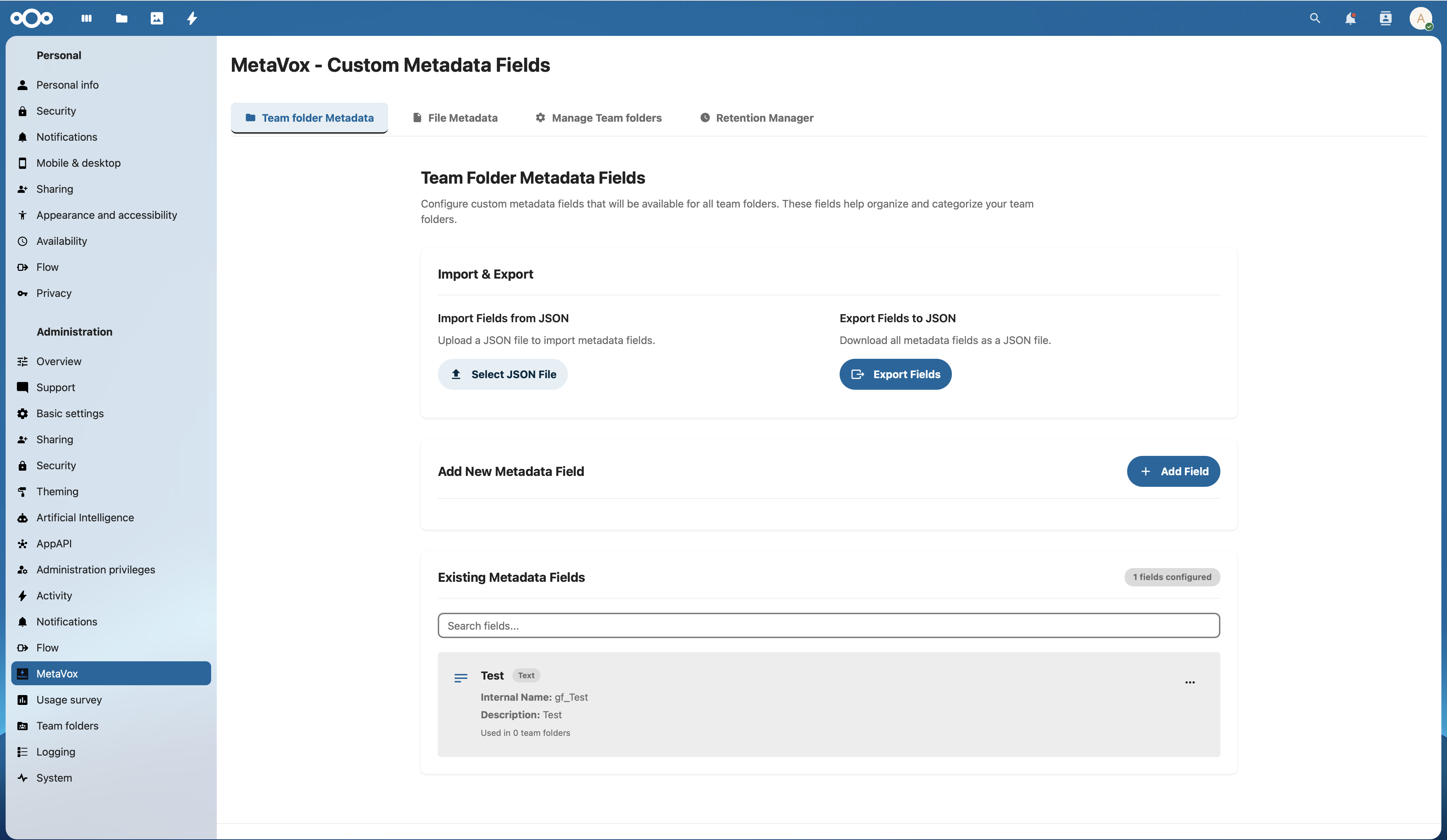
Fields are defined once for the whole instance, on the Team folders pane or the Files pane. You then assign them to Team folders on the Per folder pane.
- Open the Team folders pane or the Files pane
- Click New field
- Configure the field:
- Field name: Internal identifier. Only lowercase letters (a-z), numbers (0-9) and underscores (_), starting with a letter. Type the name without a prefix: MetaVox adds
gf_to Team folder fields andfile_gf_to file fields. Sodepartmenton the Team folders pane is stored asgf_department - Field label: Display name shown to users
- Field type: Text, select, date, etc. See Field Types
- Description: Shown to users beside the field
- Required field: Whether the field must be filled in
- Dropdown options: For select and multi-select fields. Type one value per row, and click Add option for each next value. A select field needs at least one option
- Include time component: For date fields, to store a date and a time
- Click Create field
Through the API, send the full name with its prefix (gf_… or file_gf_…). MetaVox refuses a name without the prefix of its kind.
Changing and Deleting Fields
Click a field, or choose Edit field in its menu, to change it. A field is in use while it is assigned to at least one Team folder. While it is in use:
- Its Internal field name and type are fixed ("Fixed while the field is in use")
- It can be made Required: files without a value are then marked in the grid, and get one at their next save
- It cannot be deleted. Its menu shows Cannot delete (in use)
To delete a field that is in use, first remove it from every Team folder on the Per folder pane.
To delete several fields at once, tick them in the list and click Delete selected. Select all deletable ticks every visible field that is not in use. Deleting a field removes its values in every Team folder and cannot be undone. If a field became used in the meantime, MetaVox skips it and says so.
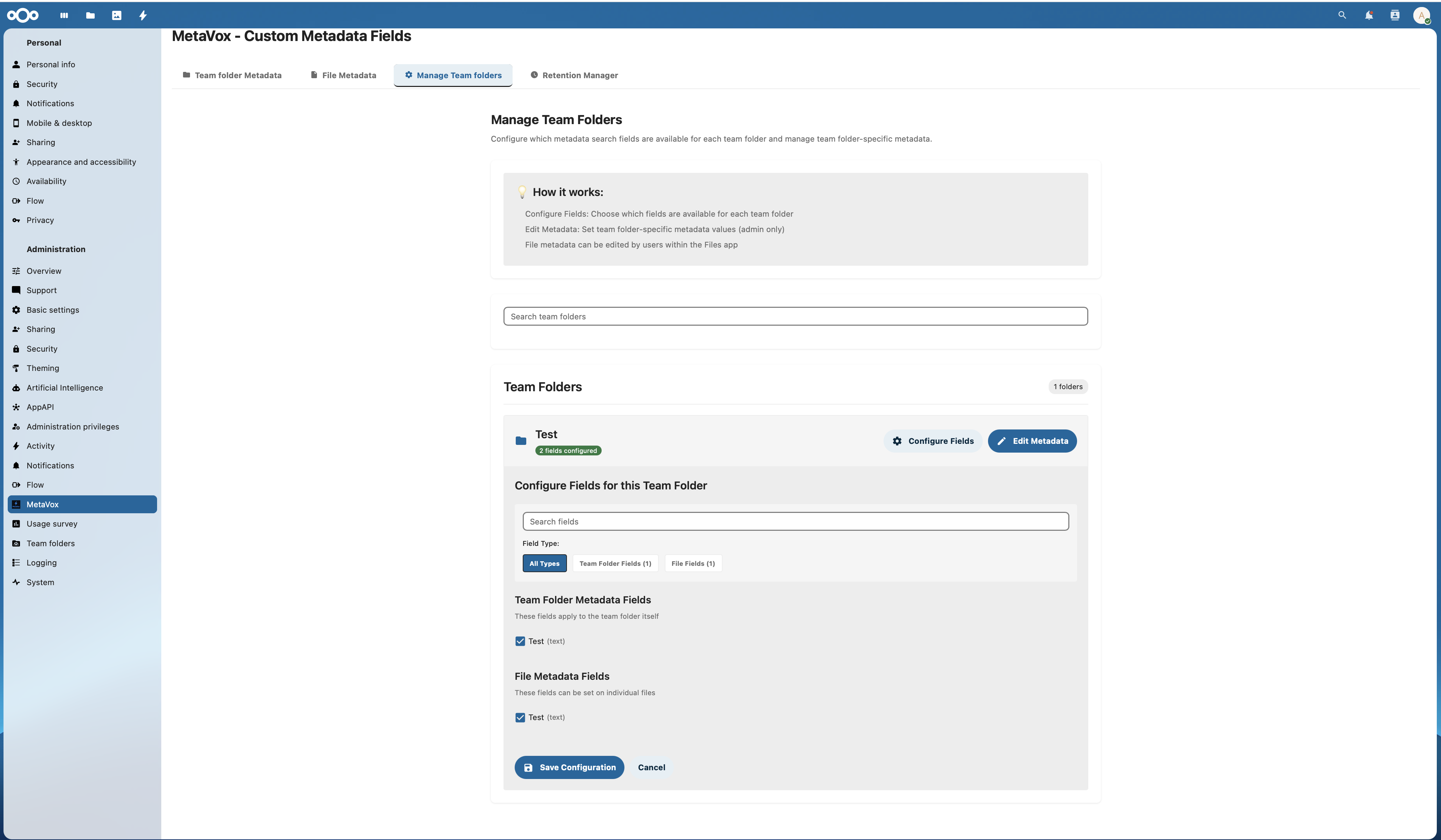
Assigning Fields to a Team Folder
- Open the Per folder pane
- In the menu of a Team folder, click Configure fields
- Tick the Team folder fields and file fields this Team folder uses. For a file field, you can set a default value
- To give existing files without a value the default value, click Apply defaults now
Team Folder Metadata
The values of Team folder fields belong to the Team folder itself. They are edited here:
- Administrators: Per folder pane > menu of the Team folder > Edit metadata
- Users with the MetaVox manage permission: Personal settings > MetaVox > menu of the Team folder > Edit metadata
In the Nextcloud sidebar the values are always read-only, also for administrators. They show when someone selects the Team folder, and as Team folder metadata above the metadata of each file inside it.
File Metadata
File fields are configured the same way on the Files pane, but apply to individual files and folders rather than the whole Team folder. Users edit their values in the Files app.
Import/Export
Importing Field Definitions
- Go to Administration settings > MetaVox, and open the Team folders pane or the Files pane
- Open the menu next to New field and click Import from JSON …
- Select your JSON file
- Review the Import preview and click Import fields
Imported fields go to the pane you import on. Names without a prefix get the prefix of that pane.
Exporting Field Definitions
- Open the pane whose fields you want to export
- Open the menu next to New field and click Export to JSON
- Use this file to replicate settings on other instances
The export contains the fields of that pane, with their names without prefix.
Using Compliance Templates
MetaVox includes ready-to-use templates for Dutch government compliance:
| Template | Purpose |
|---|---|
avg-compliance.json |
GDPR personal data classification |
woo-compliance.json |
Open Government Act (WOO) publication status |
archiefwet-compliance.json |
Archives Act retention periods |
overheid-compleet.json |
Combined compliance fields |
Templates are located in /templates/compliance/. See Compliance Templates for details.
Updating MetaVox
- Go to Apps
- Find MetaVox in your installed apps
- Click Update if available
Or update manually by replacing the app folder with the new version.
Troubleshooting
Start with the setup checks: they cover the most common causes.
MetaVox section not showing
- Ensure you're viewing a file in a Team folder (not a personal folder)
- Check that fields are assigned to this Team folder (Per folder > Configure fields)
- Verify the user has at least read access to the folder
Cannot edit metadata
- User needs edit permissions on the document
- MetaVox has no separate view and edit permissions: seeing and changing file metadata follow Nextcloud's own permissions on the file. MetaVox's only own permission is the manage permission. See Permissions
- Check if fields are assigned to this Team folder
Import fails
- Verify JSON format is correct
- Check for duplicate field names
- Ensure field types are valid
MetaVox settings not visible
- Verify MetaVox is enabled in Apps
- Clear browser cache and reload the page
- Check Nextcloud logs for errors related to MetaVox
Next Steps
- Permissions - Configure access control
- Compliance Templates - Use pre-built templates
- Flow Integration - Automate workflows
- Telemetry - Usage reporting settings
- Backup & Restore - Backup and restore metadata