MetaVox User Guide
MetaVox helps you organize and classify documents by adding metadata - structured information about your files.
Why Metadata?
Documents often need context beyond their content: - Who is responsible for this document? - Is it approved or still a draft? - When should it be reviewed? - Is it confidential or public?
MetaVox lets you capture this information in a structured, searchable way.
Viewing Metadata
- Navigate to a file or folder in a Team folder
- Open the sidebar (info icon or press
i) - Open the MetaVox tab
You'll see two types of metadata:
Team Folder Metadata
- Applies to the entire Team folder
- Set by administrators
- Read-only for regular users
- Shown at the top of the MetaVox tab, under Team folder metadata. Click the heading to collapse it.
File Metadata
- Specific to this file
- Editable if you have write access
- Shown below the Team folder metadata, under File metadata (or Folder metadata for a folder)
If other files link to this one through a File link field, a Linked from section lists them. Click a name to open that file.
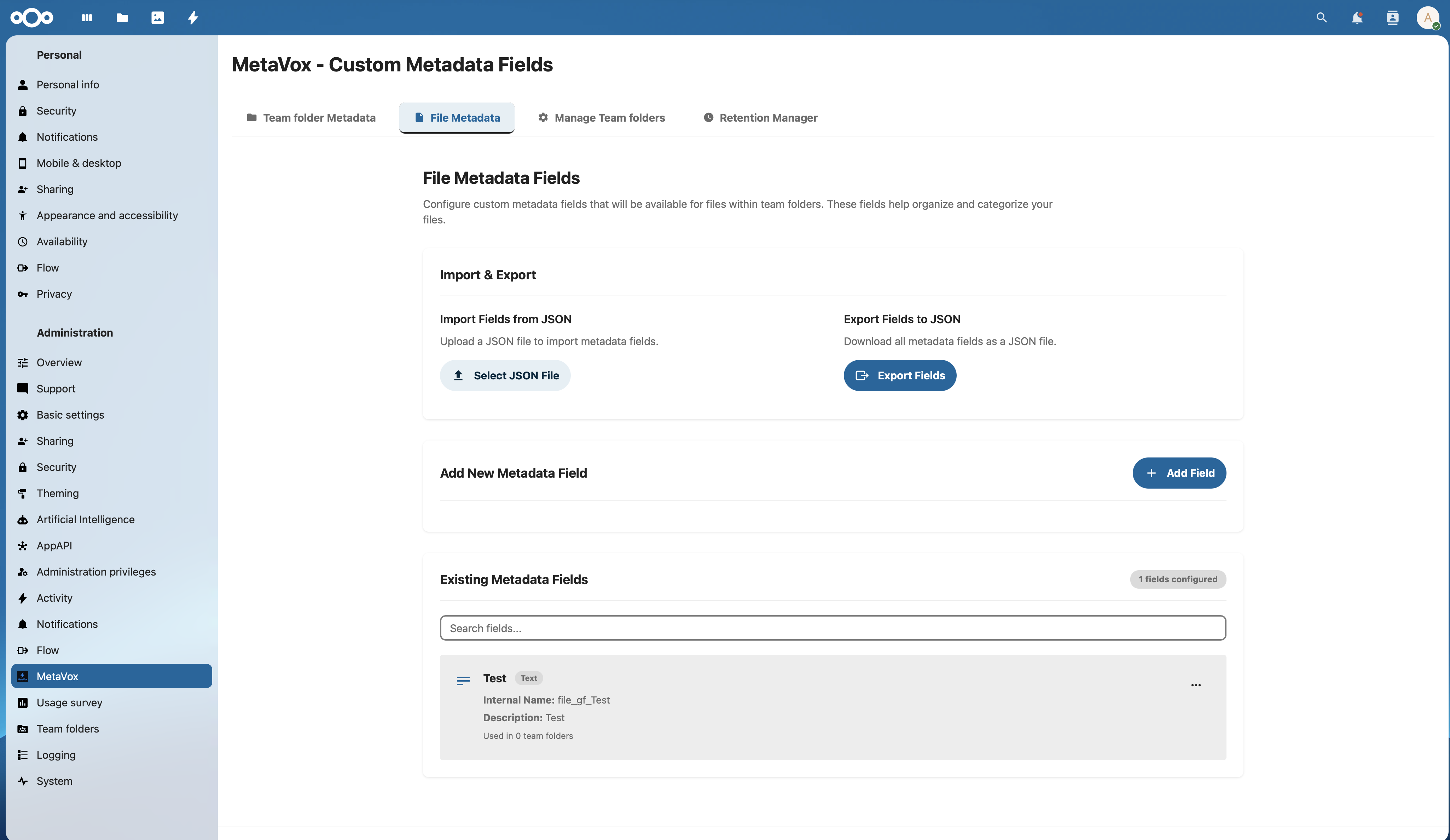
Editing Metadata
The sidebar shows the values; you edit them in a dialog. If you have edit permissions on the file:
- Open the file's sidebar
- Open the MetaVox tab
- Click the pencil button next to File metadata (Edit file metadata)
- Enter or select values. Each field's description is shown below it.
- Click Save. Cancel closes the dialog without saving.
Save stays disabled until you change a value. After saving you see Metadata saved. If your administrator has enabled AI, the dialog also has a Generate with AI button; see AI Autofill.
Field Types
Different fields accept different types of input:
| Type | Example |
|---|---|
| Text | Short descriptions, titles |
| Long Text | Longer notes, summaries |
| Number | Version numbers, counts |
| Date | Due dates, review dates |
| Dropdown | Status (Draft/Approved/Archived) |
| Multi-select | Multiple categories |
| Checkbox | Yes/No flags |
| URL | Links to external resources |
| People and groups | Select Nextcloud accounts, groups or teams |
| File Link | Links to files or folders in the same Team folder |
See Field Types for detailed information.
Working in the File List
MetaVox fields can also appear as columns in the file list of a Team folder. Which columns you see depends on the active view.
Editing a cell
- Double-click a cell to open an editor for the field type (text input, dropdown, date picker, etc.). With the keyboard, move to the cell and press
EnterorF2. - Press
Enterto save, orEscapeto cancel. Choosing an option in a dropdown saves it right away. - You can only edit cells of files you have write access to.
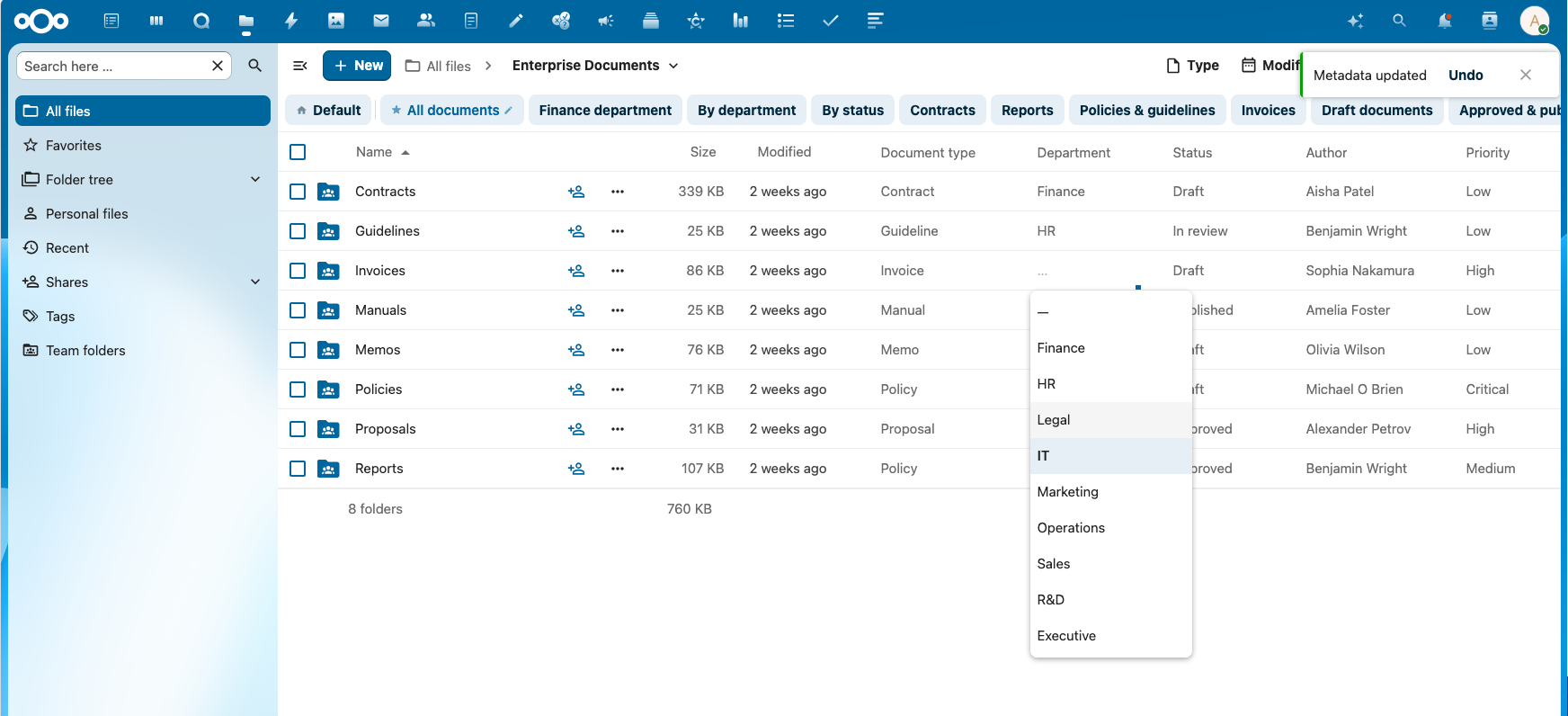
In motion:
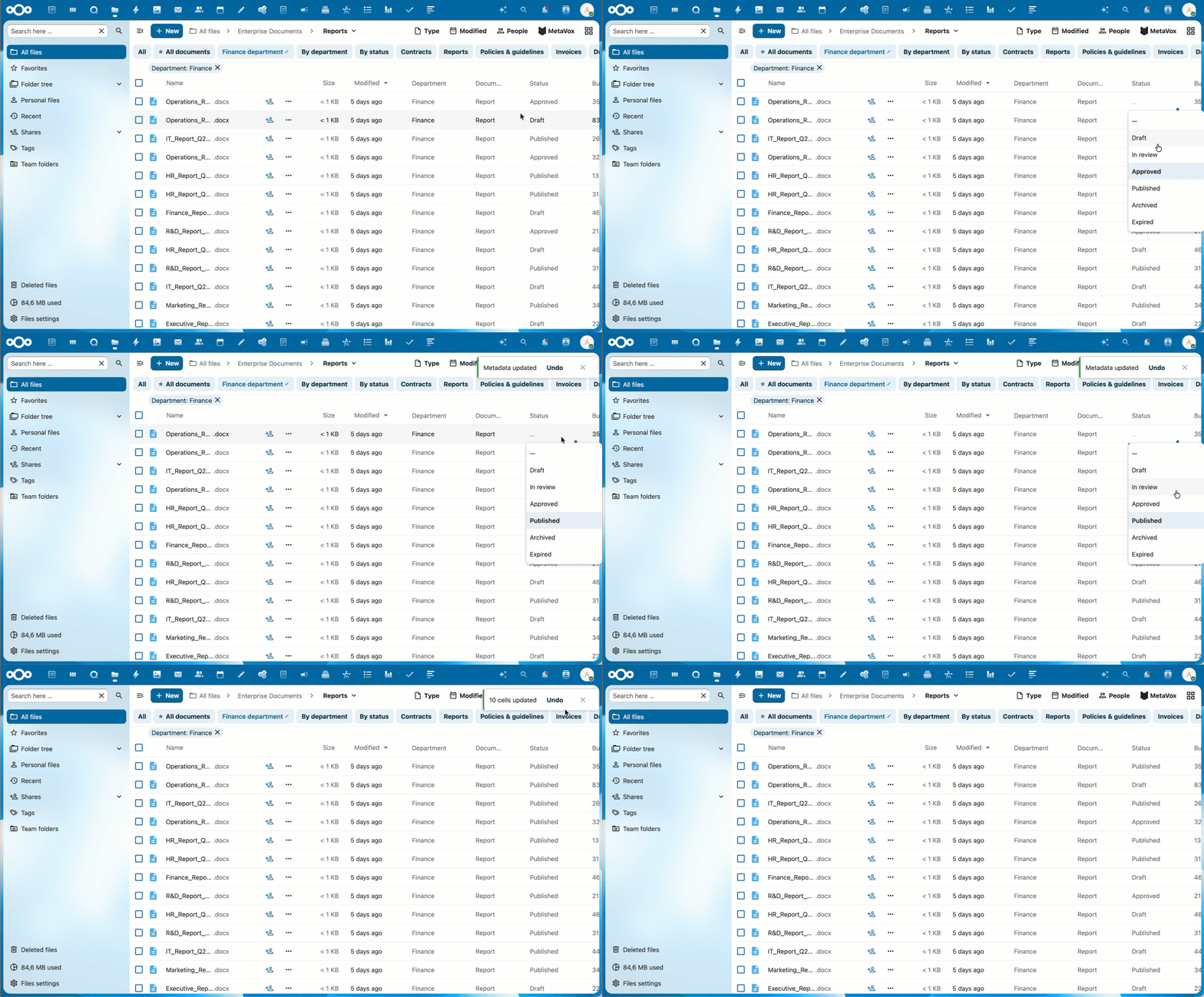
Copying a value down
While a cell's editor is open, a small square appears at its bottom-right corner. Drag it down to copy the value to the cells below, like the fill handle in a spreadsheet. Cells of files you can't edit are skipped.
Undo
After an edit in the file list, a message appears at the bottom of the screen: Metadata updated, or {count} cells updated after copying a value down. Click Undo in that message to put the old values back. Only the most recent change can be undone this way.
Sorting
- Click a MetaVox column header to sort by that field. Click it again to reverse the order.
- Sorting on a Files app column, such as Name or Modified, ends the MetaVox sort.
- If not all values could be loaded, you see Sorting and filtering on MetaVox columns is paused: not all values could be loaded. The list keeps its current order. Open the folder again to retry.
Long values
A value longer than 512 characters is shortened in the list and ends with "…". Hover over the cell to see Shortened. The full value loads when you edit the cell. A shortened link is not clickable. Open the editor to see and change the full value.
Highlighted cells
A view can color cells by their value, for example a deadline that has passed in red. A column with such rules shows an icon next to its name. See Highlight Rules.
Editing at the same time
When someone else is editing a cell, it does not open for you. Instead the cell tells you who has it: Being edited by {user}. If your administrator has set up real-time sync, changes by others appear in your list without reloading the page.
Editing Multiple Files
Need to update metadata for many files at once? Use the Bulk Editor:
- Select two or more files in the file list
- Click Edit metadata ({count} items) in the toolbar above the file list (it may be under the … menu)
- Fill in the fields you want to update
- Choose a merge strategy (Overwrite existing values or Only fill empty fields)
- Click Save
See Bulk Editing for details.
Using Views
Views let you switch between predefined combinations of columns, filters, sort order, and highlighted cells. Your administrator creates views for each Team folder to suit different workflows.
See Views for details.
Tips
- Required fields are marked with an asterisk (*). The edit dialog saves only when each required field has a value and each required checkbox is ticked, and says under the field what is missing. In the grid an empty required cell is marked, and a required field cannot be emptied
- Descriptions appear below fields to help you understand what to enter
- Dropdowns show predefined options - you cannot enter custom values
- Sidebar changes need Save - in the edit dialog nothing is stored until you click Save; edits in the file list save when you press
Enteror pick an option
Need Help?
- Check the Getting Started guide for an introduction
Contact your Nextcloud administrator if: - You need different metadata fields - You can't edit fields you should be able to edit - You have questions about what values to enter
See Also
- Field Types - All available field types
- Views - Switching between predefined views
- Highlight Rules - Cells colored by their value
- Searching Metadata - Find files by their metadata
- Bulk Editing - Edit metadata for multiple files
- Exporting Data - Export metadata to CSV
- AI Autofill - AI-powered metadata suggestions
- Real-Time Sync - Collaborative editing with cell locking