MetaVox Field Types
MetaVox supports various field types for capturing metadata on Team folders and documents. This guide describes each field type and its usage.
Basic Field Types
Text
A simple single-line text input for short values.
Use cases: Title, author name, document ID, short descriptions
Example: "Q4 Budget Report"
Options: None
Textarea
A multi-line text input for longer content.
Use cases: Descriptions, notes, summaries, comments
Example: "This document outlines the proposed budget for Q4, including projections for..."
Options: None
Number
Numeric input that only accepts numbers.
Use cases: Version numbers, counts, quantities, years
Example: 42
Options: None
Date
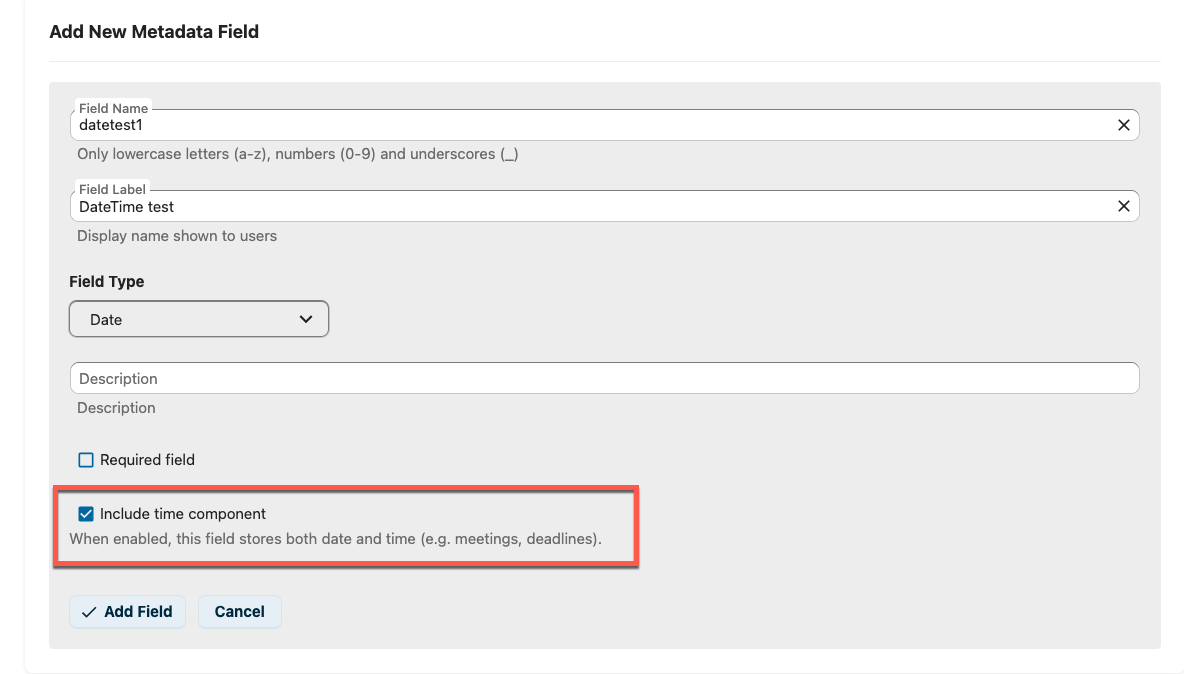
A date picker for selecting dates. Optionally, the field can also capture a time component.
Use cases: Publication date, expiry date, review date, meeting start, deadlines
Examples:
- Date only: 2026-04-15
- Date + time: 2026-04-15T14:30:00
Options:
- Include time component (default: off) — captures hours, minutes and seconds in
addition to the date. Stored as a floating ISO 8601 string (no timezone), matching
SharePoint's SPFieldDateTime with DisplayFormat = DateTime.
When creating or editing a Date field in admin settings, tick Include time component to enable the time portion:
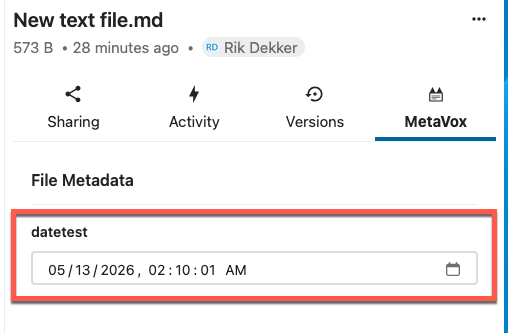
In the file sidebar and inline grid editor, the field then renders as a datetime picker that captures both date and time:
SharePoint migration note: Columns with DisplayFormat = DateOnly map to MetaVox
Date fields with this option off; DateTime maps to on. Existing pre-2.1.0
Date fields render as date-only — no data migration is performed. CSV import support is
planned for a future release.
Checkbox
A boolean yes/no toggle.
Use cases: Approved status, confidential flag, published status
Example: ✅ (checked) or ☐ (unchecked)
Options: None
Select (Dropdown)
A dropdown menu with predefined options. Users can select one value.
Use cases: Status, category, department, document type
Example: "In Review" (from options: Draft, In Review, Approved, Archived)
Options: Define the available choices as comma-separated values in the field configuration.
Multi-select
Similar to Select, but allows multiple selections.
Use cases: Tags, applicable departments, related topics
Example: "Legal, Finance" (from options: Legal, Finance, HR, IT)
Options: Define the available choices as comma-separated values in the field configuration.
Advanced Field Types
URL
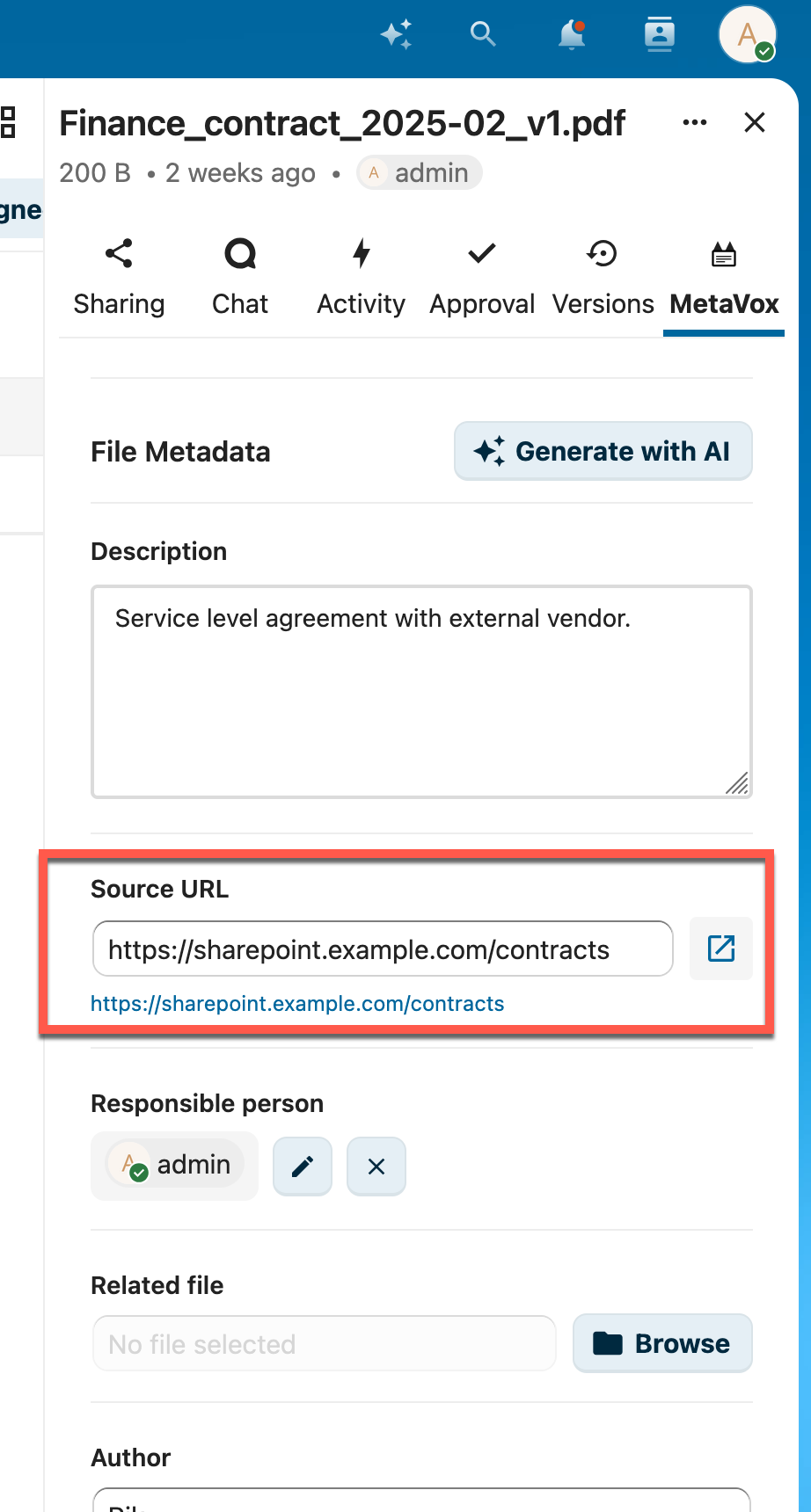
A URL input field with validation and a clickable external link button.
Use cases: Source links, reference URLs, related resources
Features: - URL format validation - Click button to open link in new tab
User Picker
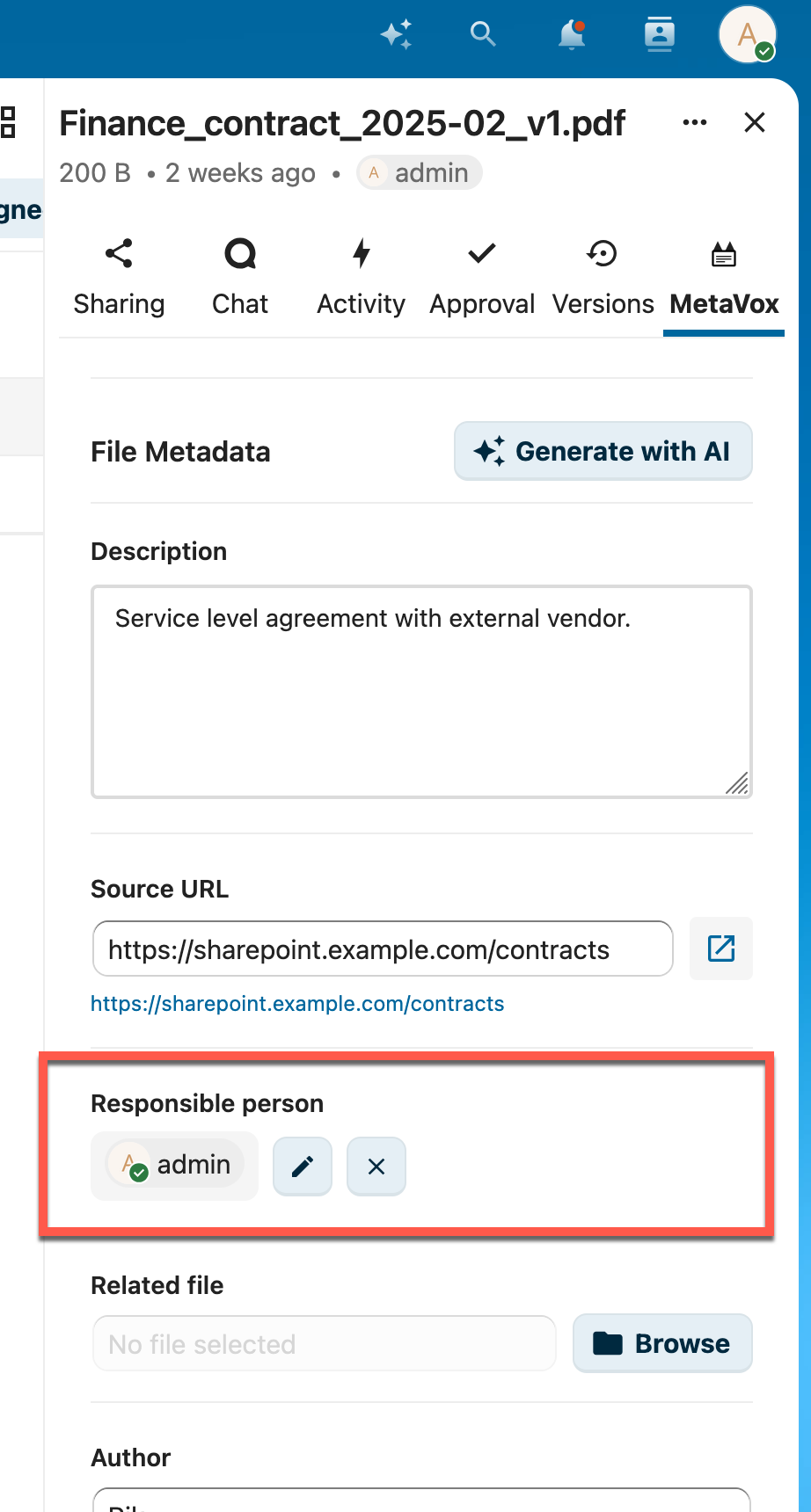
Select a Nextcloud user from a searchable dropdown. Shows user avatars.
Use cases: Document owner, reviewer, responsible person, author
Features: - Searchable user list - Displays user avatar and display name - Integrates with Nextcloud user database
File Link
Browse and link to one or more files or folders within Nextcloud using the native file picker.
Use cases: Related documents, source files, attachments, parent documents
Features: - Native Nextcloud file picker integration - Multiple files per field — use Add file to link several files; remove any with the × button - Links are stored by file ID, so a reference keeps working after the target file is renamed or moved - The same file can't be added twice (duplicates are rejected) - Click a linked file to open it - Referenced by — on a linked file you can see which items reference it (backlinks)
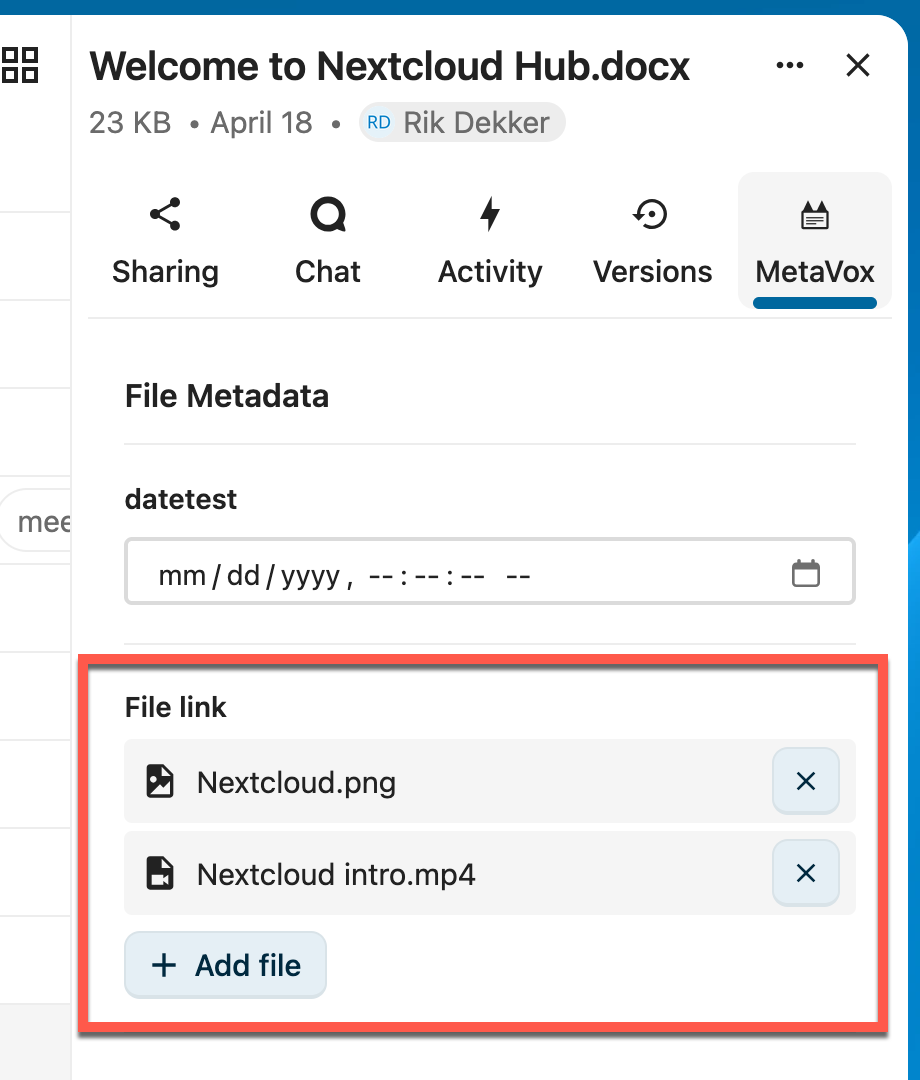
Single-file links created with older versions keep working unchanged; you can add more files to them at any time.
Field Configuration
When creating a field in the admin settings, you can configure:
| Setting | Description |
|---|---|
| Field Name | Internal identifier (no spaces, lowercase recommended) |
| Field Label | Display name shown to users |
| Field Type | One of the types described above |
| Description | Help text shown below the field |
| Required | Whether the field must be filled in |
| Options | For Select and Multi-select fields: comma-separated list of choices |
Default Values
Each Team folder can give its assigned file fields a default value. New files in that folder automatically receive the defaults, and existing files without a value are back-filled in the background — so a folder's documents start out consistently classified without manual data entry.
Defaults are configured per Team folder, with a type-correct input for every field type (text, number, date/time, dropdown, multi-select, checkbox, URL, user, file link):
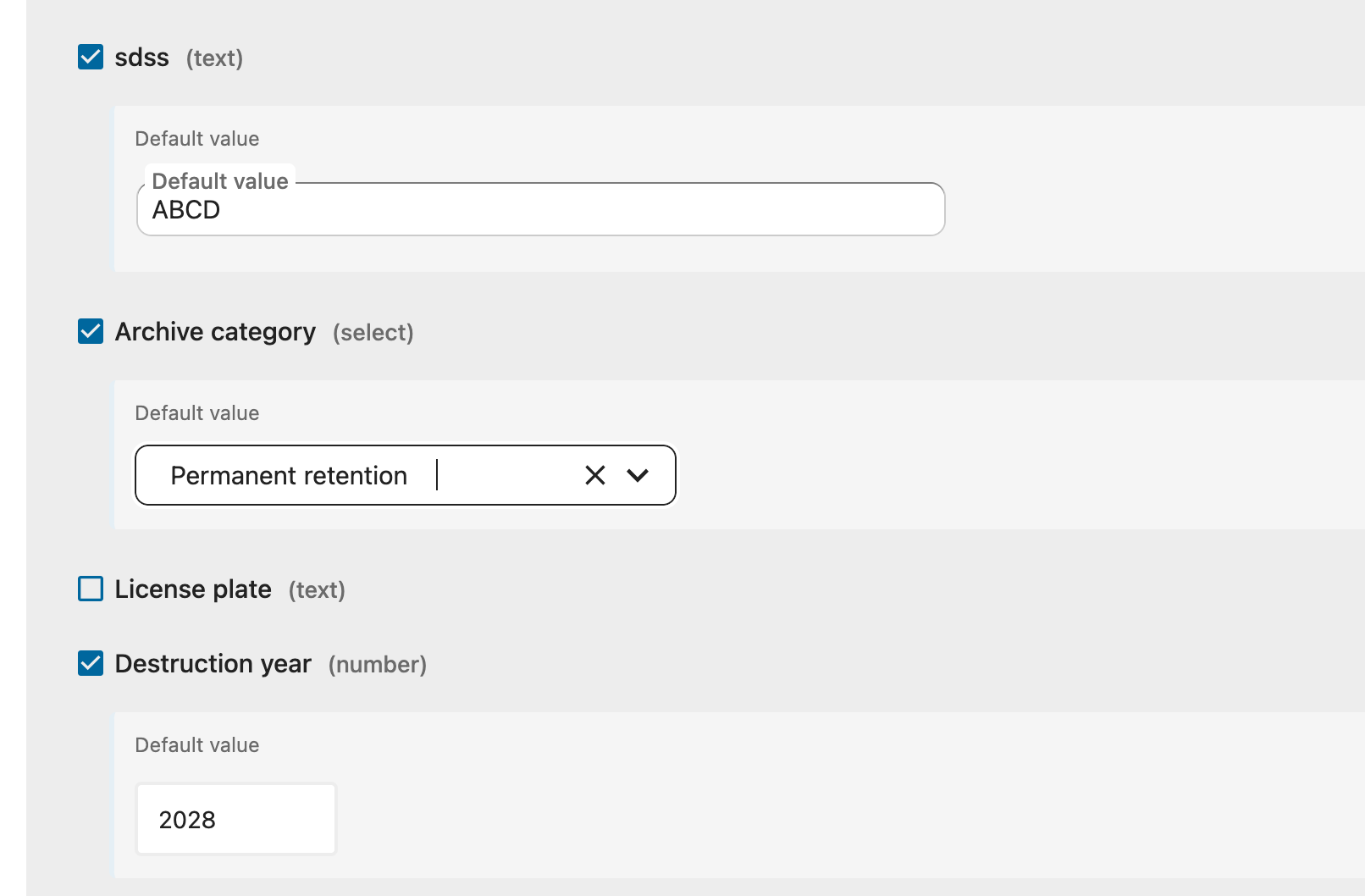
- Tick a field and enter its default in the Default value input that appears.
- Leave the input empty to clear a default.
- After saving, use Apply defaults now to back-fill existing files immediately (otherwise a background job applies them within a few minutes).
Who can set defaults: administrators (for any folder) and users who have the per-folder Manage fields permission. The latter configure fields and defaults for their folder from Settings → Personal → MetaVox, which lists only the folders they may manage. See Permissions.
Field Scopes
MetaVox supports two scopes for metadata:
Team Folder Metadata
Metadata that applies to the entire Team folder. Visible on all documents within the folder (read-only at document level).
Document Metadata
Metadata specific to individual documents within a Team folder. Editable by users with document edit permissions.
See Also
- User Overview - Getting started with metadata
- Views - Filtering and sorting by field values
- Bulk Editing - Edit fields for multiple files
- Exporting Data - Export metadata to CSV