Public Sharing
IntraVox pages can be shared with people who don't have a Nextcloud account. This guide explains how public sharing works, how to set it up, and what anonymous visitors can see.
Audience: IntraVox administrators and editors
Overview
Public sharing allows you to make IntraVox pages accessible without login. Visitors see a clean, read-only view of your content — they cannot edit, comment, or react.
IntraVox uses Nextcloud's built-in share link system. You create a share link in the Files app on the IntraVox folder, and IntraVox automatically detects it and makes the content available.
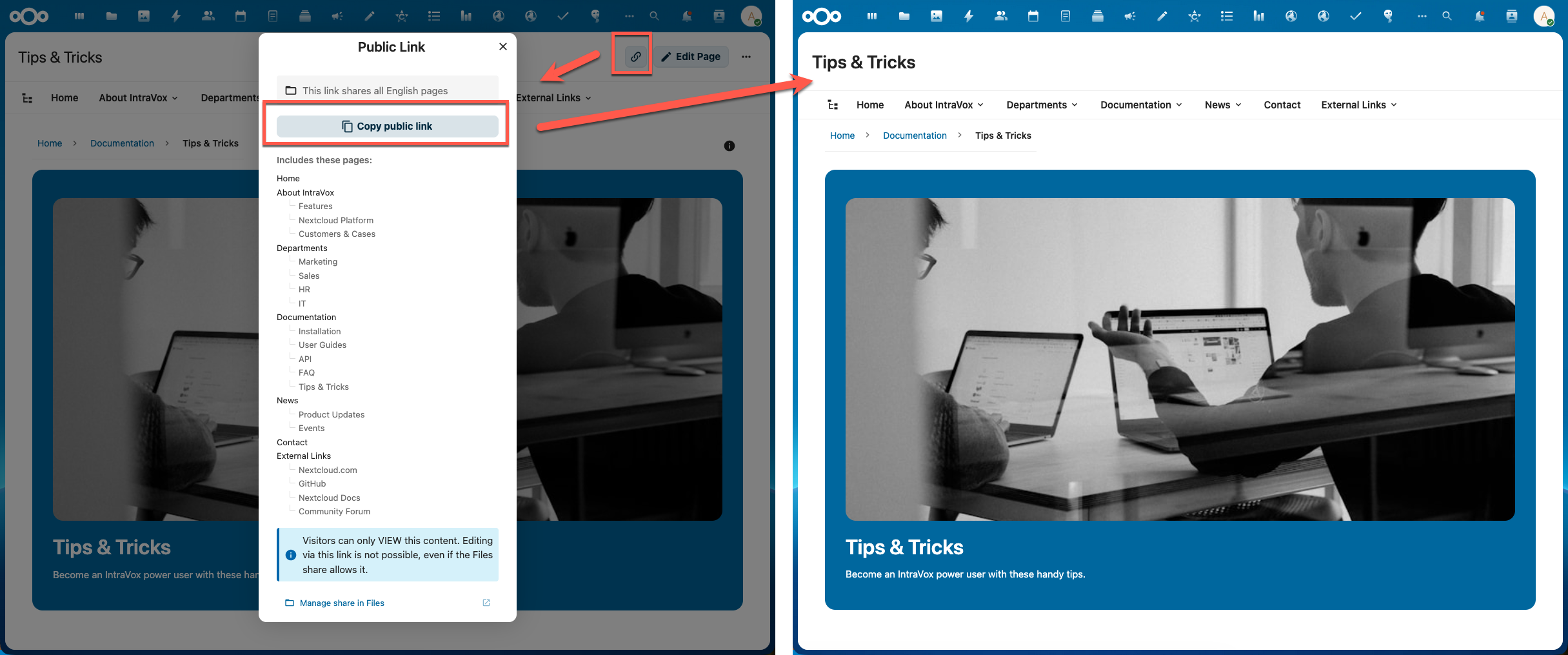
Left: The share dialog showing which pages are included. Right: The public view visitors see.
Prerequisites
Public sharing requires one Nextcloud setting to be enabled:
Administration > Sharing > "Allow users to share via link and emails"
If this setting is disabled, IntraVox will show a warning when you click the share button:
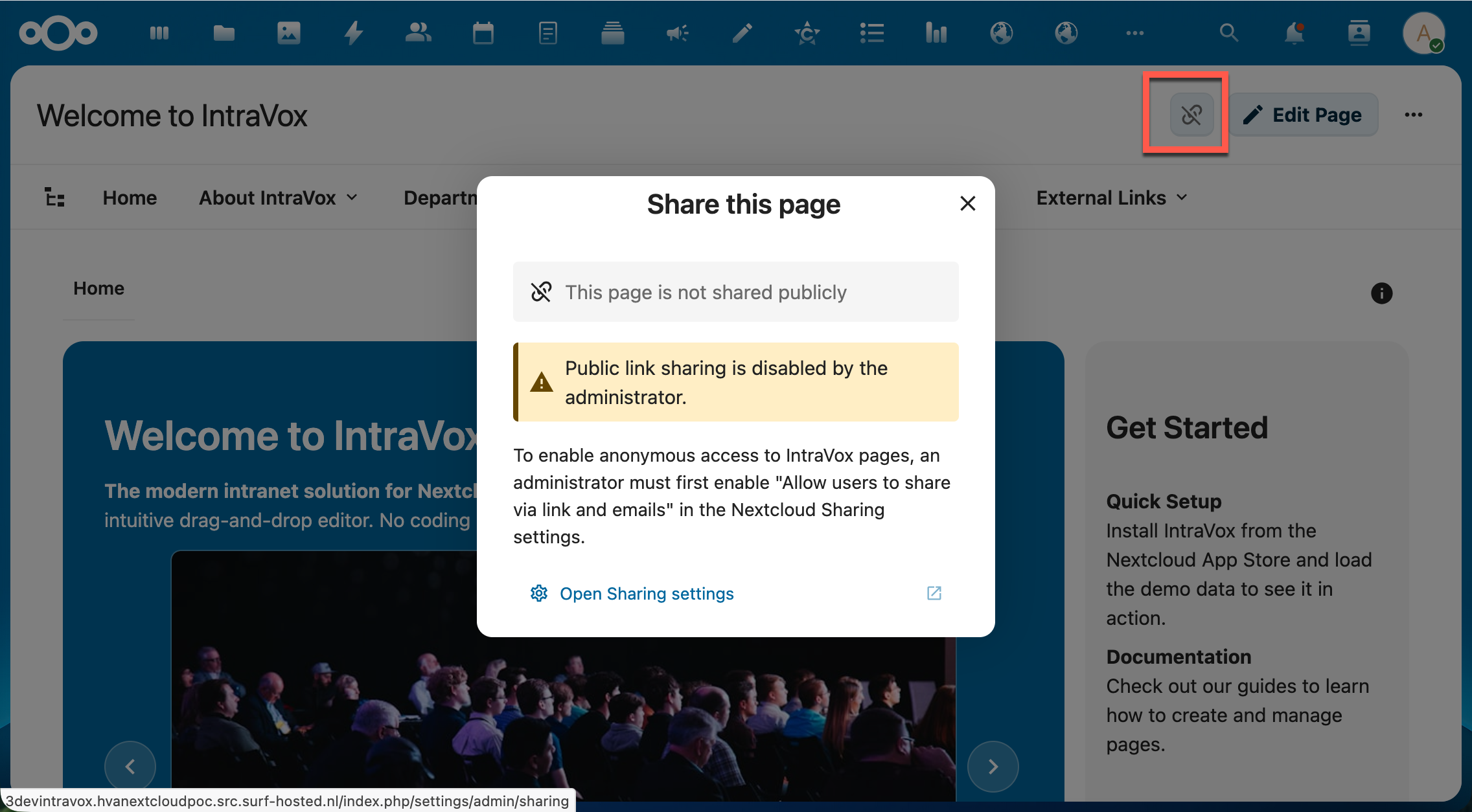
When link sharing is disabled by the administrator, IntraVox shows a warning with a link to the Sharing settings.
If link sharing is disabled while share links already exist, those links will stop working and visitors will see a 404 page:
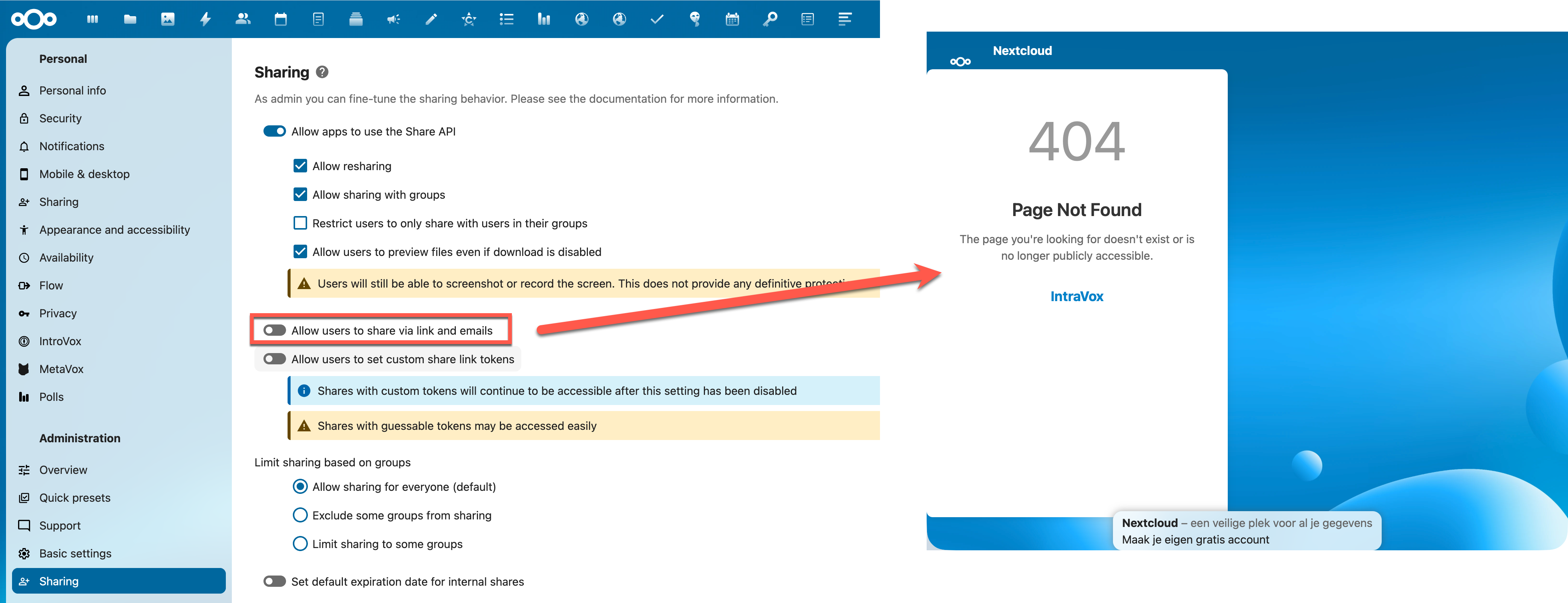
Left: The Nextcloud admin setting. Right: Existing share links return a 404 when disabled.
Creating a Share Link
Share links are created in the Nextcloud Files app, not in IntraVox itself.
Step 1: Open the IntraVox folder in Files
Navigate to Files > IntraVox (your GroupFolder) and find the folder or page you want to share.
Step 2: Create a share link
- Click the share icon on the folder or file
- Click "Share link" to create a public link
- Optionally set a password, expiration date, or other settings
Note about passwords: If you set a password on the share link, it is only shown once at creation time. After that, the password is stored as a bcrypt hash and cannot be retrieved. Make sure to note the password before closing the dialog. You can always set a new password in the Files app.
Step 3: Verify in IntraVox
Go back to IntraVox and open a page within the shared scope. The share button in the top-right corner will now appear in the theme color, indicating the page is publicly shared.
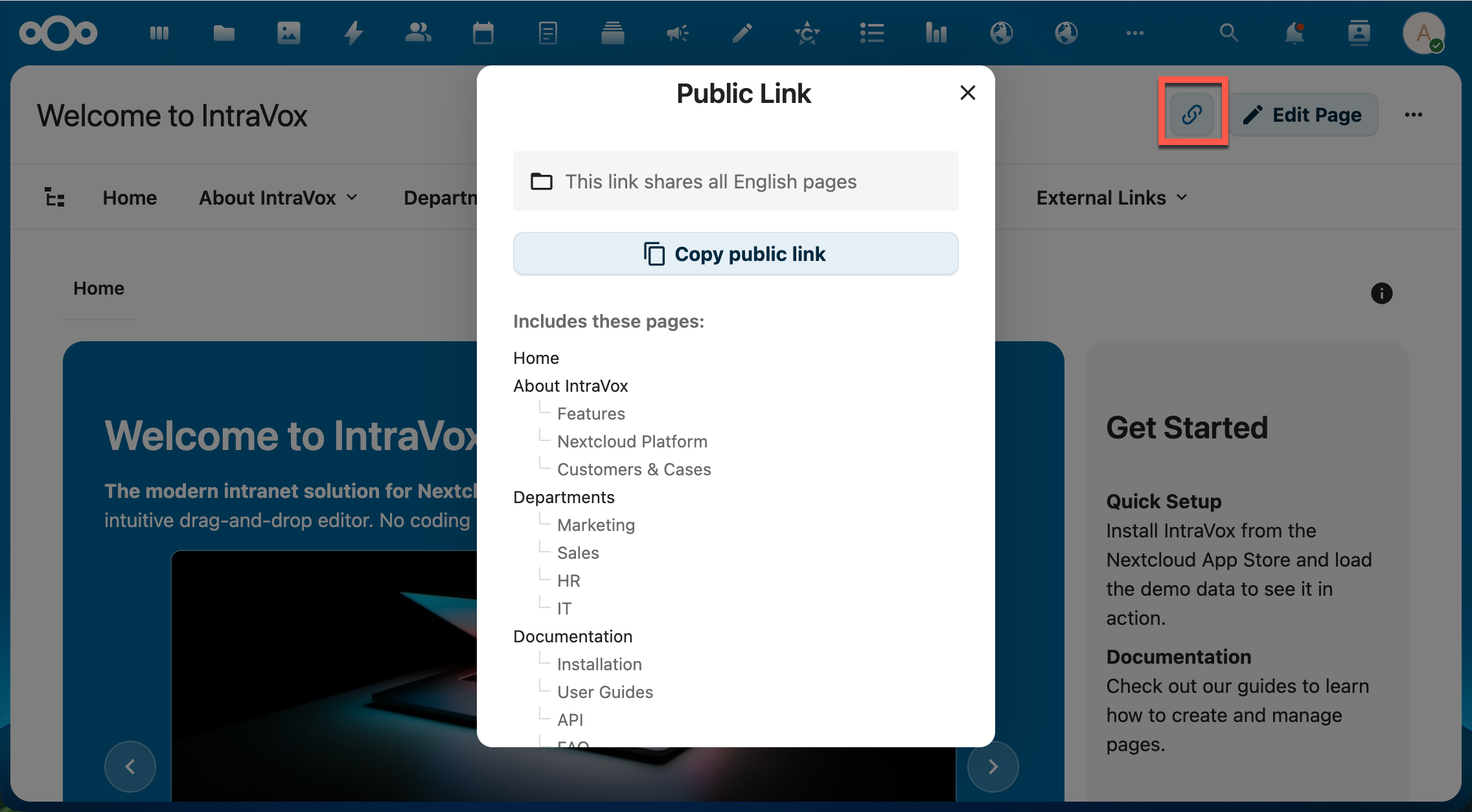
The share button (highlighted) shows the theme color when a share link exists. Click it to see the Public Link dialog with "Copy public link" button and a list of included pages.
Managing the Share
Click "Manage share in Files" at the bottom of the Public Link dialog to open the Files app where you can adjust settings like password protection, expiration dates, or remove the share entirely.
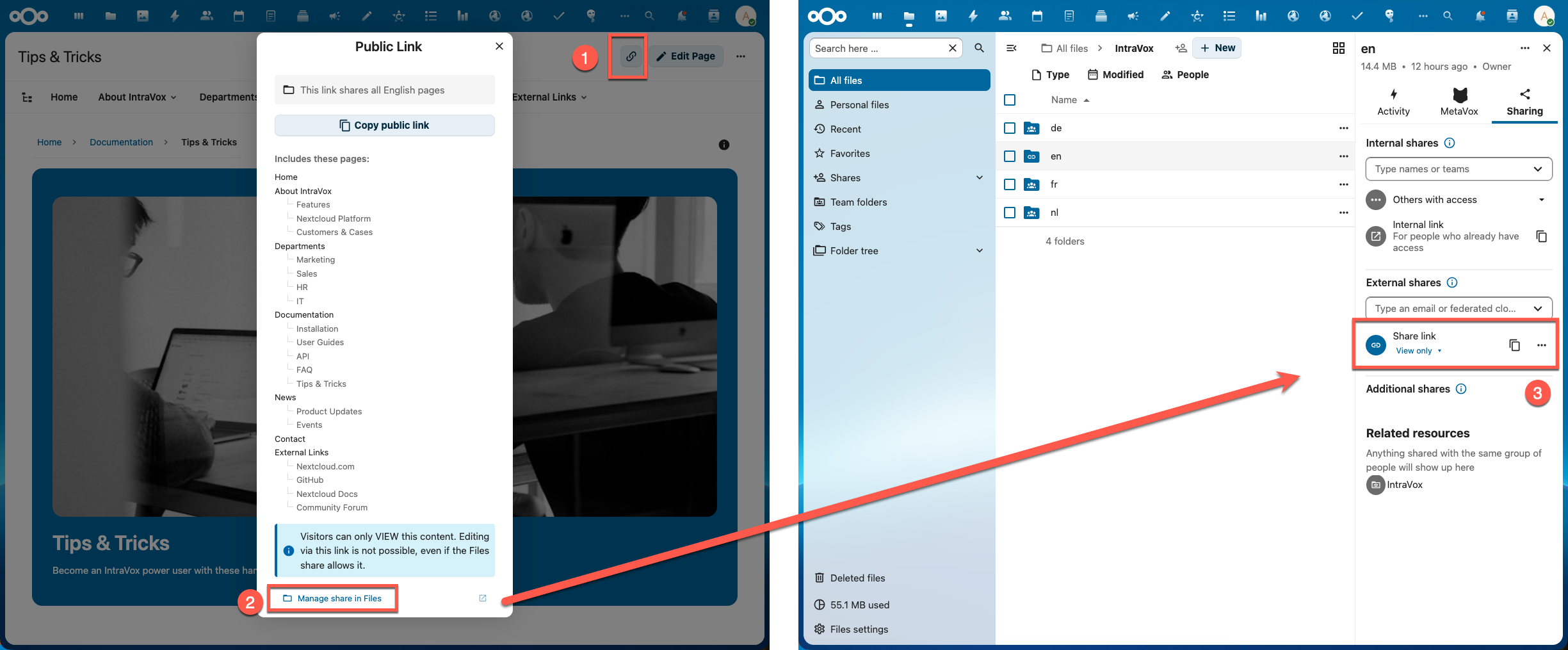
Click "Manage share in Files" in IntraVox (left) to open the share settings in the Files app (right).
Share Scope
The scope of a share depends on what you share in the Files app:
| What you share | Scope | Example |
|---|---|---|
| A single page file (.json) | Only that page | Sharing about.json gives access to just the About page |
| A subfolder | That section and all sub-pages | Sharing Departments/ gives access to Departments, Marketing, Sales, HR, IT |
| The language root folder | All pages in that language | Sharing nl/ gives access to everything in Dutch |
The Public Link dialog shows exactly which pages are included in the share.
Anonymous visitors can only navigate between pages within the share scope. They cannot access pages outside of it, even if they try to guess URLs.
Custom URL (Your Own Domain)
By default a public share lives under a long Nextcloud URL, for example:
You can serve exactly the same page under a short, branded URL of your own — such as https://intravox.example.com/ — that stays in the address bar while visitors browse. In the screenshot below, the IntraVox documentation is served under its own intravox.… subdomain instead of the Nextcloud host:
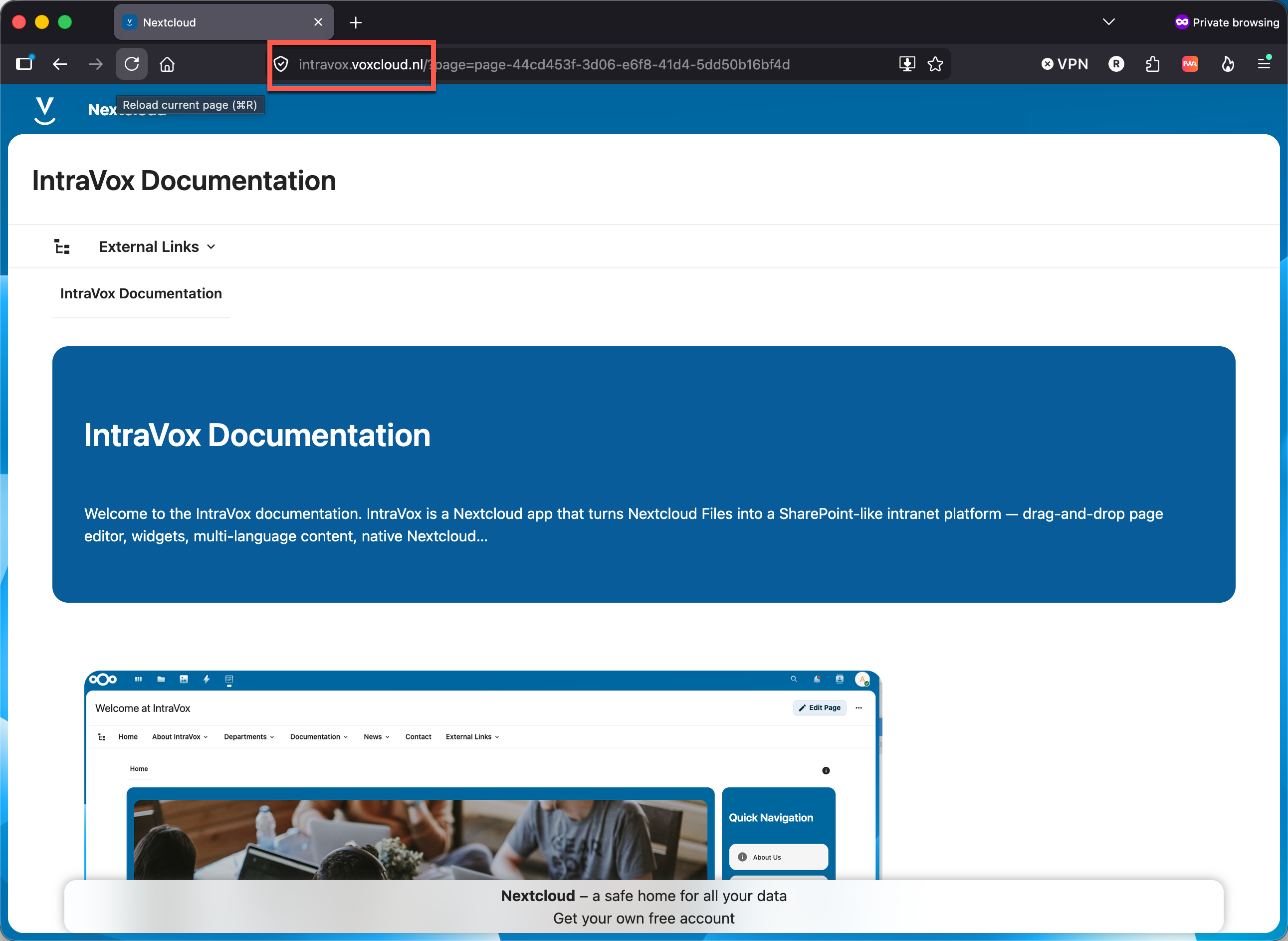
The same public share, reachable under a short custom domain. The address bar shows the custom domain, not the long Nextcloud URL, and it stays there while navigating sub-pages.
This works because IntraVox's public view uses only relative URLs — no Nextcloud hostname is hard-coded. That means it can be served transparently under any (sub)domain via a reverse proxy. No IntraVox configuration or code change is needed — it is purely a Nextcloud + reverse-proxy setup.
A reverse proxy (not a redirect) is what keeps the pretty URL in the address bar. A plain 301/302 redirect would bounce the visitor to the long Nextcloud URL — a reverse proxy serves the content underneath the pretty URL instead.
For Editors — pick the page that should open first
The share URL always opens the first page in the share (the top of the share's page tree). If you want your custom domain root (https://intravox.example.com/) to open one specific page, share the folder of that page rather than a page higher up the tree. The page whose folder you shared then becomes the "home page" of the share, so it opens by default with no extra query needed.
This is the same Share Scope rule from above: sharing Departments/marketing/ makes the Marketing page the entry point of that share; sharing the language root makes the language home page the entry point.
For Administrators — set up the reverse proxy
Point the custom (sub)domain at the same Nextcloud backend and let the reverse proxy serve the share at the root. Using Nginx Proxy Manager as an example:
- DNS — create an A/AAAA record for
intravox.example.compointing at the server. - Nextcloud trusted domains — add the new host, otherwise Nextcloud rejects the request as an untrusted domain:
Do not change
overwrite.cli.url/overwritehost/overwriteprotocol— those belong to your main Nextcloud host; only add an extra trusted domain. - Reverse-proxy host — create a proxy host for
intravox.example.comforwarding to the same Nextcloud backend (host + port) as your main site, with a Let's Encrypt certificate and Force SSL. - Serve the share at the root — in the proxy host's advanced/custom config, make the bare root internally proxy to the share URL (an internal
proxy_pass, so the address bar stays on your domain):Every other path (assets, API, media, sub-page navigation) falls through to the proxy's mainlocation = / { proxy_pass http://<nextcloud-backend>:80/apps/intravox/s/<shareToken>; proxy_set_header Host $host; proxy_set_header X-Real-IP $remote_addr; proxy_set_header X-Forwarded-For $proxy_add_x_forwarded_for; proxy_set_header X-Forwarded-Proto $scheme; }location /and works unchanged, because IntraVox uses relative URLs. Replace<shareToken>with the token from your public link (the part after/s/).
Requirements: link sharing must be enabled (see Prerequisites), the page must be published (drafts are never public), and the proxy must pass through all sub-requests — API, media, assets, the session cookie (for password-protected shares), and websockets. A subdomain gives the cleanest result (its own cookie scope, no path rewriting).
Alternative — no root rewrite: if you don't need the bare root to open the page, you can skip step 4 entirely and just share the full share URL under the pretty host:
https://intravox.example.com/apps/intravox/s/<shareToken>. Every new document is then simply a new Nextcloud share — no proxy change and no new certificate needed.
Password-Protected Shares
If you set a password on a share link in the Files app, IntraVox fully respects this. Both the share dialog and the visitor experience reflect the password requirement.
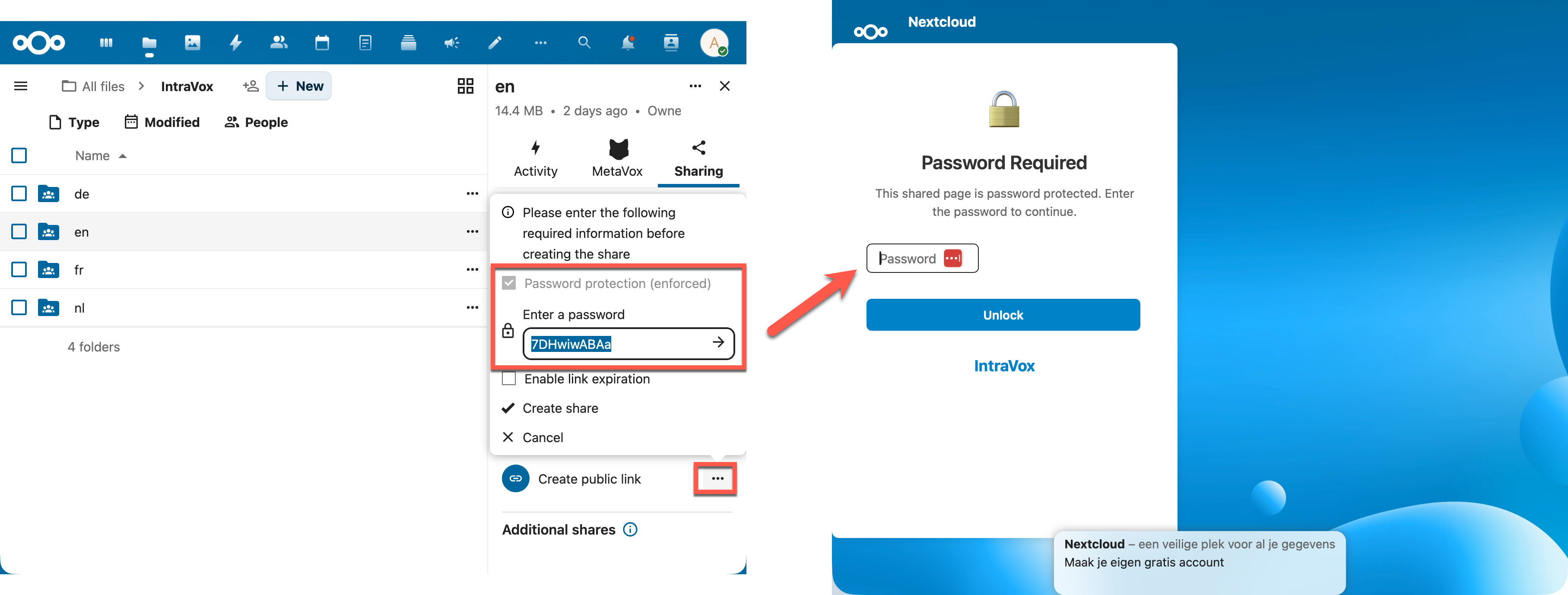
Left: Setting a password when creating a share link in the Files app. Right: The password challenge screen visitors see before accessing the content.
Indicator in the Share Dialog
When a share link has a password, the Public Link dialog in IntraVox shows a "Password protected" badge between the scope indicator and the copy button. This lets editors know that visitors will need a password to access the link.
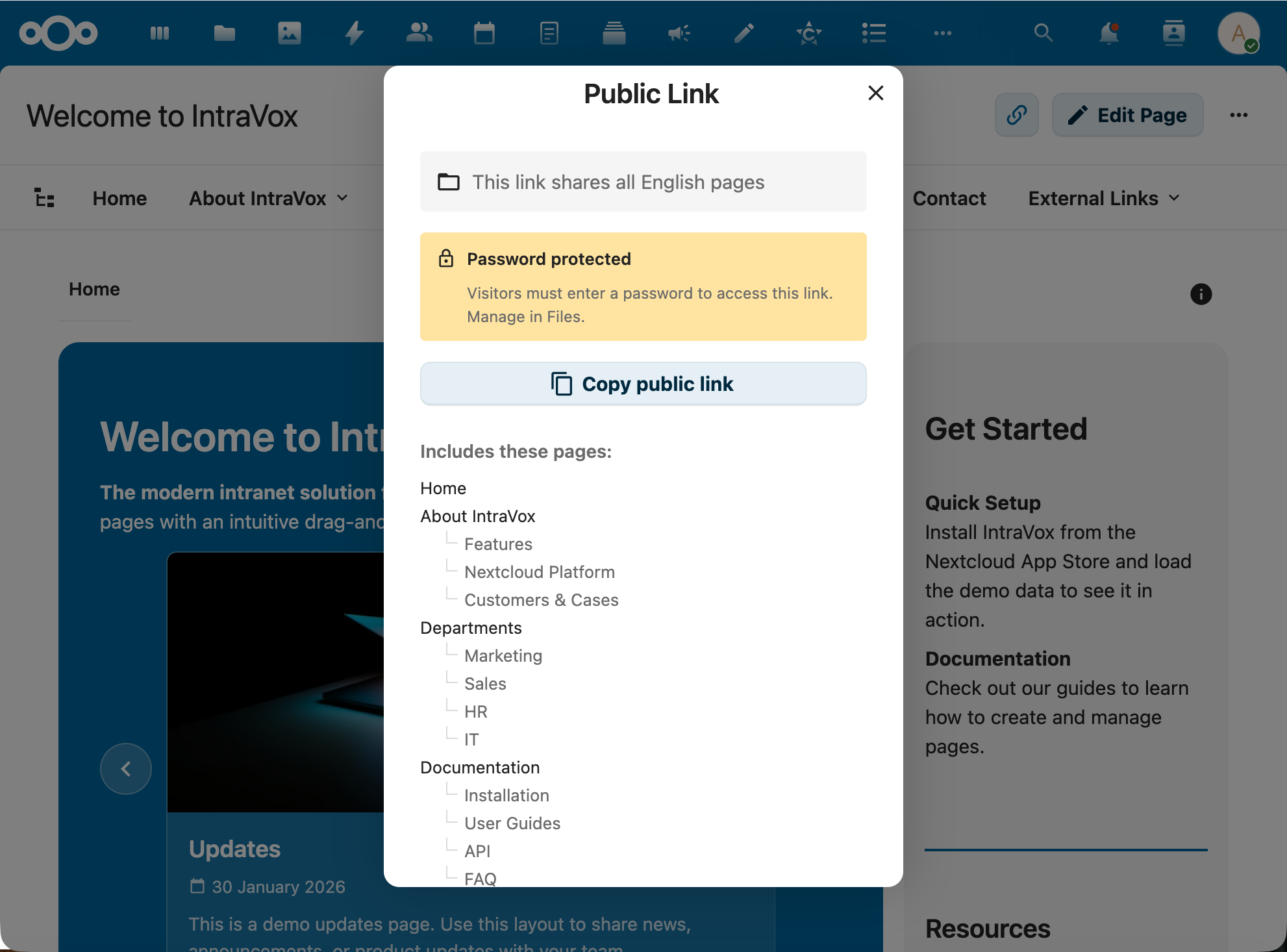
The yellow "Password protected" notice sits directly above the Copy public link button, with a hint to manage the password in Files.
The password itself is never shown — it is stored as a bcrypt hash and cannot be retrieved after creation. The badge includes a hint: "Visitors must enter a password to access this link. Manage in Files."
To change or remove the password, click "Manage share in Files" at the bottom of the dialog.
Visitor Experience
When an anonymous visitor opens a password-protected share link, they see a password challenge screen before any content is loaded. This screen is rendered server-side (no JavaScript required) and shows:
- A lock icon
- "Password Required" heading
- A password input field with submit button
- An error message if the password is incorrect
After entering the correct password, the visitor is redirected to the shared content. The password is stored in the server-side PHP session, so the visitor can navigate freely between all pages within the share scope without entering the password again.
If the session expires (e.g., the visitor returns later), they will need to enter the password again.
Security
- Passwords are verified using Nextcloud's
IHasher(bcrypt) — the plain-text password is never stored - Failed password attempts trigger brute force protection (max 10 attempts per minute per IP)
- A random delay (100–300ms) is added on failed attempts to prevent timing attacks
- The session key is scoped per share token (
intravox_share_pw_{token})
Pages Without a Share Link
If no share link exists for a page, the share button appears in a muted color. Clicking it opens a dialog explaining how to create a share link:
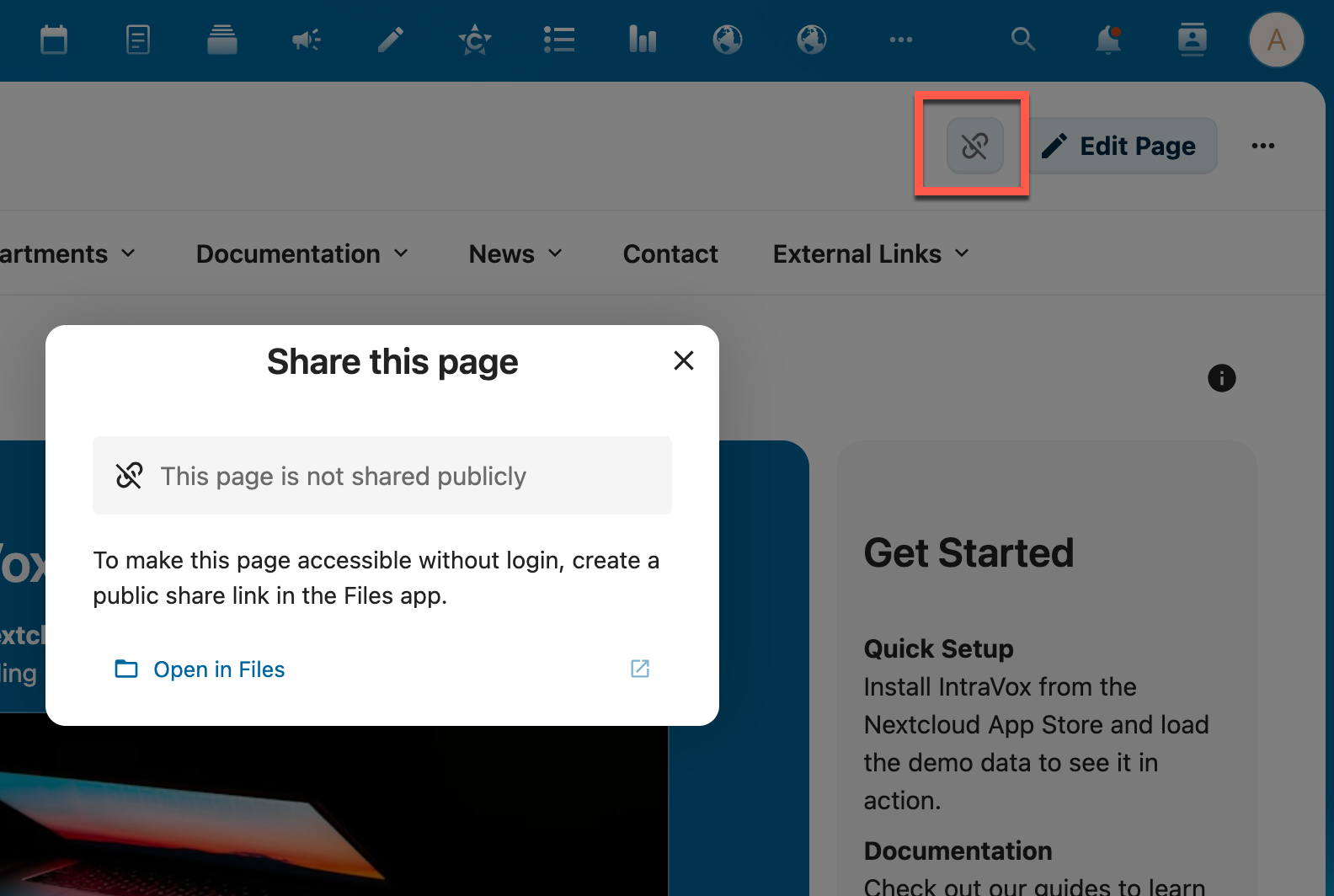
When no share link exists, IntraVox shows guidance with a direct link to the Files app.
What Anonymous Visitors See
Visitors accessing a shared link see a clean, read-only page:
- Page title and content (text, images, videos, tables, etc.)
- Navigation bar with pages within the share scope
- Breadcrumb navigation
- The Page structure panel for finding pages, with both of its tabs: the page tree within the share scope, and On this page — the headings of the page being read (since 2.2.0; see On this page)
- Footer content (if configured)
The following features are not available for anonymous visitors:
- Editing pages
- Comments and reactions
- Version history
- Page settings
- Creating or deleting pages
- Access to pages outside the share scope
- Pages that are not published: drafts, pages with a future Publish on date and pages past their Expire on date are excluded from the share — from the page itself as well as from the navigation menu and the page tree (see Scheduled publishing)
Security
- Read-only enforcement: Even if the Nextcloud share grants write permissions, anonymous visitors always have read-only access in IntraVox
- Password protection: Share link passwords are fully respected — visitors must authenticate before any content is served (see Password-Protected Shares)
- Rate limiting: Public endpoints are limited to 60 requests per minute per IP address
- Brute force protection: Repeated failed access attempts are throttled by Nextcloud (both invalid tokens and wrong passwords)
- Password brute force: Password attempts are separately rate-limited (10 per minute per IP) with random delays
- Scope enforcement: Each page request is validated against the share scope — no access outside the shared folder
- Session-based auth: Password verification is stored server-side in the PHP session — the password is never sent to the browser or exposed in API responses
- No metadata leakage: Internal file paths, author information, and permissions are stripped from public responses
Admin Overview
Administrators can see all active share links in IntraVox Admin Settings > Sharing tab. This overview shows:
- The scope of each share (page, folder, or language root)
- The file path
- Creation and expiration dates
- A direct link to manage each share in the Files app
This is useful for auditing which content is currently accessible without login.
Quick Reference
| Action | Where |
|---|---|
| Enable/disable link sharing | Administration > Sharing settings |
| Create a share link | Files app > IntraVox folder > Share |
| Copy the public URL | IntraVox page > Share button > Copy public link |
| Serve a share under your own domain | Reverse proxy + Nextcloud trusted domain (see Custom URL) |
| Manage share settings | IntraVox page > Share button > Manage share in Files |
| See all active shares | IntraVox Admin Settings > Sharing tab |
| Set/change password | Files app > Share settings |
| Set expiration date | Files app > Share settings |
| Check if share has password | IntraVox page > Share button (shows "Password protected" badge) |