Engagement Guide
IntraVox allows you to interact with pages through reactions and comments. This guide explains how to use these features.
Audience: All IntraVox users
Overview
Engagement features let you: - React to pages with emojis to show your appreciation - Leave comments to share your thoughts - Reply to other people's comments - React to comments
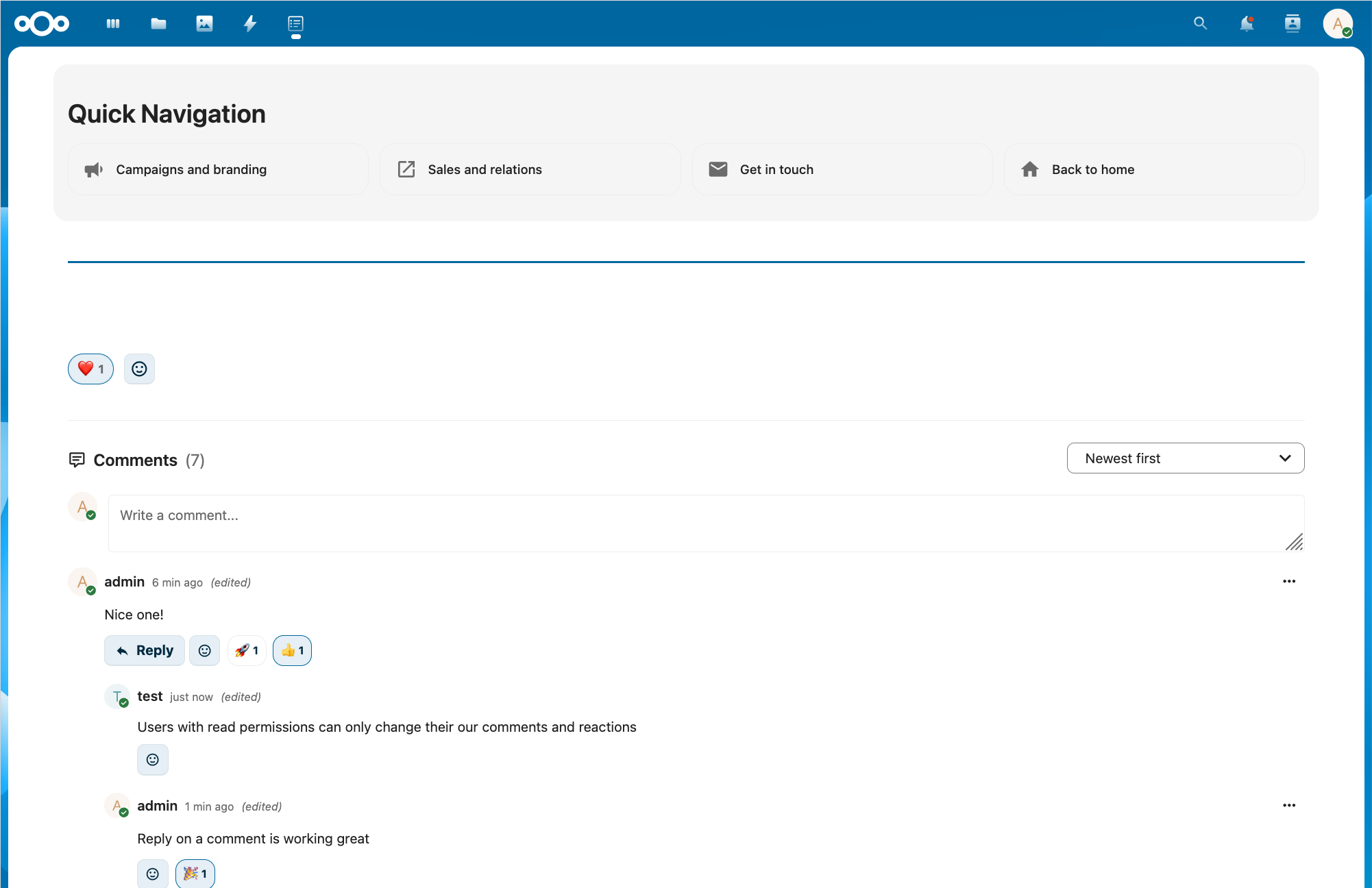
Example of reactions and comments on an IntraVox page
Reactions
Reactions are a quick way to respond to a page without writing a comment.
Adding a Reaction
- Scroll to the bottom of any page
- Find the reaction bar with emoji buttons
- Click an emoji to add your reaction
Available reactions:
| 👍 | 👎 | ❤️ | 🎉 | 😊 | 😢 |
| 😮 | 😂 | 🤔 | 👏 | 🙏 | 💪 |
| ✅ | ⭐ | 🔥 | 💯 | 👀 | 🚀 |
Changing Your Reaction
Click a different emoji to change your reaction. Your previous reaction is automatically removed.
Removing Your Reaction
Click the same emoji again to remove your reaction entirely.
Viewing Who Reacted
Hover over any reaction count to see a list of people who reacted with that emoji.
Comments
Comments let you share your thoughts and have discussions about page content.
Writing a Comment
- Scroll to the comments section below the page content
- Click the text field that says "Write a comment..."
- Type your message
- Click Send or press
Ctrl+Enterto post
Replying to a Comment
- Find the comment you want to reply to
- Click the Reply button below the comment
- A text field appears below that comment
- Type your reply
- Click Reply or press
Ctrl+Enterto post
Replies appear indented below the original comment, making conversations easy to follow.
Deleting Your Comment
- Find your comment
- Click the delete icon (trash can)
- Confirm the deletion
You can only delete comments you wrote yourself.
Sorting Comments
Use the dropdown menu at the top of the comments section: - Newest first: Most recent comments appear at the top - Oldest first: Oldest comments appear at the top
Comment Reactions
You can react to individual comments, not just pages.
Adding a Reaction to a Comment
- Find the comment you want to react to
- Click the emoji button (smiley face) next to the comment
- Select your reaction from the picker
Removing a Comment Reaction
Click the same emoji again to remove your reaction.
Tips for Good Engagement
Be Respectful
Keep your comments professional and constructive. Remember that colleagues will read what you write.
Stay On Topic
Comment about the page content. If you have unrelated questions, use other communication channels.
Be Concise
Short, clear comments are most effective. Get to the point quickly.
Use Reactions Wisely
A quick emoji reaction can show appreciation without adding to the comment count. Use reactions when you agree but don't have anything new to add.
Reply Thoughtfully
When replying to someone, make sure you're adding value to the conversation.
Frequently Asked Questions
Why can't I see the reaction buttons?
Reactions may be turned off for this specific page or for the entire intranet. This is a setting controlled by your administrator or content managers.
Why can't I comment on this page?
Comments may be disabled for certain pages, such as official policy documents or announcements. Contact your intranet administrator if you have questions.
Can I use my own emojis?
The available reaction emojis are set by IntraVox. Custom emojis are not currently supported.
Are my comments visible to everyone?
Yes, comments are visible to all users who have access to the page. Be mindful of what you post.
Can I edit a comment after posting?
No, comments cannot be edited after posting. You can delete your comment and post a new one if needed.
How do I report inappropriate comments?
Contact your intranet administrator or IT department to report inappropriate content.
Who can delete my comments?
You can delete your own comments. Administrators can also delete any comment if necessary.
Need Help?
If you have questions about engagement features: - Contact your IT department - Reach out to your intranet administrator - Ask your department's communication team