IntraVox User Guide
Welcome to IntraVox! This guide helps you navigate and use your organization's intranet.
Getting Started
Accessing IntraVox
- Log in to Nextcloud
- Click the IntraVox icon in the top menu bar
- You'll see the homepage of your intranet
Interface Overview
┌─────────────────────────────────────────────────────────────┐
│  [Logo]    Navigation Menu                    [Language] 🔍 │
├─────────────────────────────────────────────────────────────┤
│                                                             │
│                     Page Content                            │
│                                                             │
│  ┌─────────────────────────────────────────────────────┐   │
│  │                    Main Area                         │   │
│  │                                                      │   │
│  │  Headings, text, images, links...                   │   │
│  │                                                      │   │
│  └─────────────────────────────────────────────────────┘   │
│                                                             │
├─────────────────────────────────────────────────────────────┤
│                        Footer                               │
└─────────────────────────────────────────────────────────────┘
Navigation
Main Menu
The main navigation appears at the top of every page:
- Menu items: Click to navigate to different sections
- Dropdowns: Hover or click items with arrows to see submenus
- Megamenu: Some intranets use a large dropdown showing all options
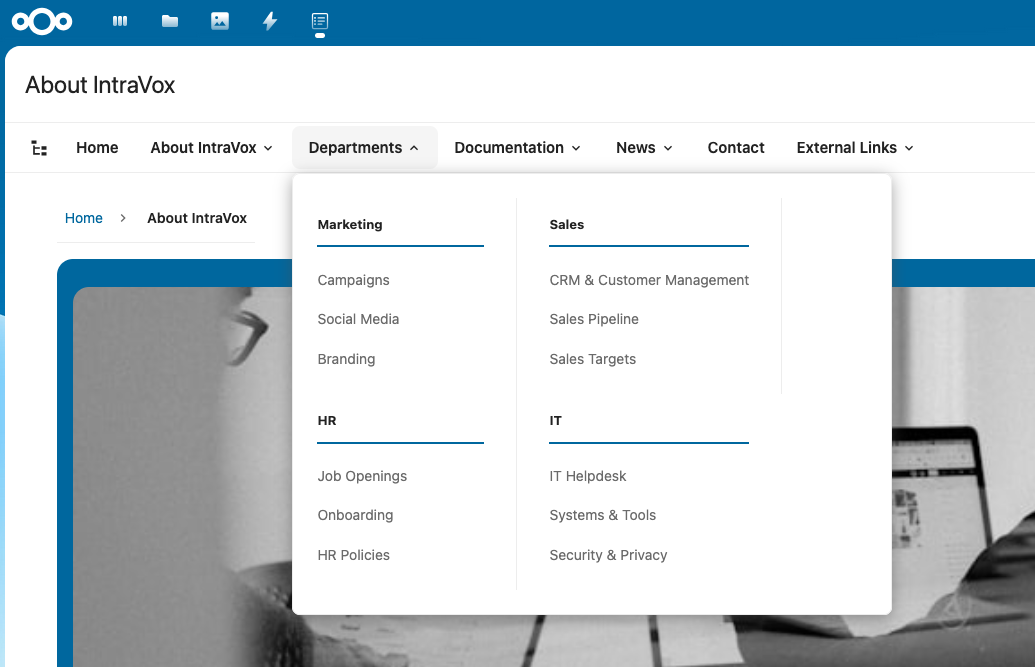
Megamenu showing all navigation options at a glance
Breadcrumbs
Below the navigation, breadcrumbs show your current location:
Click any breadcrumb to go back to that level.
Page structure and table of contents
The button next to the breadcrumb opens the Page structure panel, which has two tabs:
- Pages — the whole intranet as a tree; click any page to open it.
- On this page — the headings of the page you are reading, so you can jump straight to a section of a long page.
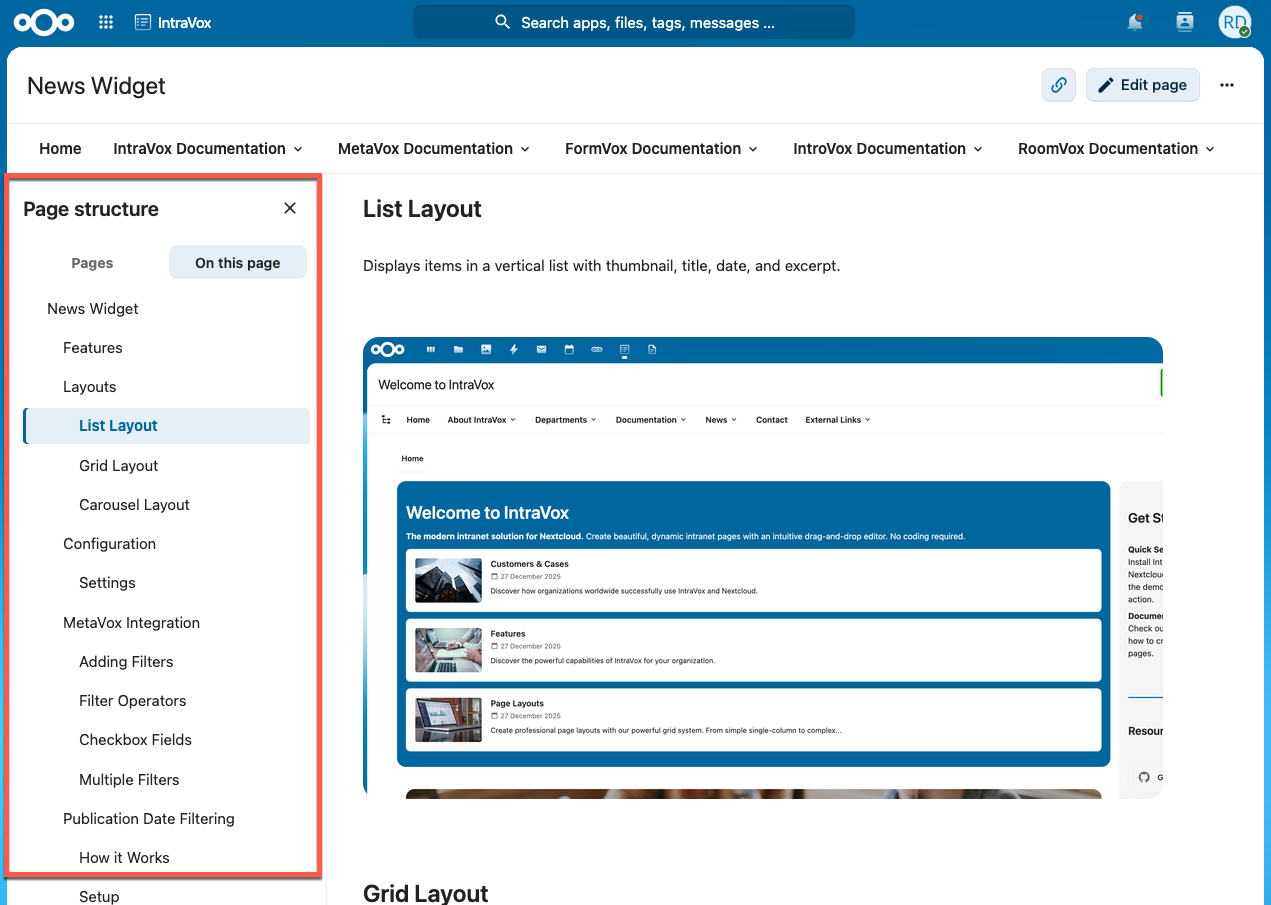
Since 2.2.0 the panel stays open while you read on: it is a table of contents, not a dialog you have to reopen every time.
The panel remembers whether it was open and which tab you used, so it is there again the next time you visit. On a narrow screen it opens over the content rather than beside it.
Sidebar Navigation
Some pages have a sidebar for quick access to related content.
Language Selection
Your Nextcloud display language (Personal settings → Language) decides which content language you see — there is no separate switcher to hunt for.
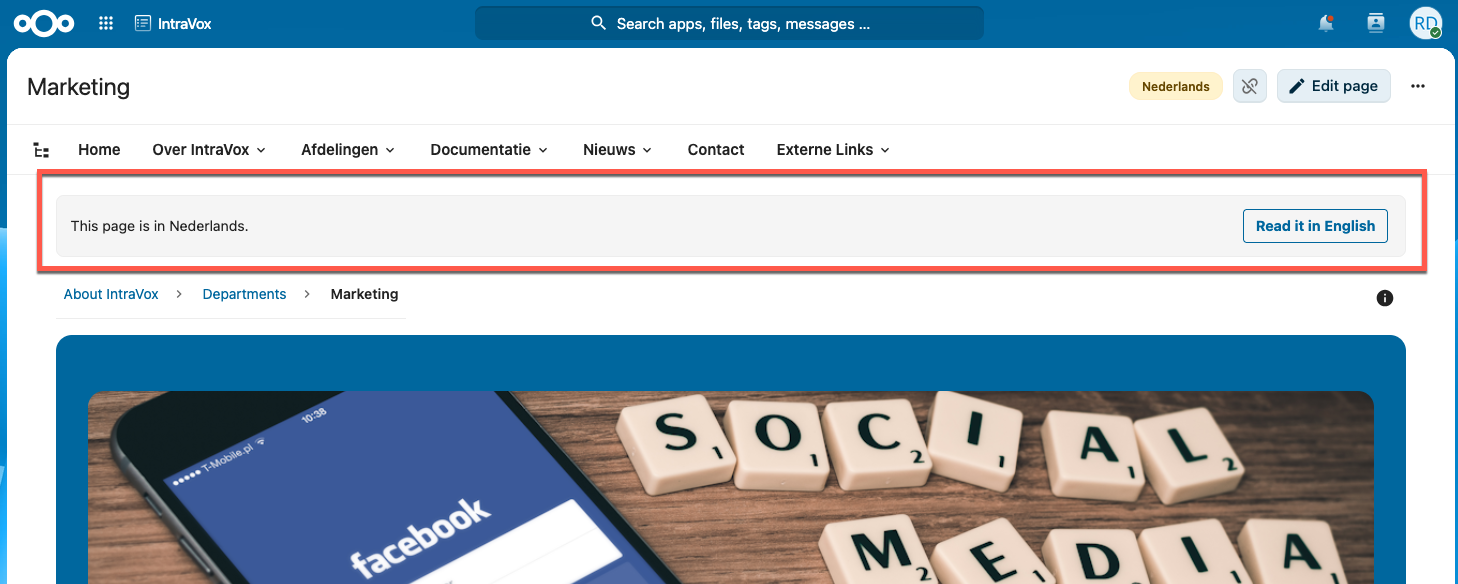
When you open a link to a page written in another language, a short notice above the content tells you so. If that page also exists in your language, the notice offers Read it in … for a one-click switch. Links always open exactly the page they point to; you are never redirected somewhere else behind your back.
In the page tree you may occasionally see a grey, non-clickable folder name: a level whose page exists in another language but not (yet) in yours. Pages underneath it remain reachable as usual.
Available languages depend on your organization's setup.
Reading Content
Page Layout
Pages can have different layouts:
- Single column: Content spans the full width
- Two columns: Content side by side
- Three columns: Multiple content areas
Content Types
You'll encounter various content types:
| Type | Description |
|---|---|
| Headings | Section titles (different sizes) |
| Text | Paragraphs, lists, formatted text |
| Images | Photos, diagrams, screenshots (may be clickable to navigate to other pages) |
| Videos | Embedded videos from YouTube, Vimeo, PeerTube, or local uploads |
| Links | Quick links to other pages or external sites |
| Dividers | Visual separators between sections |
Images
- Click images to view them larger (if enabled)
- Some images may be clickable and navigate to other pages or external websites
- Clickable images show a cursor change when hovering
- Images may have captions describing their content
Videos
- Click the play button to start a video
- Videos may autoplay (muted) depending on settings
- Use video controls to pause, seek, or adjust volume
- Some videos open in fullscreen mode when clicked
Links
Links appear in different styles:
- Text links: Underlined text, click to navigate
- Link cards: Boxes with title, description, and icon
- External links: Open in a new tab (indicated by icon)
Search
Using Search
- Click the search icon (🔍) in the navigation
- Type your search terms
- Press Enter or click Search
- Browse the results
Search Tips
- Use specific keywords for better results
- Search looks in page titles and content
- Results show relevance scores
Page Information
Page Details
Some pages show metadata:
- Title: The page name
- Last modified: When the page was last updated
- Modified by: Who made the last change
Side Panel
Click the info icon to see:
- Page properties
- Modification history
- Related pages
If your administrator has installed the MetaVox app, the side panel also shows a MetaVox tab with custom metadata for the page — sensitivity, department, status, custom dates, and any other fields your organisation tracks.
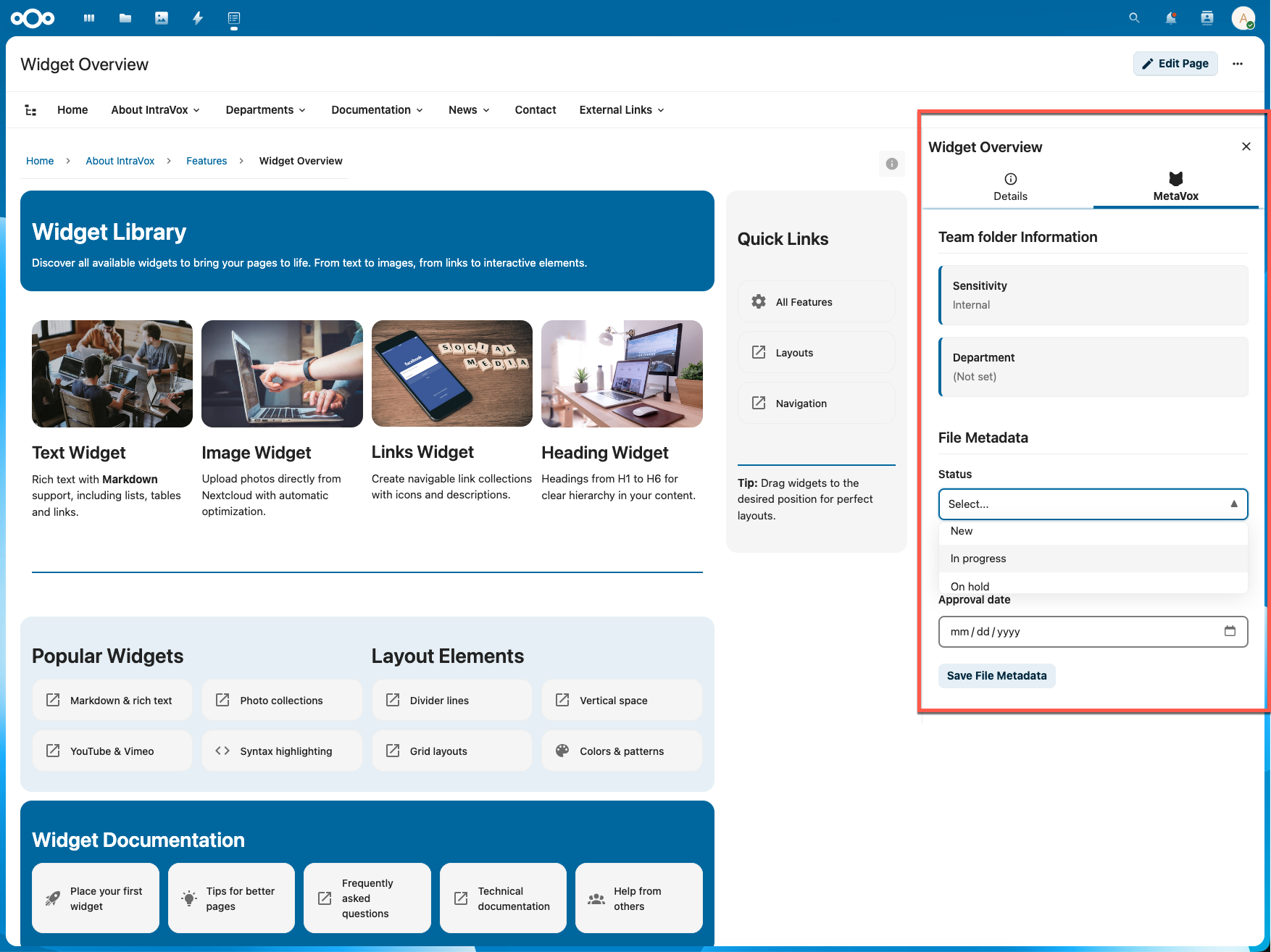
The MetaVox tab in the side panel surfaces team-folder metadata (left, blue box) and per-page custom fields (right) without leaving the page.
Common Tasks
Finding Information
- Use navigation: Browse through menu structure
- Use search: Search for specific topics
- Use breadcrumbs: Navigate back to parent sections
Returning to Homepage
- Click the logo in the top-left corner
- Or click "Home" in the navigation
Printing a Page
- Navigate to the page you want to print
- Use your browser's print function (Ctrl+P / Cmd+P)
- Pages are optimized for printing
Sharing a Page
- Copy the URL from your browser's address bar
- Share the link with colleagues
- They'll see the page (if they have access)
RSS Feed
IntraVox can generate a personal RSS feed so you can follow page updates in your favorite RSS reader (such as Nextcloud News, Feedly, or any other RSS client).
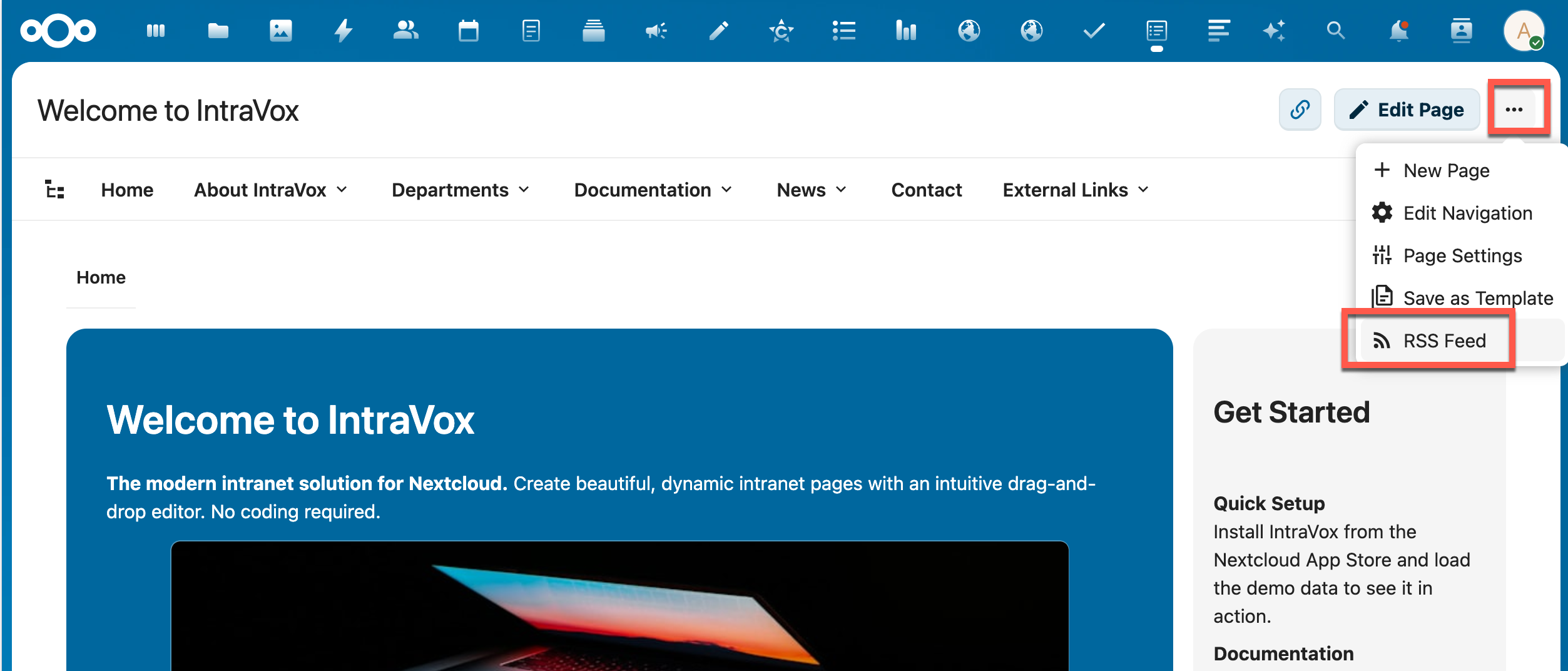
Access RSS Feed from the page menu (three dots)
Setting Up Your Feed
- Click the three dots menu (⋯) in the top-right corner of any IntraVox page
- Select RSS Feed
- Configure your feed settings:
- Feed scope: Choose "My language" (only pages in your Nextcloud language) or "All languages" (pages from all available languages)
- Maximum items: How many items to include in the feed (10, 20, 30, or 50)
- Click Generate Feed URL
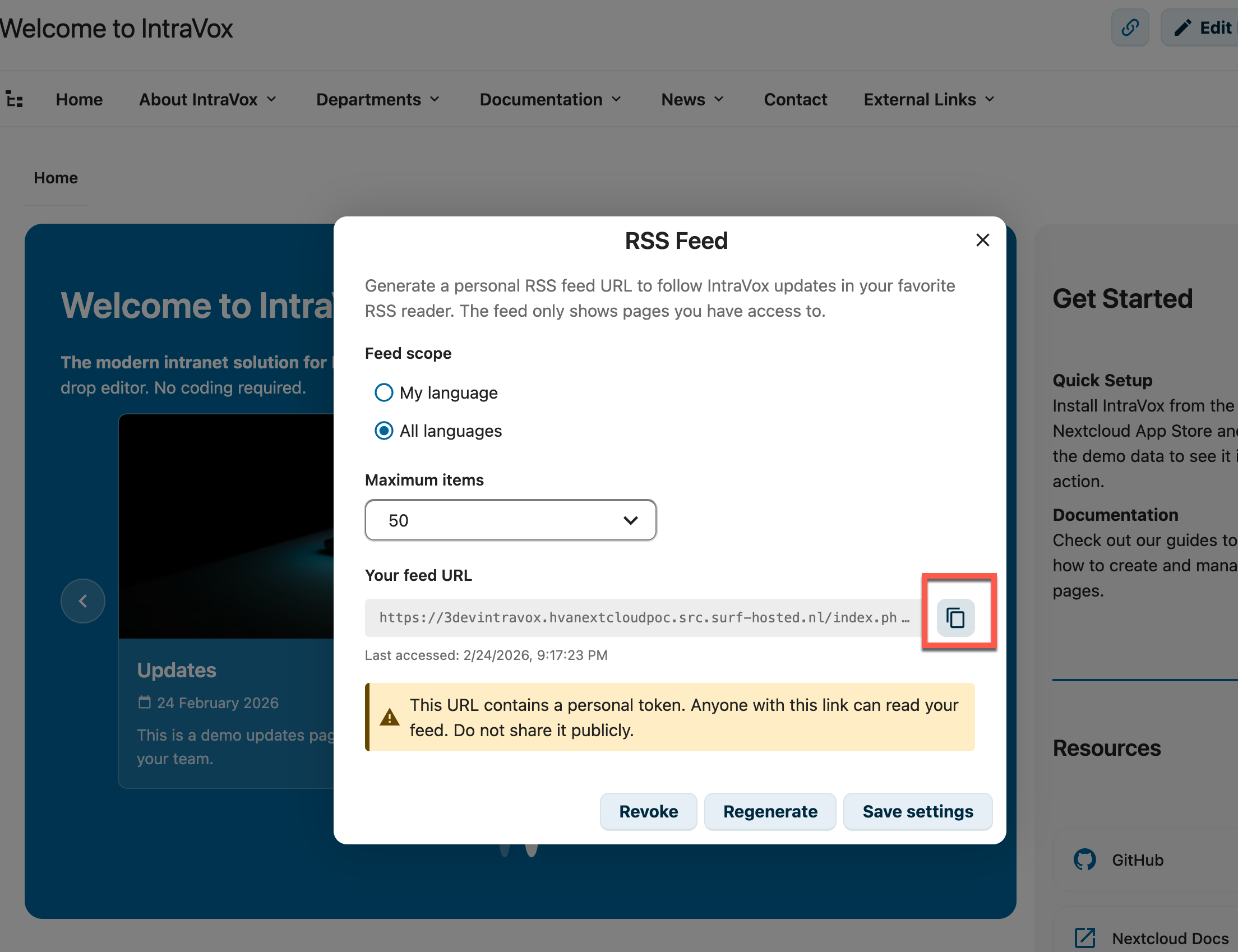
Feed settings with scope, limit, and your personal feed URL
Using Your Feed
- Copy the generated feed URL using the copy button
- Open your RSS reader
- Add a new feed subscription and paste the URL
- Your reader will show IntraVox page updates with titles, content previews, and images
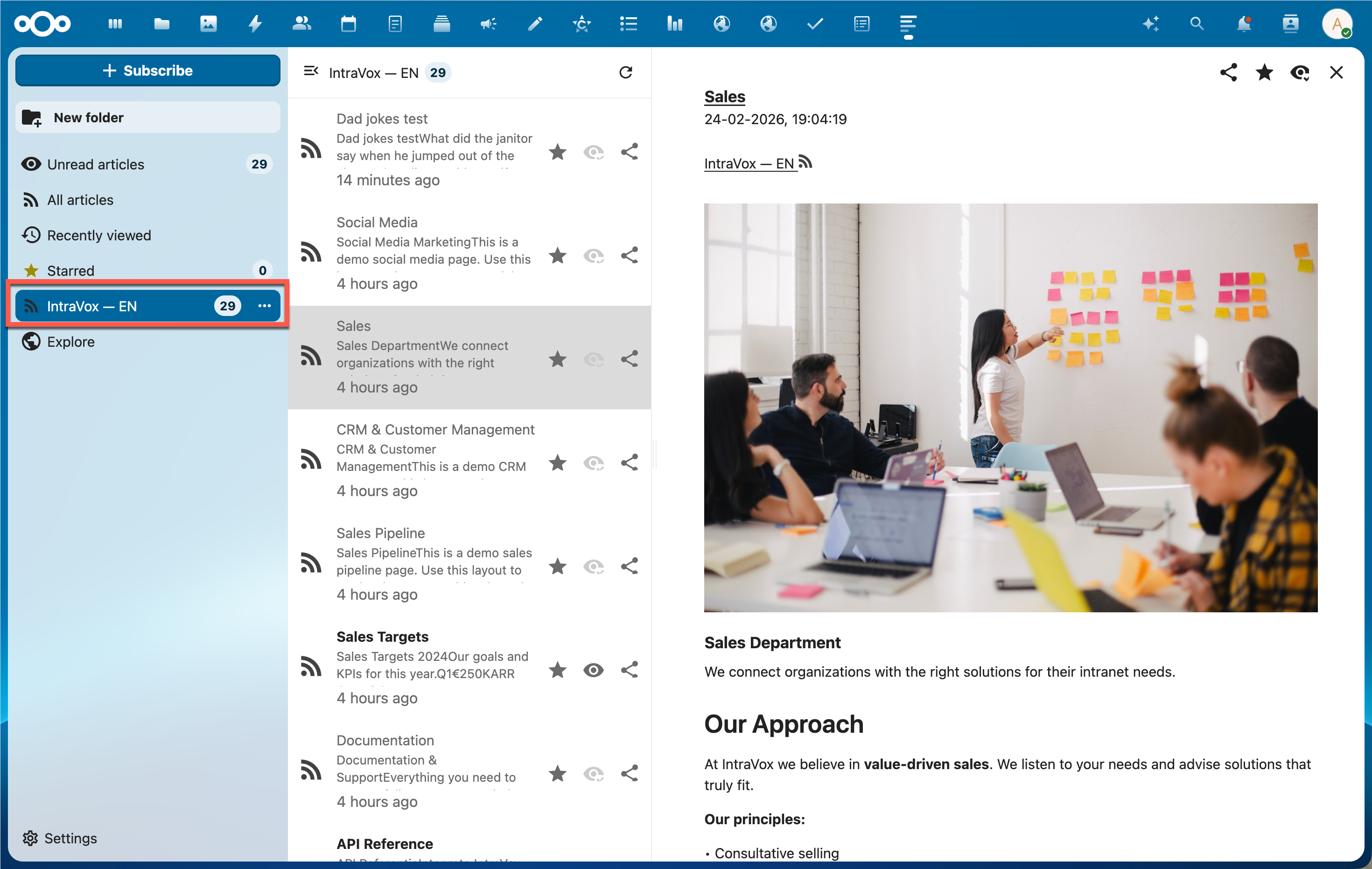
IntraVox feed displayed in Nextcloud News with page content and images
Feed Features
- Personal token: Each feed URL contains a secure personal token — only you can access your feed
- Page images: Feed items include page images as thumbnails and inline content
- Rich content: Full page content is included via
content:encoded, showing headings, text, and images - Conditional requests: Supports
ETagandIf-Modified-Sincefor efficient polling - Access control: The feed only shows pages you have permission to view
Managing Your Feed
- Save settings: Change scope or limit and click "Save settings" to update
- Regenerate: Create a new feed URL (the old URL stops working)
- Revoke: Delete your feed token entirely — the URL becomes invalid
Security Note
Your feed URL contains a personal token. Anyone with this link can read your feed. Do not share it publicly.
Feed Disabled by Administrator
If your Nextcloud administrator has disabled public link sharing, RSS feeds are not available. The feed settings dialog will show an error message:
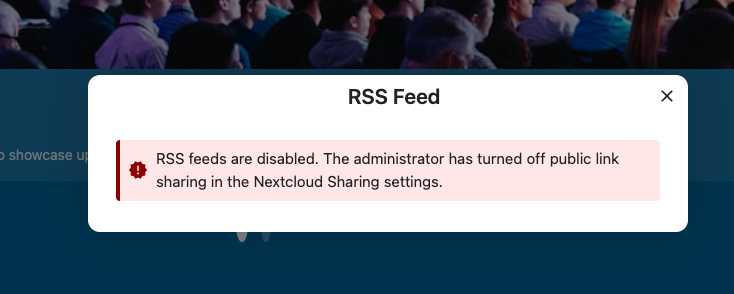
Contact your administrator if you need RSS feed access
Mobile Usage
IntraVox works on mobile devices:
- Navigation collapses into a menu button (☰)
- Tap the menu button to see navigation
- Content adjusts to screen size
- Swipe to scroll through content
Accessibility
IntraVox is designed to meet WCAG 2.1 Level AA requirements, as mandated by the Dutch Wet Digitale Overheid for government intranets:
- Keyboard navigation (Tab, Enter, Escape, arrow keys)
- Screen reader compatible (landmarks, ARIA roles, live regions)
- Skip-to-content link for bypassing navigation
- High contrast with Nextcloud dark mode
- Scalable text (use browser zoom)
- Reduced motion support (respects system preference)
Keyboard Shortcuts
| Key | Action |
|---|---|
| Tab | Move to next interactive element |
| Enter | Activate buttons and links |
| Escape | Close menus and dialogs |
| Arrow keys | Navigate within menus |
Troubleshooting
Page Not Loading
- Check your internet connection
- Try refreshing the page (F5 or Ctrl+R)
- Clear your browser cache
- Contact IT support if the problem persists
Access Denied
If you see "Access Denied" or can't view a page:
- You may not have permission to view this content
- Contact your manager or IT to request access
- Some content is restricted to specific departments
Images Not Showing
- Check your internet connection
- Try refreshing the page
- Images may take time to load on slow connections
Search Not Working
- Try different keywords
- Check spelling
- Use broader search terms
Getting Help
Contact Options
- IT Support: For technical issues
- Content questions: Contact the page owner (see page details)
- General inquiries: Use the Contact page in IntraVox
Feedback
If you have suggestions for improving content:
- Contact the content editor for that section
- Use your organization's feedback process
- Speak with your department's intranet representative