Page Templates
Page Templates allow you to quickly create new pages with pre-built layouts and content structures. IntraVox includes 7 professional templates installed automatically during setup, and you can create your own custom templates.
Features
- Visual preview cards: See the layout structure before selecting a template
- Pre-built layouts: Professional templates with columns, header rows, sidebars, and collapsible sections
- Widget variety: Templates use various widgets including heading, text, image, video, news, links, and divider
- Stock images: Templates include placeholder images that are copied to your new page
- Multilingual support: Template names and descriptions are translated (NL, EN, DE, FR)
- Custom templates: Save any page as a reusable template
Creating a Page from a Template
- Navigate to the folder where you want to create the new page
- Click + New Page in the navigation
- Select a template from the gallery
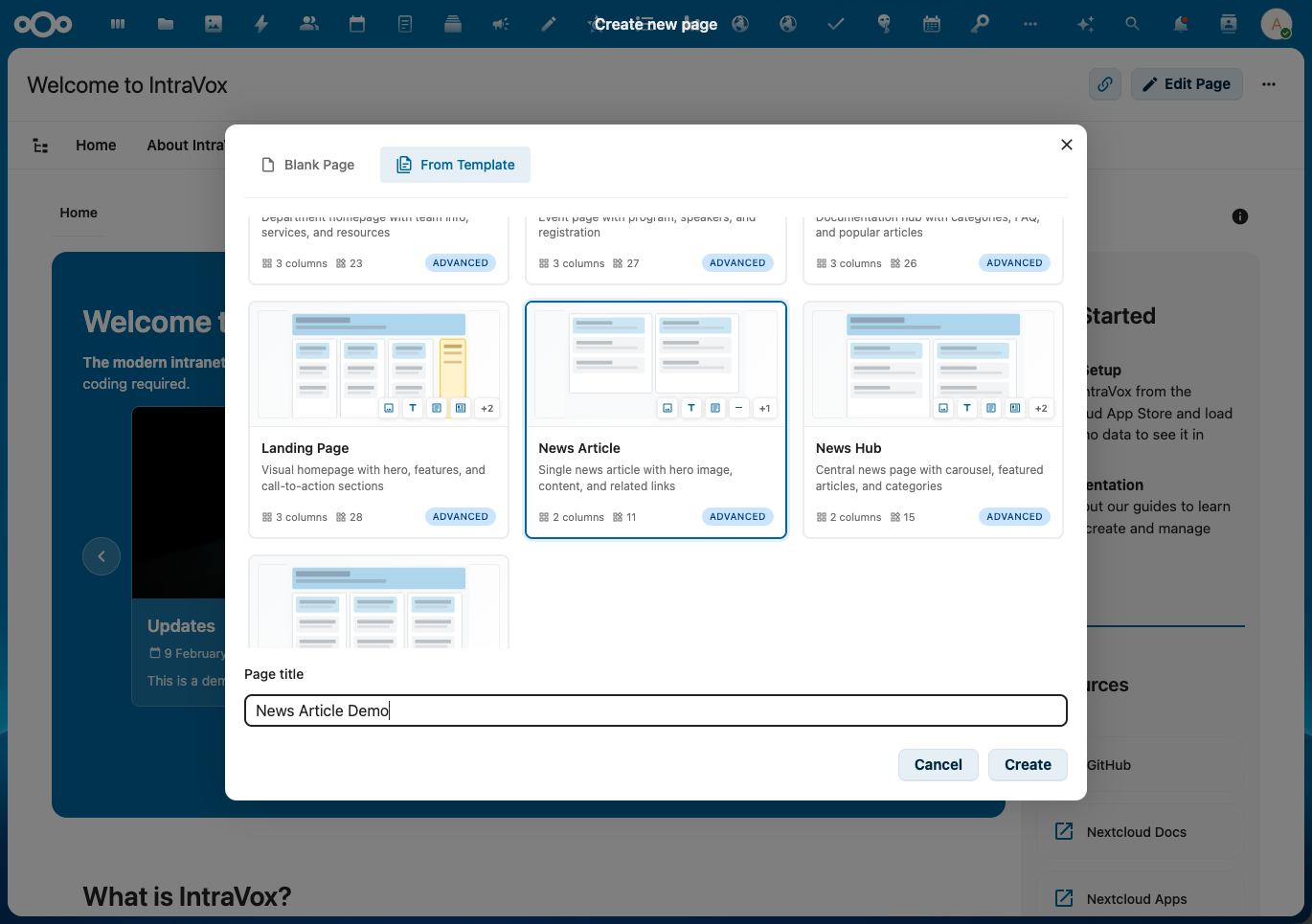
- Enter a title for your new page
- Click Create
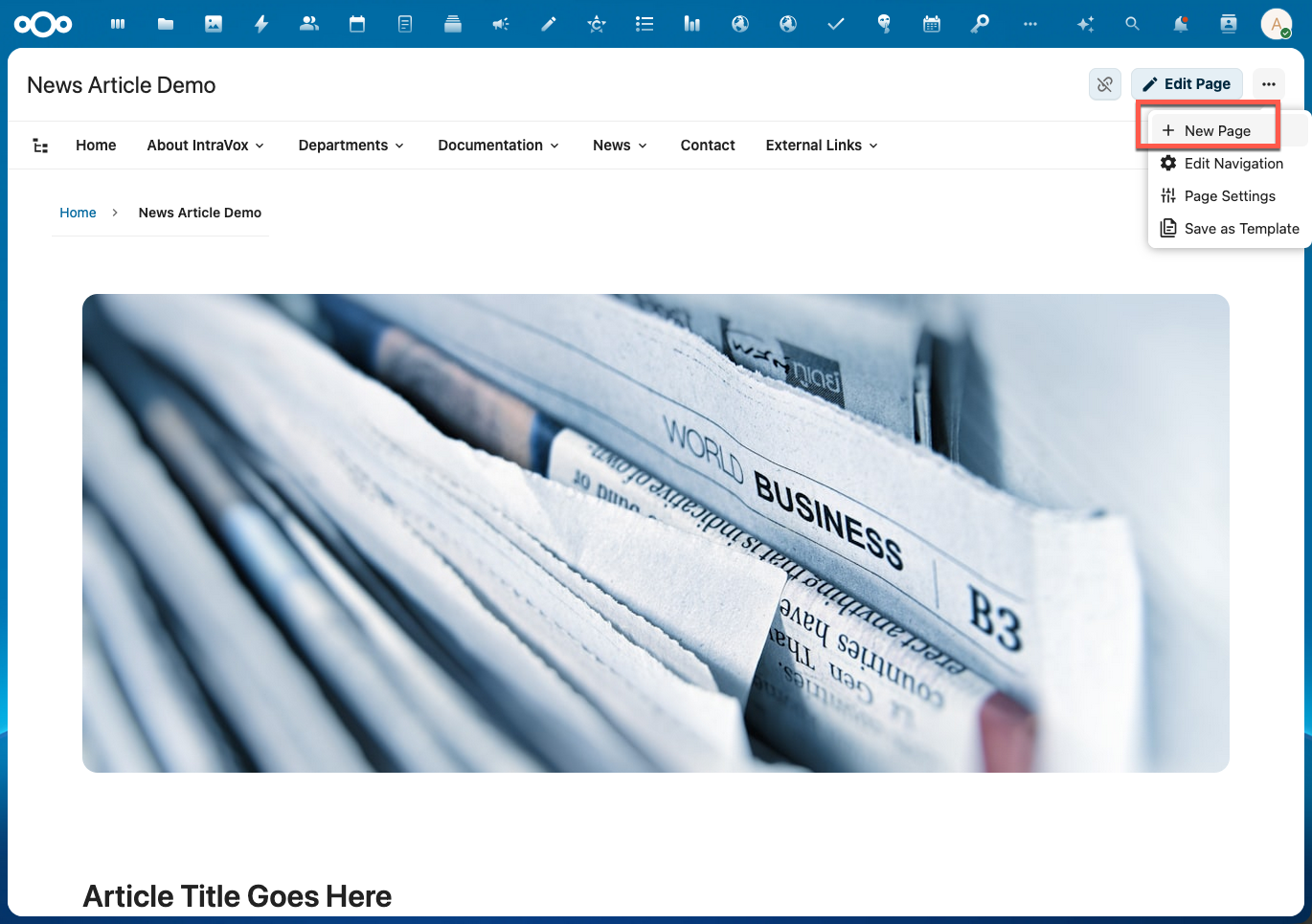
The page is created with all the template's content, layout, and images copied to the new location.

Default Templates
IntraVox includes 7 professional templates:
Department
A department homepage with team information, services overview, and resources.
| Section | Content |
|---|---|
| Header | Hero image with welcome message |
| Services | 3-column grid with service descriptions |
| Resources | Document links and contact information |
| Navigation | Links to other departments |
Complexity: Moderate | Columns: 3 | Widgets: 12
Event
An event page with program schedule, speaker profiles, and registration information.
| Section | Content |
|---|---|
| Header | Event banner with title |
| Details | Date, time, location with promotional video |
| Program | Collapsible sections for schedule |
| Speakers | 3-column speaker profiles with photos |
| Registration | Call-to-action with registration link |
Complexity: Advanced | Columns: 3 | Widgets: 15+
Knowledge Base
A documentation hub with categories, FAQ sections, and popular articles.
| Section | Content |
|---|---|
| Header | Knowledge base title and introduction |
| Categories | 3-column grid (Manuals, FAQ, Policies) |
| Popular Articles | News widget showing most viewed content |
| FAQ | Collapsible FAQ sections |
| Contact | Help desk contact information |
Complexity: Advanced | Columns: 3 | Widgets: 15+
Landing Page
A visual homepage with hero section, features, sidebar, and call-to-action.
| Section | Content |
|---|---|
| Hero | Full-width hero image with heading |
| Highlights | News carousel with recent content |
| Features | 3-column feature highlights |
| About | 2-column about section with image |
| Sidebar | Quick links and announcements |
| CTA | Call-to-action section |
Complexity: Advanced | Columns: 3 | Widgets: 18+
News Article
A single news article layout with hero image, content area, and related links.
| Section | Content |
|---|---|
| Header | Article hero image |
| Title | Article heading |
| Content | Main article text |
| Images | 2-column supporting images with captions |
| Related | Related articles links |
Complexity: Simple | Columns: 2 | Widgets: 8
News Hub
A central news page with carousel, featured articles, and category navigation.
| Section | Content |
|---|---|
| Header | Hero banner with news title |
| Carousel | News widget with rotating articles |
| Categories | 4-column category navigation |
| Featured | 2-column featured articles |
| Links | Quick links to news sections |
Complexity: Moderate | Columns: 4 | Widgets: 10
Project
A project management page with status updates, milestones, team members, and documents.
| Section | Content |
|---|---|
| Header | Project title and summary |
| Status | Project status with quick links |
| Objectives | Collapsible project goals |
| Milestones | Collapsible timeline |
| Team | 3-column team member profiles |
| Documents | Document links |
Complexity: Moderate | Columns: 3 | Widgets: 12
Template Preview Cards
Each template displays a visual preview card showing:
- Layout schematic: SVG visualization of the column structure
- Header row indicator: Shows if template has a header section
- Sidebar indicator: Shows if template has a side column
- Collapsible indicator: Shows if template uses collapsible sections
- Widget badges: Icons showing which widget types are used
- Complexity badge: Simple, Medium, or Advanced
- Statistics: Column count and total widget count
Creating Custom Templates
You can save any existing page as a template:
- Open the page you want to use as a template
- Click the Save as Template option in the page menu
- The page is saved to your language's
_templatesfolder - The template will appear in the "Create new page" dialog
Template Storage
Templates are stored in the _templates folder for each language:
IntraVox/
├── en/
│   └── _templates/
│       ├── department/
│       ├── event/
│       └── my-custom-template/
├── nl/
│   └── _templates/
│       └── ...
Administrator Notes
Installing Default Templates
Default templates are installed automatically when running:
The setup command:
1. Creates _templates folders for each language
2. Copies the 7 default templates
3. Copies template images to each template's _media folder
Template Requirements
A valid template must:
- Be located in a _templates folder
- Have a page.json file with "isTemplate": true
- Include referenced images in a _media subfolder
Skipping Existing Templates
The setup command skips templates that already exist. To reinstall a default template:
1. Delete the template folder from _templates
2. Run occ intravox:setup again
Translations
Template titles and descriptions are automatically translated based on the user's language setting. Translation keys follow this pattern:
- Title:
template_{template-id}_title - Description:
template_{template-id}_description
For custom templates without translations, the original title from page.json is displayed.