Booking Rooms
RoomVox makes rooms available as standard CalDAV resources. This means you can book rooms directly from any calendar app that supports CalDAV resources — no separate booking interface needed.
How It Works
When an administrator creates a room in RoomVox, it becomes available as a CalDAV resource. When you add this resource to a calendar event, RoomVox automatically:
- Checks your permission to book the room
- Verifies the room is available at the requested time
- Checks against availability rules (allowed days/times)
- Checks the booking horizon (maximum advance booking period)
- Either auto-accepts the booking or marks it as tentative (pending manager approval)
- Sends email notifications to the organizer and managers
Booking from Nextcloud Calendar
Standard Resource Picker
- Create a new event or edit an existing one
- In the event editor, find the Resources section
- Start typing the room name in the search field
- Select the room from the results
- The room shows capacity and address in the dropdown
- Save the event
Visual Room Browser (Calendar Patch)
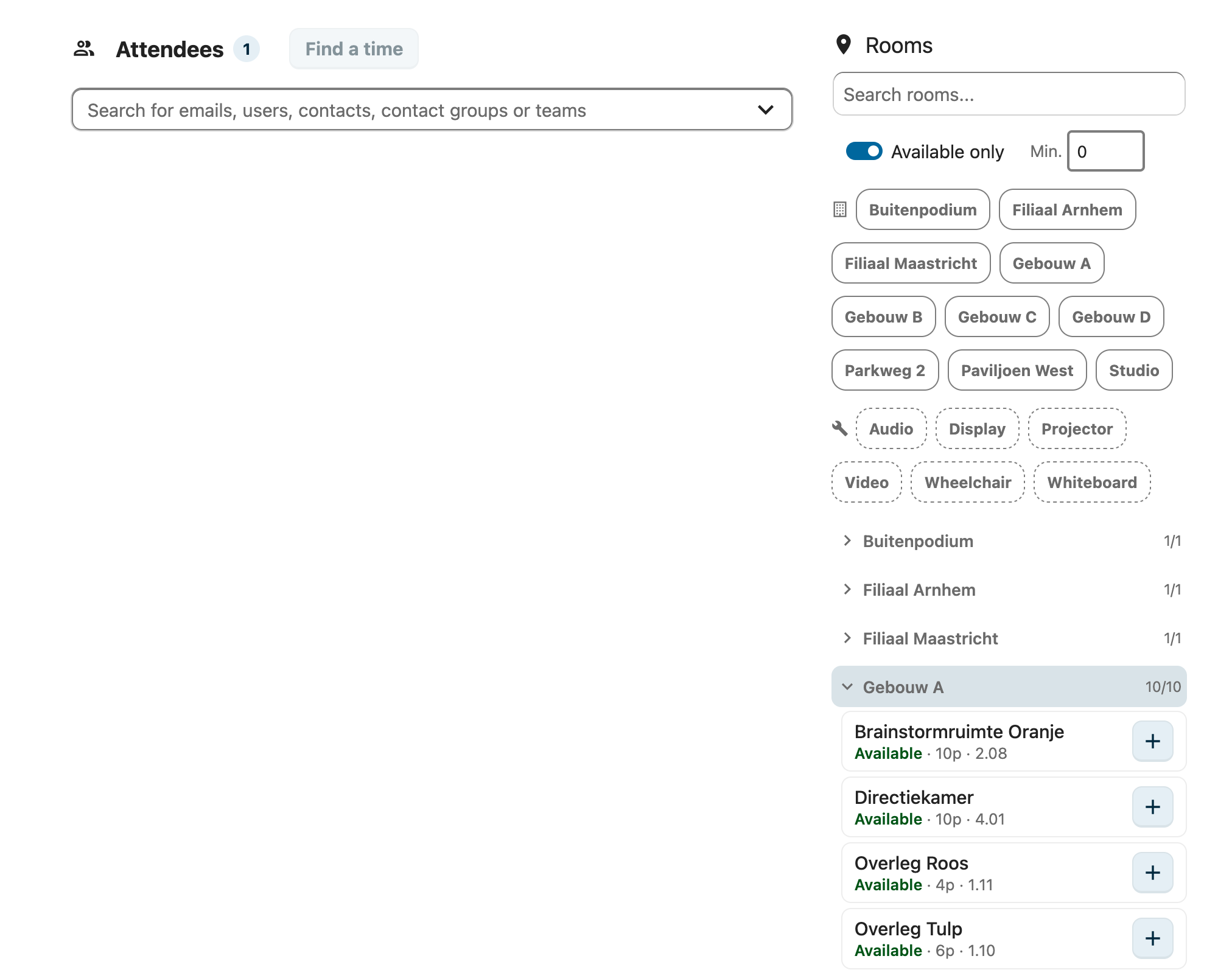
If your administrator has installed the calendar patch, you'll see an enhanced room browser instead of the standard picker:
- Browse all rooms grouped by building
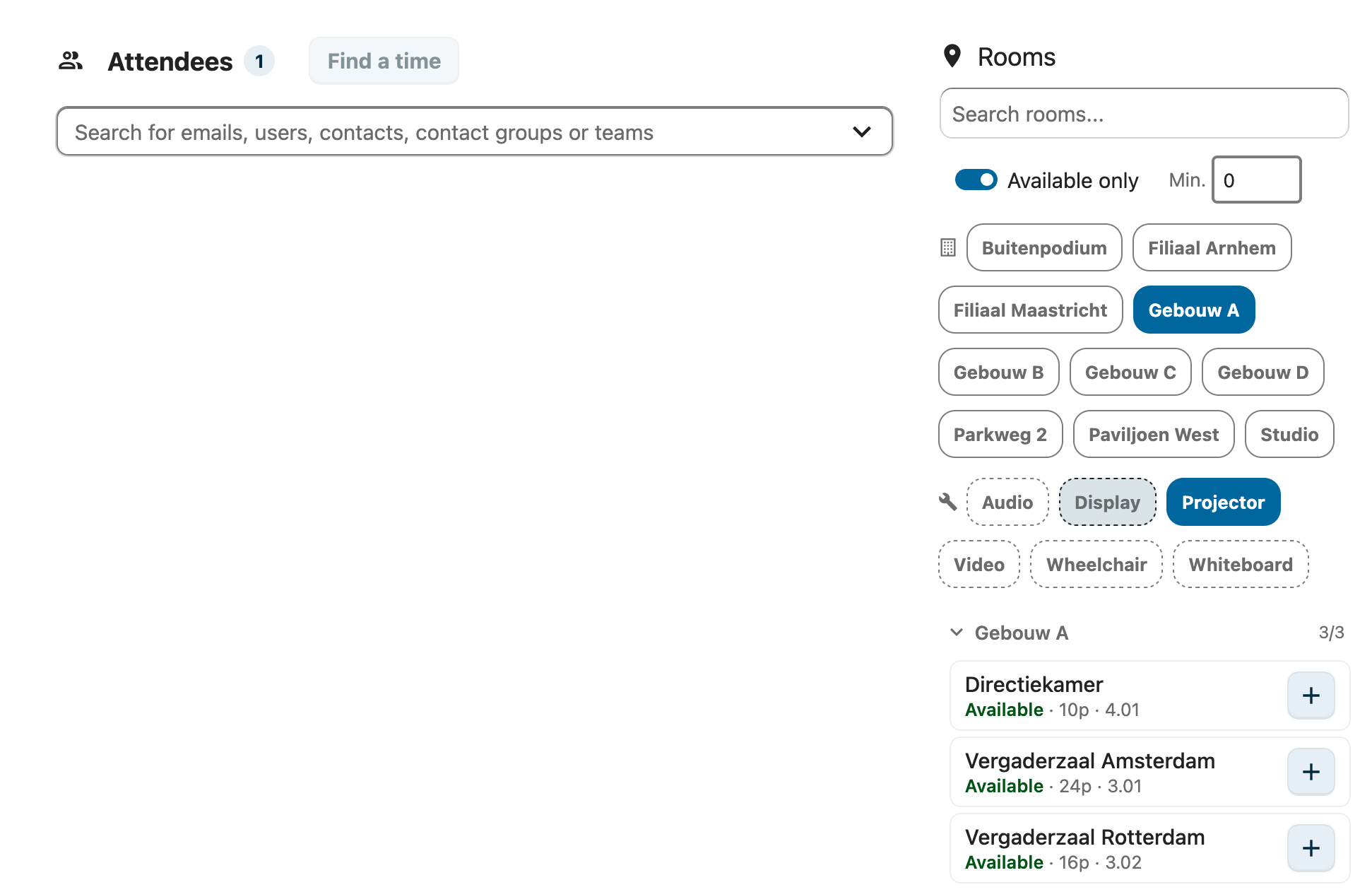
- Filter by availability, capacity, building, and facilities
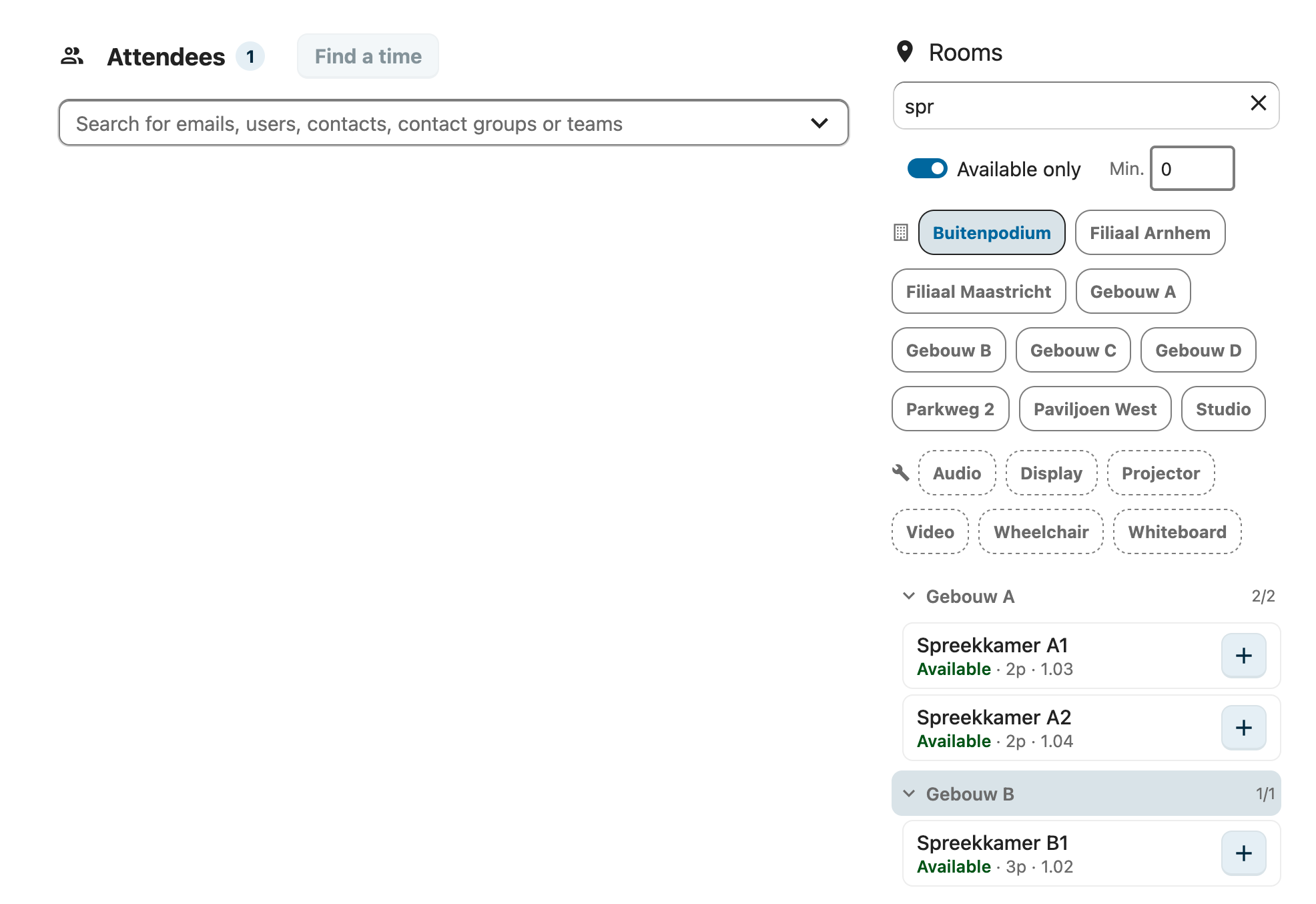
- Search by name, building, address, or floor
- Room cards show status (available/unavailable), capacity, and floor
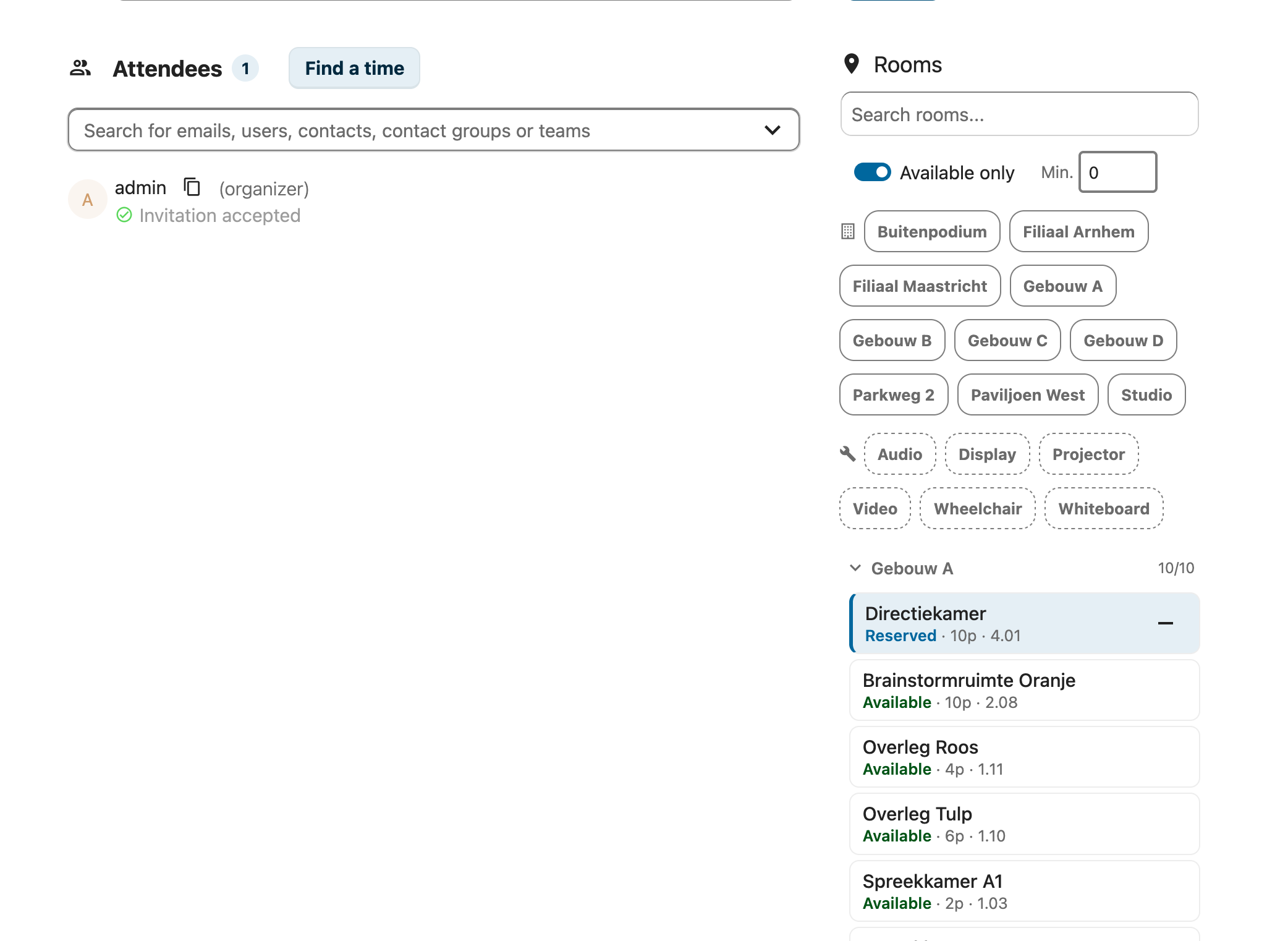
- Click + to add a room, - to remove it
Searching Rooms
Type in the search field to filter rooms by name, building, address, or floor number. Results update instantly as you type.
Filtering by Building and Facilities
Click the building or facility chips to filter rooms. Multiple filters can be combined — for example, select a building and a facility to find all rooms in that building with a projector.
Adding a Room
Click the + button on a room card to add it to your event. The room appears as "Reserved" (blue) and the LOCATION field is automatically filled in.
Booking from Apple Calendar
Apple Calendar (macOS and iOS) supports CalDAV resources natively.
macOS
- Create a new event
- Click Add Location, Video Call, or Travel Time
- In the attendees section, search for the room name
- Select the room resource
- Save the event
iOS
- Create a new event
- Tap Invitees
- Search for the room name
- Add the room
- Save the event
Note: iOS sends room attendees with
CUTYPE=INDIVIDUALinstead ofCUTYPE=ROOM. RoomVox automatically detects and fixes this.
Booking from Microsoft Outlook
Outlook supports CalDAV resources when connected via a CalDAV account.
- Create a new meeting
- In the scheduling assistant, add the room as an attendee
- The room will respond with its availability
- Send the meeting request
Booking from Thunderbird
Thunderbird supports CalDAV resources through its calendar integration.
- Create a new event
- Add the room as an attendee in the attendee list
- The room name should match the CalDAV resource name
- Save the event
Booking from eM Client
eM Client has special handling for rooms:
- Create a new event
- Set the Location field to the room name
- RoomVox detects the room by location match and automatically adds it as an attendee
- Save the event
Note: eM Client may not send a room attendee explicitly. RoomVox's scheduling plugin detects the room by matching the LOCATION field against known room names.
Booking Responses
After you add a room to your event, the room will respond with one of these statuses:
| Status | Meaning |
|---|---|
| Accepted | Room is booked and confirmed |
| Tentative | Booking requires manager approval (pending) |
| Declined | Booking was rejected |
Why a Booking May Be Declined
- Scheduling conflict — another event is already booked at that time. You receive an email about the conflict.
- No permission — you don't have Booker or Manager role for the room. You receive a "Booking not permitted" email. The room is automatically removed from your event and the location is cleared.
- Outside availability — the requested time is outside the room's available hours
- Beyond booking horizon — the event is too far in the future
- Delivery error — a server-side issue prevented the booking
Conflict Detection
RoomVox automatically checks for scheduling conflicts:
- If a room is already booked at the requested time, the booking is declined
- Cancelled and declined bookings are ignored during conflict checking
- When rescheduling, the existing booking is excluded from the conflict check
Recurring Events
RoomVox supports recurring events with some considerations:
- Availability rules apply to every occurrence
- Booking horizon is checked against the furthest occurrence (based on RRULE UNTIL or COUNT)
- Infinite recurring events (no UNTIL or COUNT) are always declined when a booking horizon is set
- Conflict checking applies to the initial booking; individual occurrence conflicts may need to be resolved manually