Administrator Guide
This guide describes day-to-day administration of IntroVox. For installation, see the Installation Guide.
Overview
IntroVox shows people around Nextcloud with guided tours: the welcome tour after their first login, and short tours for apps and pages. As an administrator, you control:
- Tours for everyone — turn all tours on or off for everyone
- Tours — the welcome tour, the built-in tours for Files, Talk, Deck and Calendar, and tours of your own that start in an app, on another page, or anywhere (Tours)
- Who gets a tour and when — groups, everyone or new accounts only, a number of days after the first login, and dates
- Per-language overrides — optionally replace the auto-translated default copy with custom text for specific languages, or let AI translate it
- Step management — add, edit, delete, reorder, and enable/disable individual steps; images and videos; steps that go on with a click or a filled-in field
- Group-based visibility — restrict specific steps to certain user groups (role-based onboarding)
- Sharing and showing again — a link that starts a tour; giving a tour once more to everyone who saw it
- Statistics — per tour, how many people started, completed and skipped it, and how far people get
- The checklist on the Dashboard — a "Getting started" list of first things to do
Accessing Administrator Settings
- Click your user avatar in the top right
- Select Settings (⚙️)
- Scroll down the left sidebar to Administration
- Click IntroVox
You're now on the IntroVox administration page.
Admin Interface Layout
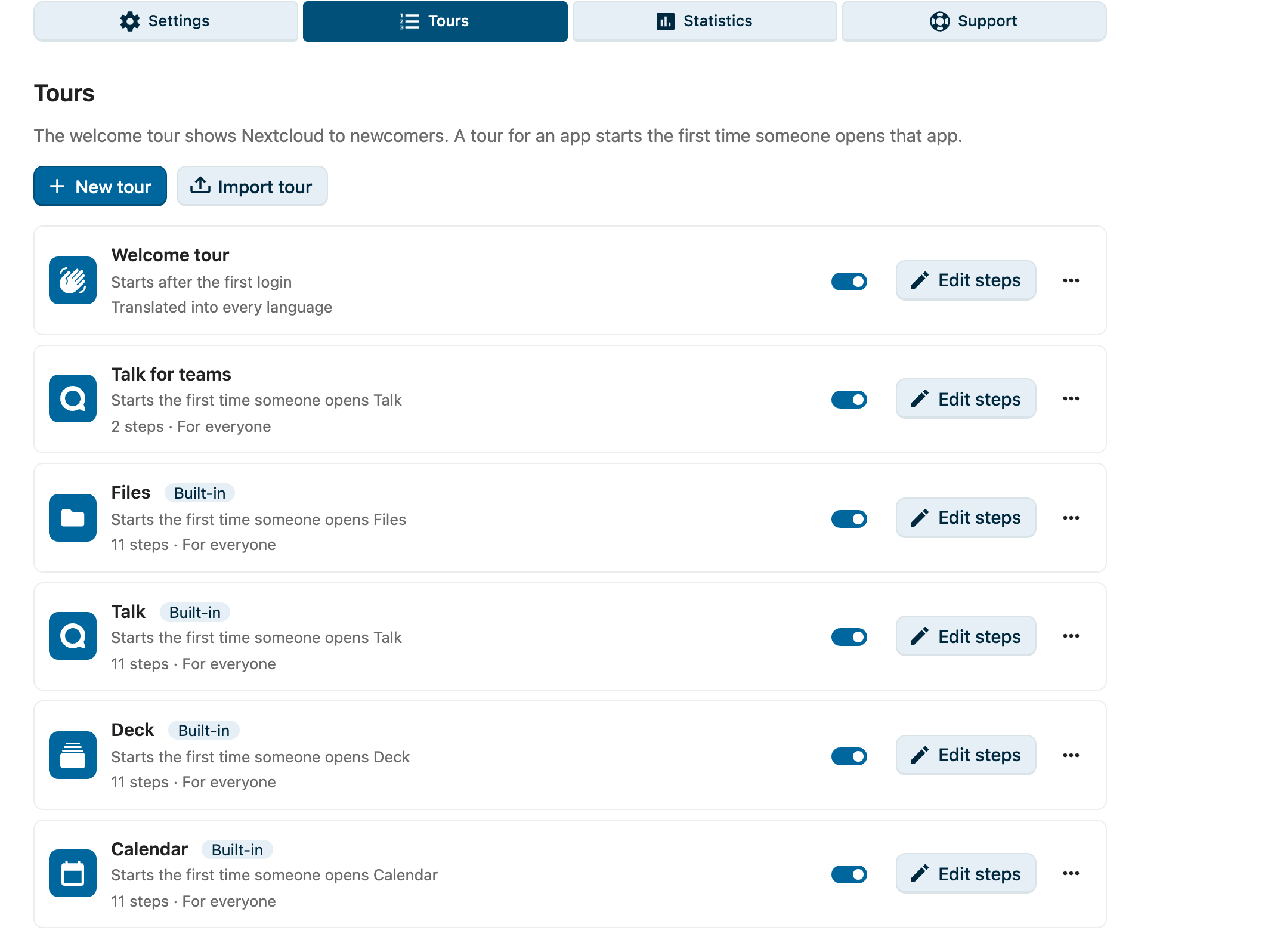
Four panes — Settings, Tours, Statistics and Support — sit behind the row of buttons at the top of the page. One pane shows at a time.
The Tours pane lists the tours: the Welcome tour, which new users get after their first login, the tours marked Built-in (Files, Talk, Deck and Calendar, once their app is installed), and tours of your own that start in an app, on another page, or anywhere. Each has an on/off switch, Edit steps, and a ⋯ menu with Preview, Copy link, Export tour, Show again to everyone and (not for the welcome tour or a built-in tour) Delete. New tour makes a tour for an app, a page, or anywhere; Import tour adds one from a file that Export tour made, here or on another Nextcloud. See Tours.
The Statistics pane shows one tour at a time: started, completed, skipped, and how far people get (Statistics), with the anonymous usage statistics below (Telemetry). The Support pane says what IntroVox is (About IntroVox: free and open source, no paid features), links to the other VoxCloud apps (Do you value this app?), and under Need help? has Report an issue, Source code, Show the admin tour again and an address for Questions?.
The three sections below are what the Settings pane and a tour's step editor hold. To open the step editor, click Edit steps on a tour; All tours goes back to the list.
1. Global Settings
- Tours for everyone — master on/off switch for all tours (Settings)
- Show Tours in the user menu — puts Tours in everyone's user menu, above Help, leading to their tours in the personal settings
- A line with the number of languages that currently have an admin override
- Checklist on the Dashboard — Show "Getting started" on the Dashboard, its Tasks, Your own tasks and Put it on every Dashboard (Checklist on the Dashboard)
2. Language Selector (step editor)
- Dropdown lists English plus every language that currently has an admin override
- Add language override — searchable picker over the full Nextcloud language list; switches the editor to that language seeded with the current default copy. No DB row is written until you save
- Switches the step list to the chosen language's override configuration
3. Step Management
- Add step — create new wizard steps
- Edit / Delete — modify or remove existing steps
- Image or video — an image, GIF or video above a step's text (Image or video)
- Pick element — point at the element a step highlights instead of typing a CSS selector
- Continue with — Next button, Click on the element or Filling in the field (Click to continue, Steps that wait for the user)
- Preview tour / Test this step — see the tour or a single step the way users get it
- Drag handle, or Move step up / Move step down — reorder steps, with or without a mouse
- Enable/disable switch — temporarily hide steps without deleting
- Translate with AI / Write steps with AI — only with a provider for the Nextcloud Assistant (Write or translate steps with AI)
- Export / Import — the steps of one language as JSON (Import/Export); a whole tour goes with Export tour in the list
- Reset — delete the current language's override row; the next request serves the auto-translated defaults straight from Transifex
- Tour settings — the tour's name, main language, groups, who gets it and when
Every change is saved as you make it.
See Managing Tour Steps for details.
End User Experience
Automatic Start
While Tours for everyone is on:
- New users get the welcome tour automatically after their first login, in their Nextcloud language
- The welcome tour starts on the first page they open, whichever that is (not on IntroVox's own admin page)
- Users can close a tour anytime with ✕ or Esc, or with Skip and don't show again on the welcome tour's first step
- A tour for an app that you switched on starts the first time a user opens that app, once per user; a tour that starts anywhere, on whichever page they open next. It never starts on top of the welcome tour: a user who hasn't had the welcome tour gets that first, and the other tour on a later visit. Days and dates can hold it back further, see When a tour starts
IntroVox detects the user's Nextcloud language and serves the matching translated default copy, or — if you authored one — the admin override for that language. When neither a Transifex translation nor an admin override exists for the user's language, the tour falls back to English defaults.
Users who switch off Start tours by themselves in their personal settings get no tour automatically, neither the welcome tour nor tours for apps.
Manual Start
Users run the welcome tour again with Personal Settings → IntroVox → Restart tour now: it opens their start page and the tour starts there. The other tours are listed there under Tours, each with a Start button, and Tours in the user menu leads there. Starting a tour by hand works even when Start tours by themselves is off. A link from Copy link starts a tour the same way (Share a tour with a link).
Behavior When Tours Are Off
If you switch off Tours for everyone:
- Users do not get any tour automatically, neither the welcome tour nor tours for apps
- In their personal settings they see: "The introduction tour is currently disabled by your administrator."
- They cannot start a tour manually
Showing a Tour Again
Show again to everyone in a tour's ⋯ menu gives that tour again to everyone who saw it. For the Welcome tour that includes:
- Users who already completed it with Done
- Users who skipped it with Skip and don't show again
Use this when:
- A major Nextcloud upgrade adds features worth highlighting
- You significantly updated a tour's content
- An important company announcement needs broad visibility
Note: Users who switched off Start tours by themselves in their personal settings keep that. They don't get the tour automatically, but can still start it from their personal settings.
Next Steps
- Settings reference — every admin option in detail
- Tours — the welcome tour and tours for apps
- Managing Tour Steps — step CRUD and reordering
- Group-Based Visibility — role-based onboarding (v1.2.0+)
- Import/Export — share configurations
- Best Practices — content guidelines
- Telemetry — the anonymous usage statistics
- Troubleshooting — common issues
- FAQ — frequently asked questions