IntraVox Versioning
IntraVox provides built-in version control for all pages, fully integrated with Nextcloud's native versioning system and GroupFolders.
Overview
Every change to an IntraVox page is automatically saved as a new version. This allows you to:
- View version history - See all previous versions of a page
- Compare versions - View the content of older versions
- Restore versions - Revert a page to a previous state
- Track changes - See who made changes and when
How It Works
Technical Architecture
IntraVox pages are stored as JSON files in a Nextcloud GroupFolder. Version control uses Nextcloud's built-in IVersionManager API:
GroupFolder: IntraVox/
├── en/
│   ├── homepage.json          ← Current version
│   └── .versions/
│       └── homepage.json/
│           ├── 1736934521     ← Version from Jan 15, 2026, 10:08
│           ├── 1736932860     ← Version from Jan 15, 2026, 09:41
│           └── ...
├── nl/
│   └── ...
└── _resources/                ← Shared media library
Benefits of This Approach
- Consistency with Nextcloud Files - Same versioning as regular files
- No extra database - Versions are managed by Nextcloud itself
- GroupFolder integration - Version control works automatically within GroupFolders
- Reliable - Uses proven Nextcloud infrastructure
User Interface
Versions Tab
Version history is available via the Versions tab in the page sidebar:
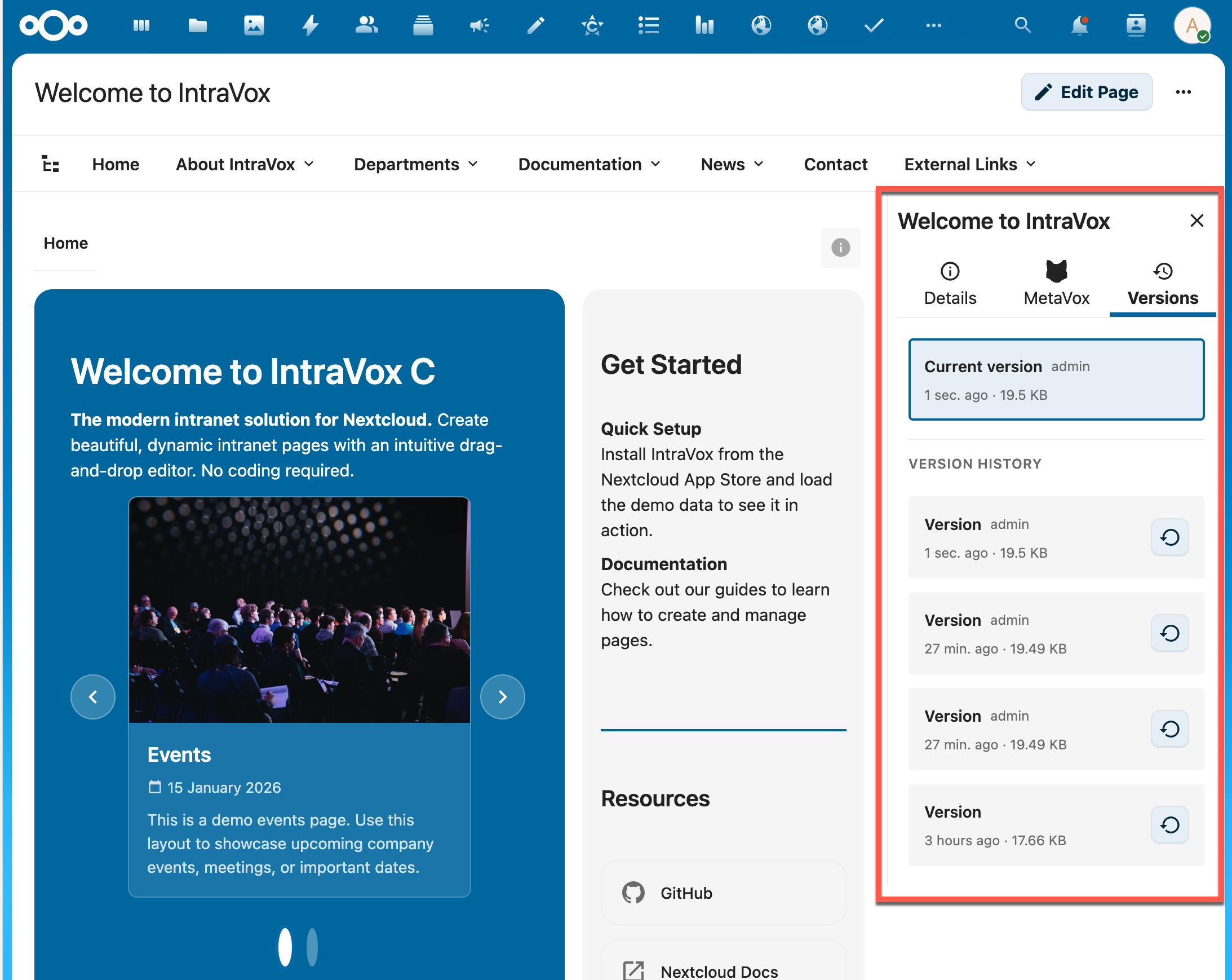
The Versions tab shows the current version at the top, followed by the version history. Each version displays the author, relative time ("1 sec. ago", "27 min. ago") and file size.
Viewing a Version
Click on a version in the list to view its content:
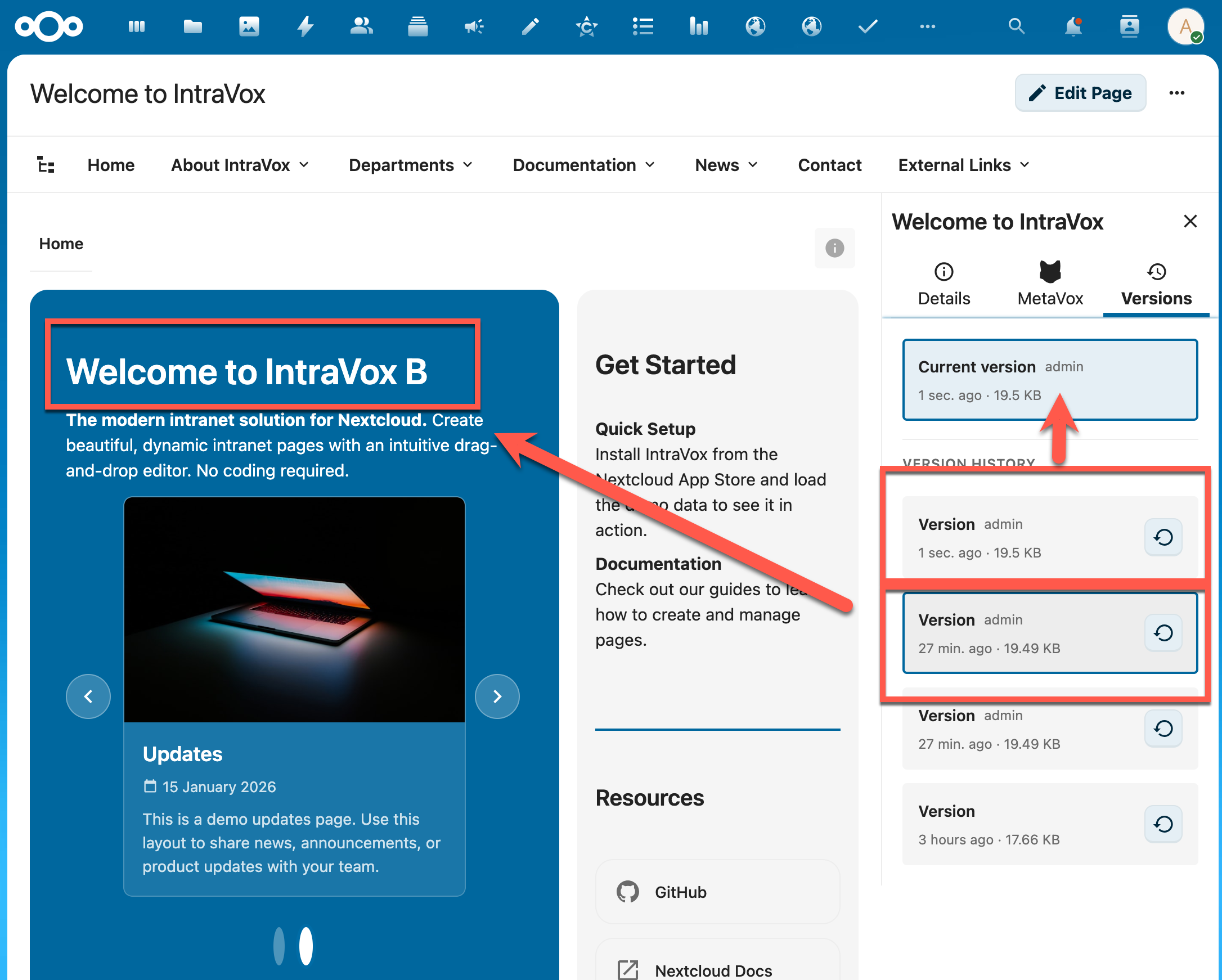
When you select an older version, the page content updates to show that version. The title in the header indicates which version you are viewing.
Restoring a Version
Click the restore button (↺) next to a version to restore it:
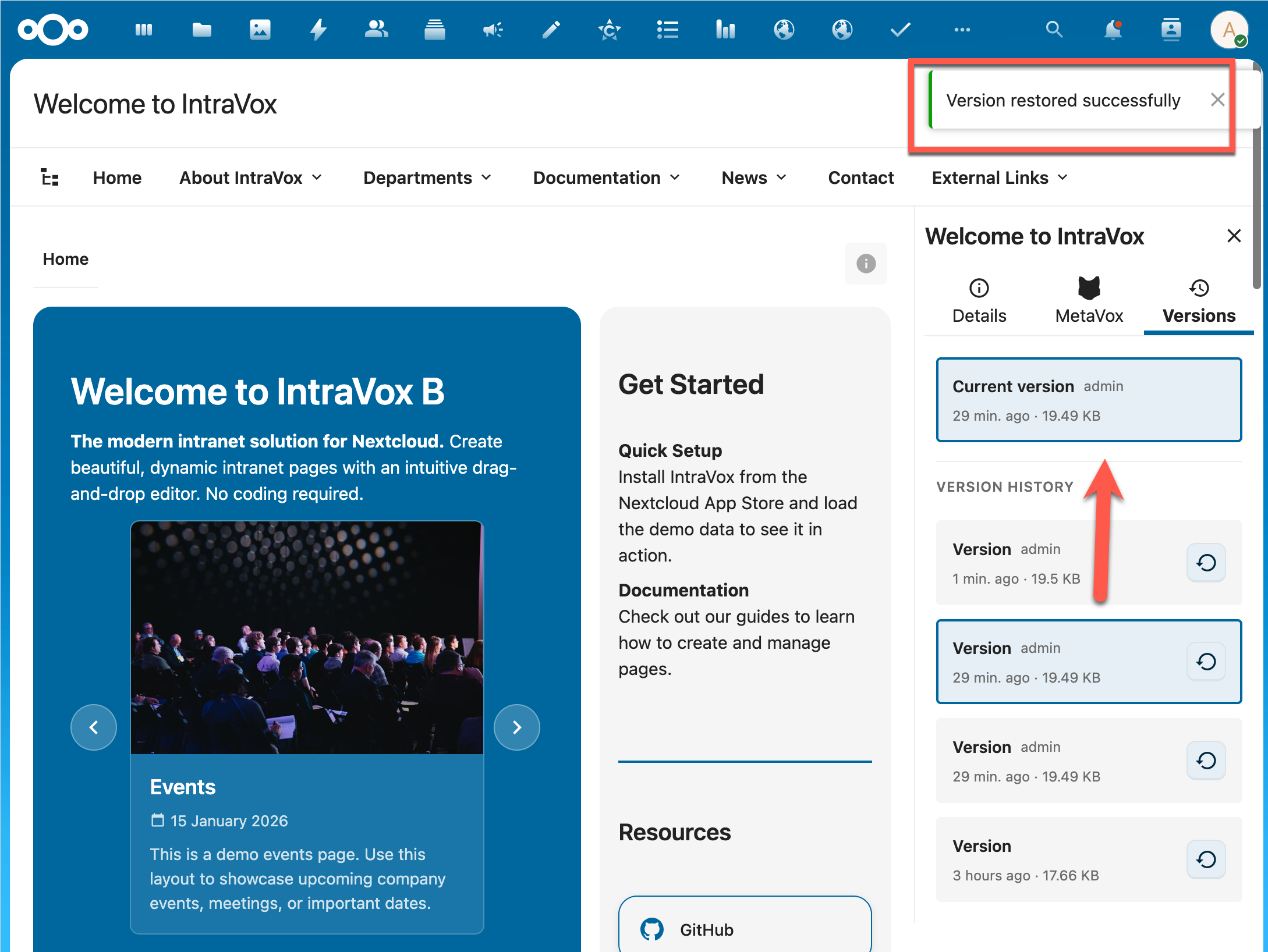
After restoring, a success message appears. The restored version becomes the "Current version" and the previous current version is automatically saved in the version history.
Version Information
Each version displays the following information:
| Field | Description |
|---|---|
| Current version | Label for the active version |
| Author | User who made the change |
| Relative time | Time since the change ("1 sec. ago", "2 hours ago", "3 days ago") |
| File size | Size of the JSON file (e.g., "19.5 KB") |
Restore Flow
When you restore a version, the following happens:
1. User clicks "Restore" on version [X]
   ↓
2. Nextcloud automatically creates a backup of the current version
   ↓
3. The selected version [X] becomes the new current version
   ↓
4. Version history is updated:
   - [Current] Restored version (was [X])
   - [Version] Backup of previous current (newly created)
   - [Version] Other historical versions
   ↓
5. Page content is reloaded
   ↓
6. Success message is displayed
Integration with Nextcloud Files
GroupFolder Versioning
IntraVox uses the same versioning as Nextcloud Files. This means:
- Version control settings are respected (max number of versions, retention policy)
- Quota is shared with the GroupFolder quota
- Administrators can also view versions via the Files app
Versions in Files App
The JSON files of IntraVox pages are also visible in the Nextcloud Files app:
- Go to Files → IntraVox GroupFolder
- Navigate to the language folder (e.g.,
en/) - Right-click on a
.jsonfile - Choose Versions to view the version history
Note: Directly editing JSON files via the Files app is not recommended. Always use the IntraVox editor.
Configuration
Nextcloud Versioning Settings
IntraVox versioning follows the general Nextcloud settings:
- Versions app must be activated
- GroupFolders must be installed
- Retention policy is determined by Nextcloud configuration
Recommended Settings
For optimal version control in IntraVox:
// config/config.php
'versions_retention_obligation' => 'auto',  // Automatic version management
'version_expire_days' => 365,               // Keep versions for 1 year
Best Practices
For Editors
- Save regularly - Every save creates a restore point
- Meaningful changes - Group related changes in a single save
- Check before publishing - Review the preview before saving
For Administrators
- Monitor quota - Versions count towards GroupFolder quota
- Retention policy - Configure how long versions are kept
- Backup strategy - Versioning is not a replacement for backups
What Triggers a New Version?
A new version is created when:
| Action | Creates Version? |
|---|---|
| Saving page content (text, blocks, structure) | ✅ Yes |
| Changing page title | ✅ Yes |
| Modifying navigation settings | ✅ Yes |
| Changing MetaVox metadata | ❌ No |
| Adding tags or comments | ❌ No |
| Sharing the page | ❌ No |
MetaVox Metadata and Versioning
MetaVox metadata does NOT create new versions. This is by design:
- Separate storage - MetaVox stores metadata in its own database table (
metavox_file_gf_meta), not in the JSON file itself - Metadata ≠ Content - Metadata describes the page (author, status, tags), while versions track content changes
- Nextcloud standard - This is consistent with how Nextcloud handles file metadata (tags, comments, shares don't create versions)
- Practical - If every metadata change created a version, the version history would become cluttered with minor changes
┌─────────────────────────────────────────────────────────┐
│  IntraVox Page (JSON file)    │  MetaVox Database       │
│  → Changes create versions    │  → No versions          │
├───────────────────────────────┼─────────────────────────┤
│  homepage.json                │  metavox_file_gf_meta   │
│  - title                      │  - file_id: 12345       │
│  - content blocks             │  - author: "Jan"        │
│  - navigation                 │  - status: "published"  │
│  - settings                   │  - department: "HR"     │
└───────────────────────────────┴─────────────────────────┘
Tip: If you need to track metadata changes over time, consider this a feature request for MetaVox (audit logging).
Limitations
- No version labels - Unlike SharePoint, Nextcloud does not support custom version numbers (1.0, 2.0)
- No major/minor versions - All versions are equal
- No comparison view - Diff view between versions is not available
- JSON content only - Media in
_resourceshas its own versioning - No metadata versioning - MetaVox metadata changes are not versioned
Frequently Asked Questions
How many versions are kept?
This depends on the Nextcloud configuration. By default, Nextcloud keeps versions according to an exponential scheme: more recent versions are kept more frequently.
Does versioning count towards my quota?
Yes, versions count towards the GroupFolder quota. Old versions are automatically cleaned up according to the retention policy.
Can I permanently delete versions?
Via the Nextcloud Files app, administrators can delete specific versions. This is not possible from the IntraVox interface.
What happens to media when restoring?
Media (images, videos) in the _resources folder have their own versioning. When restoring a page, media files are not automatically reverted.
Last updated: January 2026 - IntraVox v0.9.0