Language Management
Your intranet can hold content in any language Nextcloud supports. This guide explains how a language becomes active, how to pick the recommended language users fall back to, what users see when their own language has no content, and how to add or remove a language.
Content-driven model (since 1.7.0): a language is active as soon as it has a homepage — there are no enable/disable checkboxes. You add a language (which creates an empty homepage) or fill an existing one, and it appears for users in that locale automatically. Users are shown the recommended language when their own language has no content (since 1.8.2, #75).
Where to find it
- Open Administration settings → IntraVox.
- Switch to the Languages tab.
- The Intranet languages section shows the languages that have content, the recommended language, and controls to add or remove a language.
What you see
- Languages with content — a chip for every language that has real, editor-authored content, with its UI translation coverage (e.g. "UI 93%"). The recommended language is marked. This is the live set of languages your users can actually browse.
- Recommended language — a dropdown to pick the fallback language (see below). It only offers languages that have content, plus English.
- Add a language — pick any Nextcloud-supported language and click Add language to create an empty homepage for it.
A language is not something you "switch on" — it becomes active the moment it has a homepage (whether you added it here, imported demo content for it, or an editor created a page in it).
What users see when their language has no content
A user's Nextcloud display language decides which content they see. When their language has no IntraVox content, IntraVox picks a fallback — it does not leave them on an empty page. The resolution order is (since 1.8.2, #75):
- The user's own language, if it has real content (an editor-authored homepage, not just an auto-generated placeholder).
- The recommended language — the language you pick in the Recommended language dropdown — if it has content. This is exactly what the setting is for: "which language does a user without their own language see."
- English (
en) — the universal fallback and Transifex source language. - Only when none of the above has content does IntraVox show the "No content in your language yet" notice, which lists the languages that do have content and links the user to their personal language setting.
So on an English-only intranet, a user whose display language is German simply sees the English pages — no notice. If you set the recommended language to Dutch and have Dutch content, those same users see the Dutch intranet instead.
The recommended language is a viewing fallback only. It never changes what an editor is allowed to edit — see Which language do editors write in? below.
Which language do editors write in?
Since 1.9.6 the rule is one sentence: you write where you are looking. The structure an editor is working in decides the language folder — not their personal Nextcloud display language.
| Action | Where it lands |
|---|---|
| Editing, renaming or deleting an existing page | The language folder the page already lives in |
| Creating a sub-page | The language folder of its parent |
| Creating a root-level page | The language the editor is currently viewing (own language → recommended → English) |
| Nothing to derive it from | The editor's own display language, as before |
This matters most for mixed teams. An editor whose Nextcloud is set to German can open an English page, edit it, and save — the page stays in en/ where it belongs. They do not have to change their personal language setting first, and the language setting in the admin panel is not involved either.
The two language settings stay firmly separated, and neither of them decides where content is written:
- A user's Nextcloud display language (Personal settings → Language) controls the interface and which content they are shown by default.
- The recommended language (this admin panel) is the viewing fallback for users whose language has no content.
Before 1.9.6 the write side used the editor's display language on its own. That produced two bugs: a page you could open was sometimes impossible to save (#90), and creating a sub-page under a foreign-language parent silently built an empty mirror folder tree in the editor's own language, with the new page detached from the structure it was made in. Both are fixed.
Permissions are unchanged. Following a page into another language folder never grants access: the Team Folder's normal rights still apply, so an editor without write access to a folder gets a plain "not allowed" instead of a save that appears to work.
Seeing which language you are working in
Because the structure decides the language, editors need to notice when they are somewhere unexpected. A badge next to the page title appears when the page you are on is not in your own language — in both view and edit mode.
- It shows the language of the page, not your interface language. A German editor opening an English page sees "English".
- It appears only when the two differ. On a page in your own language there is no badge, so it always means something when you see one — it never becomes background furniture you stop reading.
- It is shown only to users who can edit the page, exactly like the Draft badge: it is authoring information, not something a reader acts on.
- On a single-language intranet it therefore never appears at all.
The badge is an indicator only — it is not a language switcher. To work in another language, navigate to that language's pages. Readers get their own, separate notice since 2.0 — see Linked translations below.
English cannot be removed: it's the guaranteed final fallback and the Transifex source language. The Recommended language dropdown only offers languages that actually have content (plus English), so you can't point the fallback at an empty language.
Linked translations
Since 2.0. Pages in different languages can be linked as translations of each other. Linking says "these are the same subject" — nothing more. Each language keeps its own content, layout and publication state; editing one never changes the other.
The model is deliberately symmetric: there is no "original" and no "copies". Removing one language version shrinks the set instead of breaking the others, and a page may exist in one language only.
What it gives you:
- Readers are offered the version in their language. Opening a page written in another language shows a short notice above the content; when a linked version in the reader's own language exists, one click switches to it. The shared link itself always opens the page it points to — never a silent redirect, so a link in a newsletter shows every recipient what the sender saw.
- Editors see what exists and what is missing in the Translations tab of the page sidebar, and can create the page in another language from there — content and images are copied as a starting point and saved as a draft. See the editor guide.
Deep pages and missing ancestors
Translating a page that sits three levels deep does not require translating its parents first. The new page lands in the same position in the target language, and keeps the same folder name as the page it was made from — each language is its own tree, so en/handbook and de/handbook sit side by side without clashing. Levels that have no page there yet appear in the page tree as grey, non-clickable folder labels until someone translates them too.
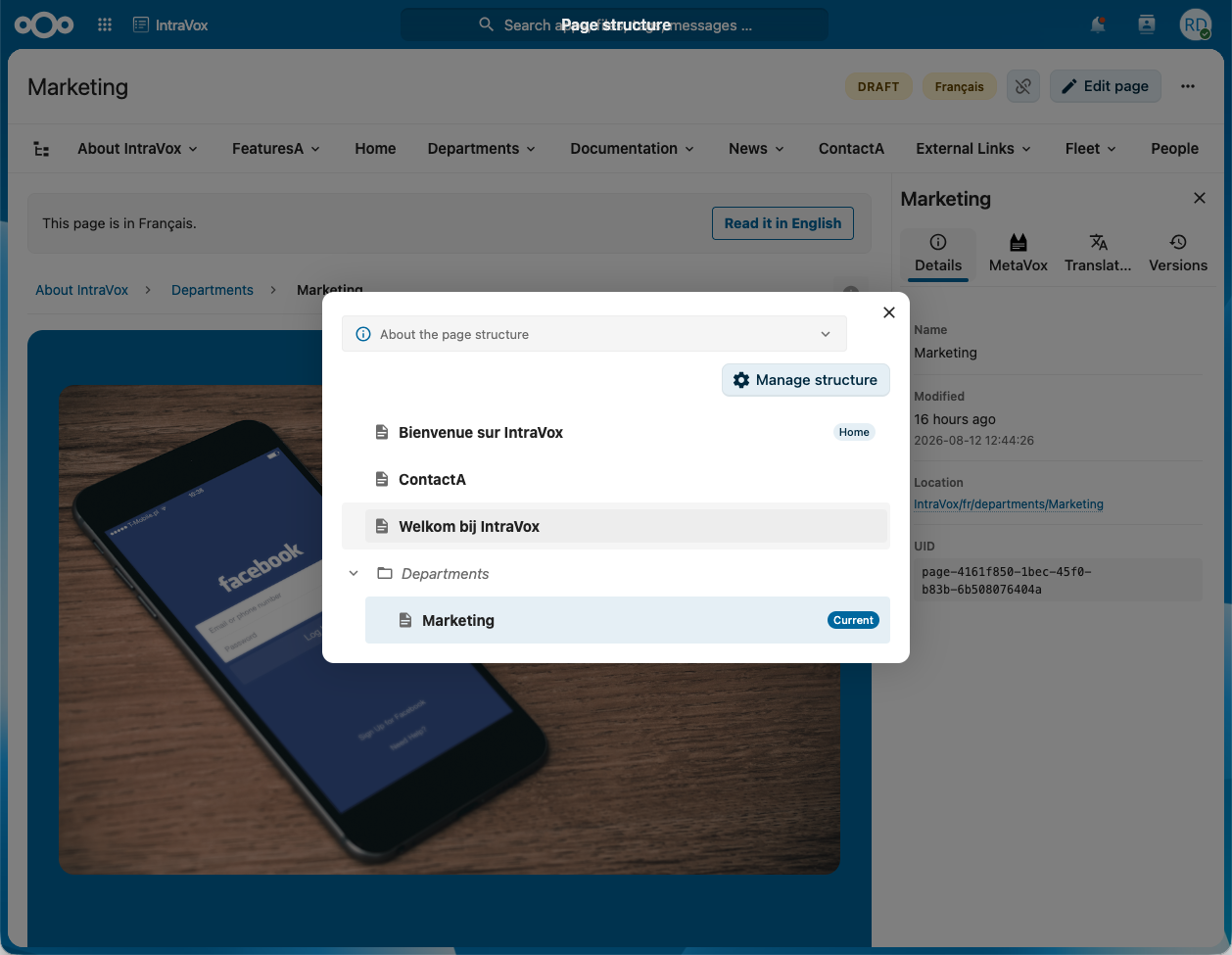 The Translations tab says how many such levels are missing before you create.
Single-language intranets
All of this stays invisible until a second language folder holds content: no Translations tab, no menu entry, no reader notices. Most intranets are single-language and should never carry multilingual UI they cannot use.
After restore or migration
Translation links live in the page files themselves; the page index only mirrors them for speed. If pages behave as if they are missing, or translations do not show, rebuild the index:
occ intravox:reindex
This is always safe: the index is a cache over the files, never the authority.
Adding a language
- In Add a language, pick the language.
- Click Add language.
What happens server-side:
- A content folder for that language is created if it doesn't exist yet, with an empty
home.jsonhomepage — so the language is immediately navigable. - Cached page trees are flushed so the language appears for its users at once.
- The language shows up in the "Languages with content" chips and, if it has bundled demo content (Dutch, English, German, French), in the Demo content table.
Bundled demo content is full-intranet quality for a few languages only (Dutch, English, German, French). For any other language you start from the empty homepage and build up from there — create pages, add navigation entries, and so on.
Removing a language
- Find the language chip under Languages with content.
- Click its × and confirm.
What happens:
- The language's content folder (all its pages, navigation, footer, comments and media) is moved to the Nextcloud trash, so nothing is lost immediately — it can be restored from the Files trash bin.
- Cached page trees are flushed so the language disappears from users' views right away.
Two languages are protected and cannot be removed:
- English — the universal fallback and source language.
- The current recommended language — pick a different recommended language first, then you can remove it.
Page counts per language
IntraVox does not cap the number of pages. The admin settings show a page count per language so you can see how they compare — the bar is relative to the busiest language, not to a limit. Removing a language moves its pages to the trash, so they drop out of the count; restoring the folder from the trash brings them back.
Common scenarios
"We only publish in English, but our users have mixed display languages"
Leave English as the recommended language (the default). Every user — whatever their Nextcloud display language — sees the English intranet, with no "change your language" notice. This is the most common single-language setup.
"We're a Dutch organisation; German/French users should see Dutch"
Set the Recommended language to Dutch. Users whose display language has no IntraVox content (e.g. German, French) are shown the Dutch intranet instead of English.
"We tried Spanish, didn't work out"
Remove the Spanish chip under Languages with content. Its folder goes to the trash; no data loss, and you can restore it later from the Files trash bin if you change your mind. (If Spanish is your recommended language, switch the recommended language first.)
"A new Transifex language reached decent coverage — let's offer it"
Add the language under Add a language. It gets an empty homepage; users in that locale then see IntraVox's own interface in their language and the empty homepage as a starting point, and you can build out its pages.
Backups
- The recommended-language setting lives in
oc_appconfig.intravox.primary_language— included in standard Nextcloud config backups. - Content folders are inside the IntraVox GroupFolder — included in standard data backups.
Restoring a backup restores both the recommended language and the content folders, exactly to the moment of backup.
Troubleshooting
"A user's display language has content, but they still see the fallback language." Content only counts when it's real (editor-authored). A freshly added language starts with an auto-generated placeholder homepage, which does not count as content until an editor saves a real page in it. Create/edit a page in that language and the fallback stops.
"After adding a language, no homepage appears."
Check the Nextcloud log for [LanguageHomepageService] errors. The most common cause is a fresh install where the IntraVox GroupFolder isn't set up yet — the Setup action under Support → Maintenance resolves it.
"I removed a language by mistake." Its folder is in the Nextcloud trash. Restore it from the Files app trash bin; the language reappears with all its pages.
See also
- Admin Settings — the Languages tab and the rest of the admin panel.