Photo Story Widget
The Photo Story Widget turns a folder of photos (and videos) into a rich visual story on an IntraVox page. It reads EXIF metadata and optional MetaVox fields to group photos by day, place them on a map, and surface the most interesting ones automatically.
It is the photo-centric counterpart to the File Story Widget: both stream content directly from a Nextcloud folder, but Photo Story is optimised for images.
Features
- Four layout modes: Timeline, Highlights, Grid, On this day
- Three timeline visual styles: Magazine (serif editorial), Clean grid (equal-sized tiles, default), Travelogue (Polarsteps-like rail)
- EXIF-driven: photos can be grouped by date taken, not just file modification date
- Optional maps: an overview map for the whole story and a mini-map per day
- MetaVox integration: filter and sort on any MetaVox field (people, subjects, locations, custom fields)
- Cross-folder search: leave the source folder blank and use filters to pull MetaVox-tagged photos from anywhere
- Federation-aware: federated mounts from partner Nextcloud instances render as a regular photo source — turn a multi-institution project page into a live shared photo wall without moving any files. See Federation below.
- Infinite scroll: folder mode pages photos in batches; a floating year-jump scrubber appears when the story spans multiple years
- Video & RAW support: tiles fall back to a typed placeholder (
VIDEO/RAW/ extension) when Nextcloud cannot render a preview; videos get a play-button overlay - Lightbox: full-screen viewer with keyboard navigation, opened from any tile or day-map photo
- Live preview inside the widget editor: see your changes apply immediately while you tweak
Layout Modes
Timeline
Photos are grouped by the day they were taken, with sticky date headers. The default mode for narratives like trips, projects, or events.
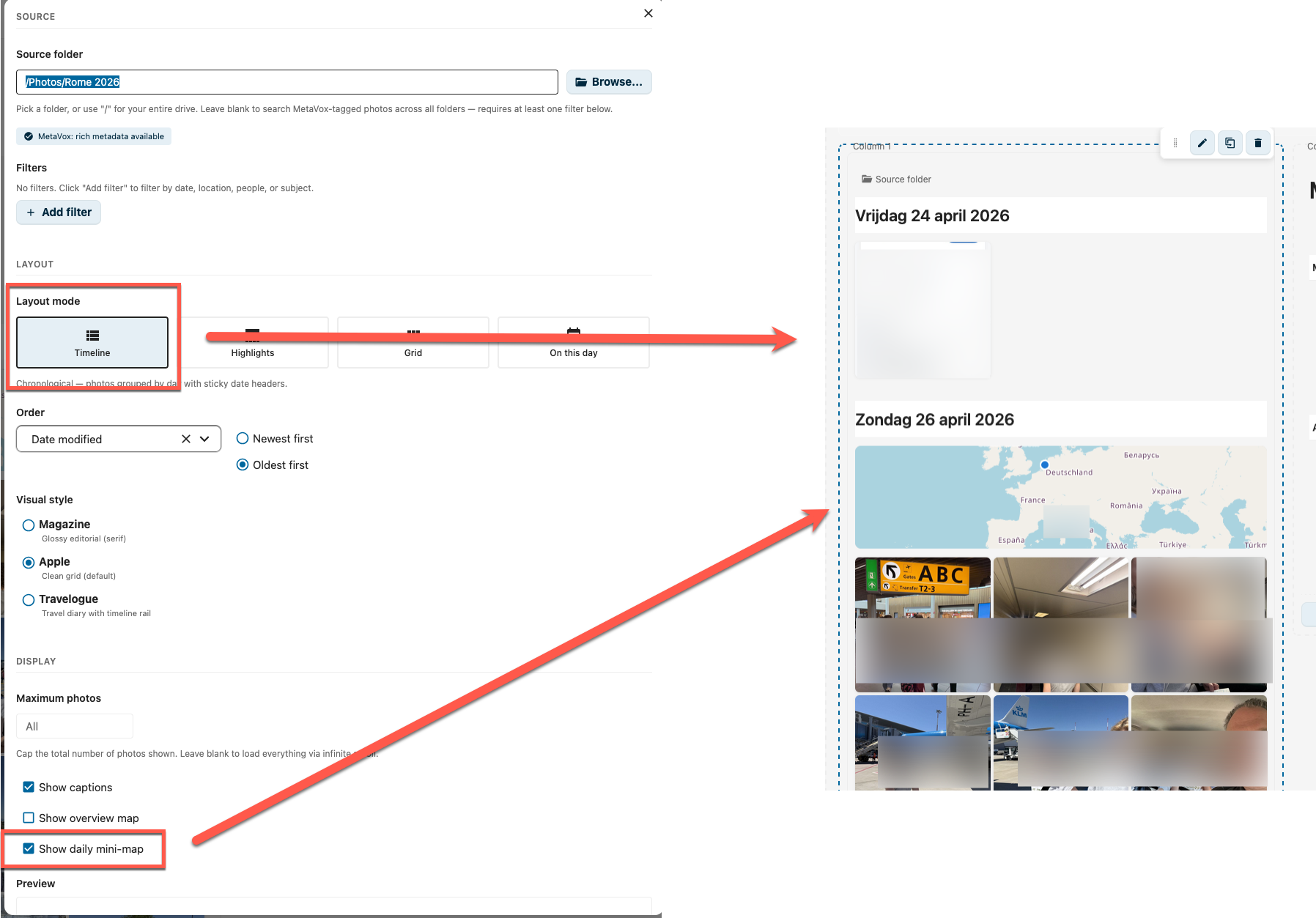
Three visual styles are available:
| Style | Look | Best for |
|---|---|---|
| Clean grid (default) | Clean square tiles in a tight 5-column grid | General-purpose timelines |
| Magazine | Editorial serif typography (Georgia), large varied tiles, 4:3 aspect, deterministic 1–3 column spans per tile | Glossy photo stories, annual reports |
| Travelogue | 60 px timeline rail with bullets per day, 2-column photo grid | Trip diaries, multi-day events |
Timeline is the only mode where the visual-style picker and the per-day mini-map toggle apply. It also gets a floating year-jump scrubber on the right when the story spans more than one year.
Highlights
Automatically curates the most interesting photos using a scoring model based on people, subjects, location, file size and EXIF cues, collapsing near-duplicates from photo bursts. The top photo is rendered as a 16:9 hero (up to 45vh tall) with overlay caption; the rest fill a two-column grid below.
Highlights has its own internal scorer and does not show the sort dropdown in the editor — order is computed for you.
Grid
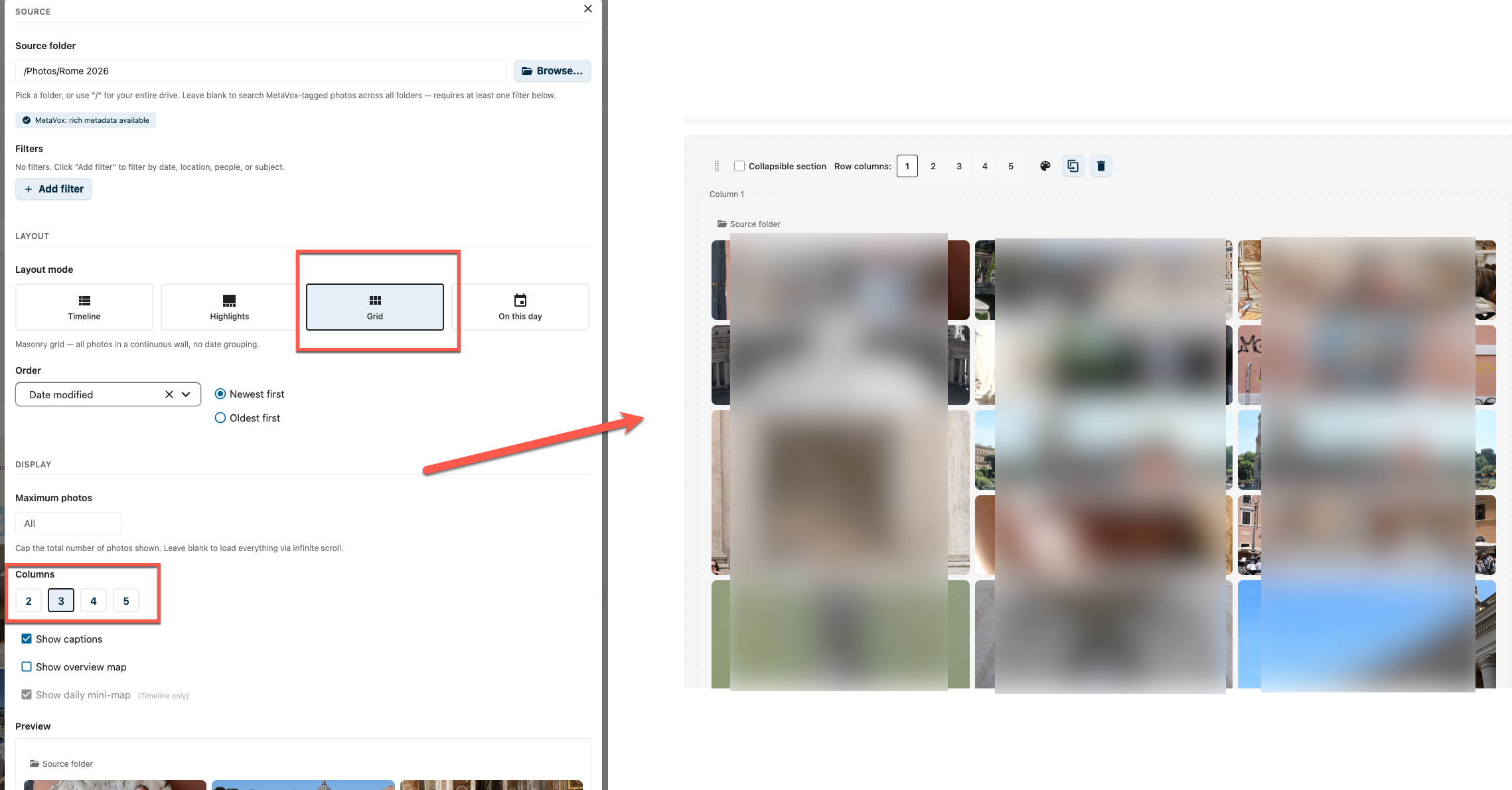
A continuous masonry wall — no date grouping. Use this when chronology is less important than visual impact. Choose between 2, 3, 4 or 5 columns; roughly one in three photos spans two rows for a varied rhythm.
On this day
Photos taken on today's date in earlier years, grouped per year (newest first). Requires a concrete source folder — it is not available in cross-folder mode.
Configuration
To add a Photo Story Widget to your page:
- Click + Add Widget in edit mode
- Select Photo Story from the widget picker
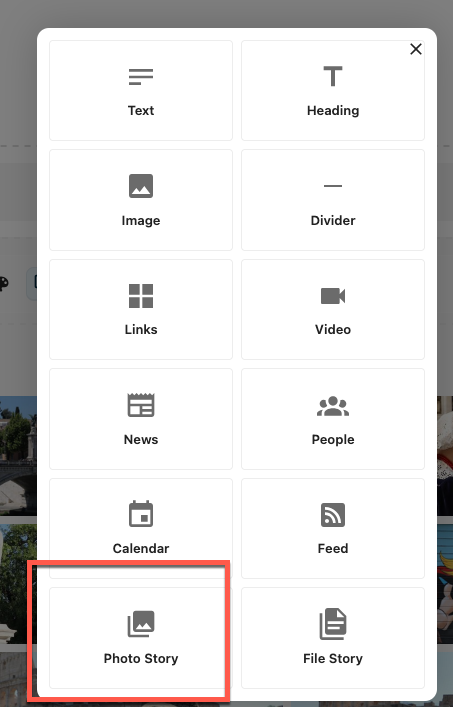
- Pick a source folder (or leave blank for cross-folder MetaVox search)
- Tune layout, sorting, and display options
- The bottom of the editor shows a live preview that updates as you change settings
Source
| Setting | Config key | Description |
|---|---|---|
| Source folder | folderPath |
The folder to read photos from. Use / for your entire drive. Leave blank with at least one filter for cross-folder MetaVox search. |
| MetaVox capability badge | — | Read-only: shows MetaVox: rich metadata available or MetaVox: basic EXIF only, based on whether the app is installed and the folder has metadata. |
| Filters | metaVoxFilters |
MetaVox field filters (only shown when MetaVox is available). Operators: equals, contains, in, year_equals. Value inputs adapt to the field type (date / year / number / checkbox / select / text). Only EXIF-namespaced fields (exif_*) are accepted by the server. |
If you leave Source folder empty without adding a filter, the widget shows a warning: "Cross-folder mode (empty source folder) requires at least one filter".
Layout
| Setting | Config key | Description |
|---|---|---|
| Layout mode | mode |
Timeline, Highlights, Grid, or On this day |
| Order | sortBy + sortOrder |
Sort by date taken (taken_at), date modified (mtime), filename, file size, or any MetaVox field (multiselect/tags/checkbox excluded). Direction labels adapt to the field type — Newest/Oldest first, A → Z / Z → A, Largest/Smallest first. Hidden for Highlights. |
| Visual style | style |
Magazine (magazine) / Clean grid (apple, default) / Travelogue (travelogue) — Timeline only |
| Columns | columns |
2 / 3 / 4 / 5 — Grid only |
When you sort on a MetaVox field, the editor shows the hint "Sorting on a MetaVox field reorders within each loaded page (best-effort across infinite scroll)."
Display
| Setting | Config key | Description |
|---|---|---|
| Long lists | paginationMode (default infinite) |
How a long list of photos is browsed: Infinite scroll loads more as you scroll; Page buttons shows a fixed number per page with Previous / Next, keeping the widget at a predictable height. Page buttons apply to the single-folder Timeline and Grid layouts only; other layouts always use infinite scroll. |
| Photos per page | pageSize (default 30) |
Page-buttons mode only: how many photos to show per page. |
| Maximum photos | limit |
Optional cap on the total number of photos (1–500), applied in both modes. Leave blank for all. |
| Show captions | showCaptions (default true) |
Show location or filename caption on tile hover |
| Show overview map | showMap (default false) |
Show a Leaflet map of all photos at the top of the widget. Disabled when the folder has no GPS or when the administrator has turned maps off globally. |
| Show daily mini-map | showDayMaps (default true) |
Show a per-day mini-map above each timeline day-header. Only applies to Timeline. |
There is no Title input in the editor — the widget derives a title from the folder name and date range on the server. A small Source folder link icon appears at the top of the rendered widget, opening the folder in Nextcloud Files.
Maps
The widget can render OpenStreetMap-based maps via Leaflet when:
- Photos have GPS coordinates in their EXIF (or via the MetaVox EXIF backfill)
- The administrator has not disabled maps globally
- The widget option is enabled
The administrator controls map availability via these IConfig keys (see Admin Settings):
| Key | Purpose |
|---|---|
photostory.map.enabled |
Master switch — disables all maps when set to no |
photostory.tiles.url |
Tile-server URL (default https://tile.openstreetmap.org/{z}/{x}/{y}.png) |
photostory.tiles.attribution |
Attribution text shown on the map |
photostory.tiles.max_zoom |
Maximum zoom level |
If the global toggle is off, the Show overview map / Show daily mini-map controls in the editor are disabled with the hint "(Disabled by administrator)".
Cross-folder MetaVox search
Leaving the Source folder field blank switches the widget into cross-folder mode: it ignores folder structure and pulls every photo that matches the MetaVox filters. This requires at least one filter — without filters the widget shows an empty state with the hint "Add a filter to start".
Cross-folder mode is emergent: there is no explicit toggle, the legacy allMetaVoxFolders flag is synced automatically from an empty source folder so older saved pages keep working. Cross-folder mode currently runs through the legacy in-memory path; it is not paginated.
Typical use cases:
- "All photos tagged with
Person = Anna" - "All photos where
Country = ItalyandYear = 2025" - "All photos with subject
Sunset"
Federation
Photo Story renders federated mounts (incoming OCM / Nextcloud-Federation shares) as a regular source: point the widget at the federated folder and partner photos appear in the same timeline / grid / highlight as everything else. Nothing is copied — the widget streams thumbnails and EXIF over the federated link, every time.
What this unlocks for hoger onderwijs / onderzoek:
- Veldwerkfoto's van een consortiumproject waarin elke deelnemende universiteit haar eigen Nextcloud beheert. Eén Photo Story-widget toont foto's van het Antarctica-veldwerk van TU Delft, het noordpool-fieldwork van Wageningen, en het laboratoriumwerk van een industriepartner — drie tenants, één tijdlijn, geen master-copy.
- Promotie- en openingsceremonies waarbij de fotograaf van het partnerinstituut zijn shoot in een eigen Nextcloud uploadt en met de gastinstelling federeert. De intranetpagina van de gastinstelling toont de ceremonie binnen minuten, zonder dat de bestanden ergens hoeven te dupliceren.
- Studentprojecten over instellingen heen: docenten van twee hogescholen kunnen één gezamenlijke projectpagina draaien waar de studenten van beide kanten hun output uploaden naar hun eigen Nextcloud-omgeving — de pagina toont alles in één Photo Story.
Federation-bewuste degradatie volgt dezelfde logica als de File Story Widget:
- MetaVox-velden (mensen, onderwerpen, locaties) komen van de eigenaar-instance; ze reizen niet mee over OCM. Filters en sort-op-MetaVox-veld worden verborgen voor federated sources.
- EXIF dat in het bestand zelf zit (date taken, GPS) blijft beschikbaar — Photo Story leest dat aan de viewer-kant.
- Per-foto verschijnt een klein cloud-badge dat aangeeft dat de tile van een federated source komt.
- Maps werken: GPS uit EXIF heeft geen owner-side database nodig en wordt gewoon op de overzichtskaart geplot.
De widget her-controleert federation-status op elke /photos request — een eerder opgeslagen config waarbij de bron later federated raakt, valt niet stilletjes uit.
Performance
- ETag / 304: every
/photosresponse carries a per-user ETag (UID baked into the hash, so it cannot leak across tenants). Subsequent requests sendIf-None-Match— when nothing changed the server returns304 Not Modifiedwithout recomputing. - Client-side payload cache: the widget keeps an in-memory LRU of 8 payloads keyed by source folder + mode + filters + sort. Switching modes (Grid → Timeline → Grid) restores instantly without a round-trip. Paged mode (folder Timeline + Grid) skips this cache to preserve infinite-scroll state.
- Paged path: folder-mode Timeline + Grid stream in pages of 200 photos via an IntersectionObserver with an 800 px root-margin. Highlights, On this day, and cross-folder mode use the legacy in-memory path.
- Hard cap: 200 000 files per folder tree. Beyond that the response is marked
truncated: trueand a yellow banner appears: "Showing first {n} photos. Use filters or a more specific folder to narrow the selection." - Debounce: editor changes are debounced 250 ms before triggering a fetch.
requestIdleCallbackis used on mount so the first fetch doesn't block initial page render.
API
The widget calls the following endpoints (all under /apps/intravox/api/photo-story/):
| Endpoint | Verb | Purpose |
|---|---|---|
/photos |
GET | List photos with grouping, sorting, pagination, ETag. Params: folder, mode, filters (JSON), limit, offset, pageSize (max 500), sortOrder, sortBy, optional total hint. |
/clusters |
GET | Map cluster aggregates for the overview map. Params: folder. |
/capabilities |
GET | { capabilities: { hasDate, hasLocation, hasPeople, hasSubjects }, metaVoxAvailable, map: { enabled, tile_url, attribution, max_zoom } } |
/photo-exif |
GET | Per-photo EXIF for the lightbox detail panel. Params: file_id. |
/video |
GET | HTTP-Range-aware video stream (Accept-Ranges: bytes, 206 responses). Params: file_id. |
/metavox-fields |
GET | List of available MetaVox fields (used for the filter and sort dropdowns) |
Only indexed files are shown
Photo Story queries Nextcloud's oc_filecache directly via SQL — it does not perform live filesystem walks. This is the same fast path Nextcloud itself uses for search and listing. The consequence is that files that are not in the file cache are invisible to the widget, even if they exist on disk.
Files are normally indexed automatically when they're uploaded through:
- The Nextcloud web UI
- The desktop sync client
- Mobile apps
- WebDAV (most clients)
Files can become out-of-sync with the cache when they're added directly to disk (e.g. rsync, cp, server-side scripts) bypassing Nextcloud's storage layer. In that case the Files-app may still show them (it does a one-time live check on directory listing — see IWatcher::CHECK_ONCE), but Photo Story will not until the index is updated.
To bring the cache back in sync:
# Whole user
occ files:scan <username>

# A single folder
occ files:scan --path="/<username>/files/Photos/MyAlbum"

# Everything (slow on big instances)
occ files:scan --all
For installations where files arrive from external scripts regularly, schedule occ files:scan from cron, or — better — make the upload path go through Nextcloud's storage API instead of writing files directly.
The widget does not trigger a scan itself: scans on a populated folder can take seconds to minutes, and triggering them on every widget-render would degrade the page-load badly. NC follows the same principle — the Files-app only re-checks file metadata, never adds missing entries.
Supported file formats
Photo Story includes any file whose mime-type falls in one of these groups:
Common image formats: JPEG, PNG, WebP, GIF, SVG, BMP Photography-grade: HEIC, HEIF, TIFF Raw camera formats: Canon CR2/CR3, Nikon NEF, Sony ARW, Adobe DNG, dcraw Video: MP4, MOV/QuickTime, AVI, MPEG, WMV, WebM
Files with other mime-types are silently skipped. If users upload photos with an exotic format (e.g. AVIF) and they don't appear, that's the reason — the format isn't in the widget's mime allowlist.
Why some tiles show a placeholder instead of a preview
Photo Story renders thumbnails via Nextcloud's /core/preview endpoint. For each file Nextcloud asks its preview-provider chain (see config.php → enabledPreviewProviders) to generate a JPEG. If no provider can handle the mime-type for that file, the widget falls back to a placeholder tile with the file extension as a badge.
Common reasons:
- Mime-type not in
enabledPreviewProviders— admin should add the missing provider. Common gaps: image/heicandimage/heifrequireOC\Preview\HEIC(NC 28+) and server-sidelibheifimage/webpis enabled by default inOC\Preview\Image, but only if Imagick or GD's WebP support is presentimage/svg+xmlrequires the explicitOC\Preview\SVGprovider (off by default for security)- Raw camera formats (CR2/NEF/ARW/DNG) need
OC\Preview\Imaginarywith theimaginaryexternal service, or thepreviewgeneratorapp with a wrapper script - File too large — preview generation is capped by
preview_max_filesize_image(default 50 MB). Larger photos get the placeholder - File hasn't been pre-rendered yet — for very large libraries, install the previewgenerator app and run
occ preview:generate-allonce. After that all tiles render instantly - Video previews require server-side
ffmpegin Nextcloud's preview chain; without it videos fall back to a typed placeholder tile with a play-button overlay
Tip: open one of the affected files via NC's Files app and check the preview pane. If even Files shows a generic icon, the preview-provider issue is server-side, not specific to IntraVox.
Requirements
- IntraVox 1.5.0 or higher (Photo Story widget is shipping in a 1.5.x preview build)
- MetaVox app (optional, strongly recommended for filtering, sorting, and people/place metadata)
- Photos with EXIF metadata (date taken, GPS) for the richest experience
- Leaflet-compatible map tiles configured by the administrator (optional, for maps)
- A working Nextcloud preview-provider chain for the formats you want to show (see "Why some tiles show a placeholder" above)
Limitations (current preview)
- The widget is still in active development; layouts and option names may change.
- Sorting on a MetaVox field is best-effort across infinite-scroll pages — within each page the sort is exact, but across page boundaries some interleaving can occur.
- Cross-folder mode is not paginated — it loads the full result set into memory. Add filters to keep the result set reasonable.
- Highlights and On this day always use the legacy in-memory path; they ignore the 200-photo page size and load everything up to the 200 k hard cap.
- Video previews require server-side
ffmpegin Nextcloud; without it videos fall back to a typed placeholder tile with a play-button overlay. - Map rendering depends on Leaflet; admins can disable maps globally if they do not want third-party tile traffic.
- The year scrubber is hidden when the widget is narrower than 500 px.
Related
- File Story Widget — documents-centric counterpart
- News Widget — page-centric counterpart with publication dates
- MetaVox EXIF backfill — how to fill MetaVox fields from EXIF for legacy photos